
Getting locked out of your device because you forgot the PIN or pattern is incredibly frustrating. If you are wondering how to unlock samsung tablet without password, you have several reliable paths to regain access. Depending on your device settings and Android version, you might be able to bypass the lock screen remotely or perform a system reset to start fresh.

Quick Ways to Regain Access
If you need to unlock your device quickly, your options depend on what you set up beforehand and whether you have a backup. Here is a brief overview of the most effective approaches:
- SmartThings Find: Remotely unlock the device if you previously enabled this feature and signed into your Samsung account.
- Previous Password: For newer tablets running One UI 6.1 or later, you can sometimes use your old password within 72 hours of changing it.
- Recovery Mode: Perform a hard reset using the physical buttons, which will erase all local data but remove the lock screen.
Comparing Samsung Tablet Unlock Strategies
Unlock Method | Data Status | Prior Setup Needed | Execution Style | Ideal Use Case |
SmartThings Find | Retained | Yes | Remote | Device is online with remote unlock enabled |
Previous Password | Retained | Yes | On-device | Password was changed within the last 72 hours |
Recovery Mode | Erased | No | Manual | Standard fallback for offline or unprepared devices |
Tenorshare 4uKey | Backup recommended | No | Automated |
Method 1: Unlock Remotely Using SmartThings Find
The safest way to bypass Samsung tablet pin without losing data is through Samsung's official remote tracking service. If your tablet is connected to Wi-Fi and logged into your Samsung account with the "Remote unlock" feature enabled, you can clear the lock screen from another device. Additionally, if your tablet recently updated to One UI 6.1 or newer, you might be prompted to enter your previous password if you changed it within the last 72 hours.
- Open a web browser on another computer or phone and navigate to the SmartThings Find website.
- Log in using the exact Samsung account credentials associated with your locked tablet.
- Select your tablet from the list of linked devices on the left side of the screen.
- Click the Unlock icon in the remote management menu and confirm your Samsung account password to proceed.

Once confirmed, the tablet will remove its current PIN, pattern, or password, allowing you immediate access to your home screen.
Method 2: Factory Reset Locked Samsung Tablet via Recovery Mode
If you never enabled remote unlocking or the tablet is offline, you will need to factory reset locked Samsung tablet using its physical hardware buttons. This method forces the device into Android Recovery Mode. Because this process wipes the device entirely, it will delete all local photos, apps, and files that are not backed up to the cloud.
- Press and hold the Power and Volume Down buttons simultaneously until the tablet powers off.
- Immediately press and hold the Power and Volume Up buttons until the Samsung logo appears, then release them to enter Recovery Mode.
- Use the volume buttons to navigate down to Wipe data/factory reset and press the Power button to select it.
- Select Factory data reset to confirm the action and wait for the formatting process to finish.
- Choose Reboot system now to restart your tablet.

After the reboot, the tablet will start on the initial setup screen, and you will need to enter your Google account credentials if Factory Reset Protection (FRP) is active.
Method 3: Remove Screen Lock on Samsung Galaxy Tab With a Dedicated Tool
When hardware buttons fail, or you repeatedly struggle to enter Recovery Mode, a dedicated desktop application can automate the reset process. Tenorshare 4uKey for Android is designed to remove screen lock on Samsung Galaxy Tab by guiding you through the necessary firmware and reset protocols. This is especially useful if the system is unresponsive to standard manual button combinations.
Like a manual hard reset, using this software will erase the local data on the device to clear the forgotten password.
4uKey for Android enables you to access your Android device again without any passcode. To get started, please download and install Tenorshare Android Unlocker on your computer first.
Launch the program and select the "Remove Screen Lock" feature.

Then select the respective brand to initiate the unlocking process.
Step 1: Choose Remove Screen Lock
For other Samsung, choose “Clear device data” option. For non-Samsung Android devices, select the respective brand and click "Start" to initiate the unlocking process. The software will automatically identify the brand of your device. If it shows incorrect device brand, click “Is your phone not from this brand?” to select the device brand that needs to remove the Screen Lock and then click Start to begin.

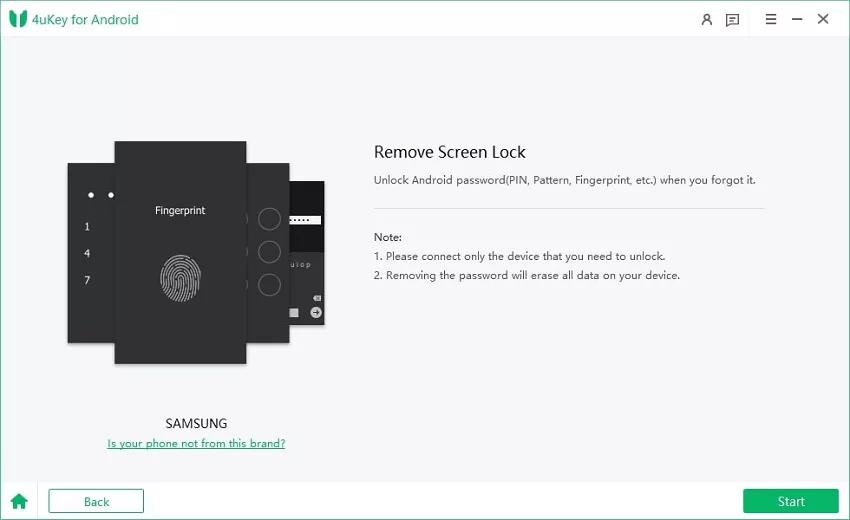
Step 2: Confirm and Remove Lock Screen
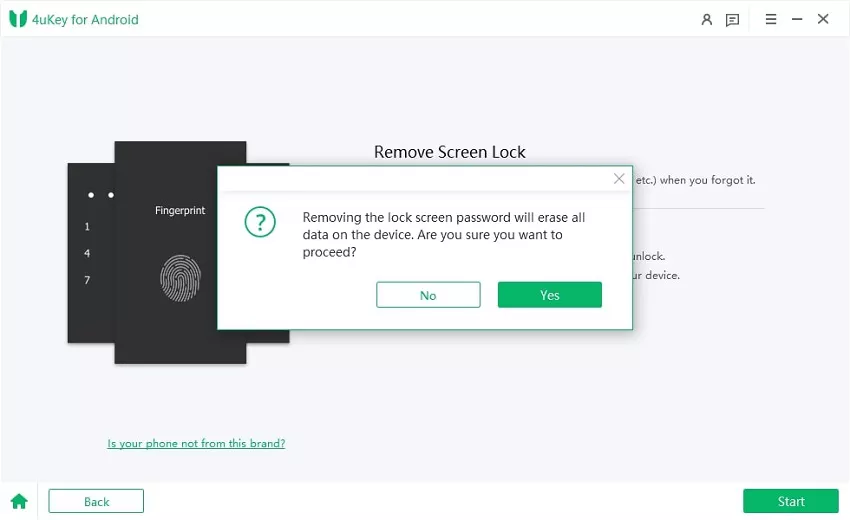
Then you must confirm that "Removing the lock screen password will erase all data on the device". If you are sure, just click button "Yes", then Tenorshare 4uKey for Android will start to remove lock screen automatically.
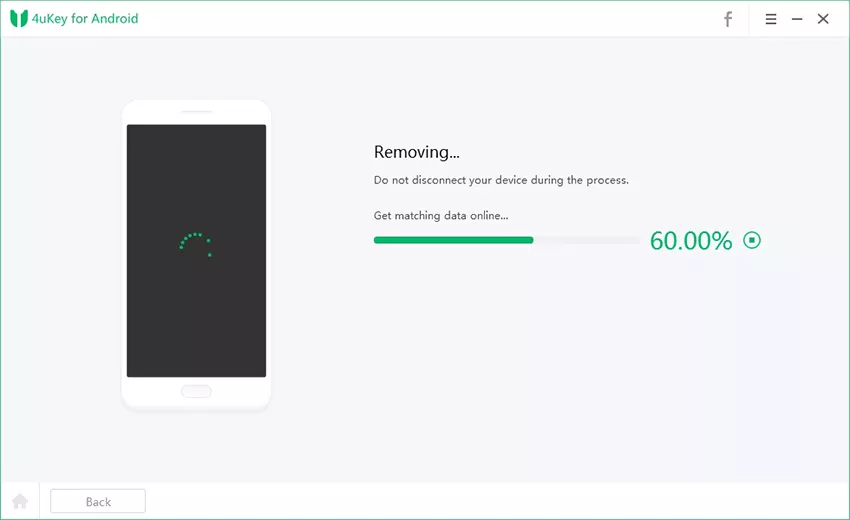
Note: If you are using a Samusung device, the removing process will be completed successfully here, you don't need to follow the instructions below.
Step 3: Enter Recovey Mode
Once the removing process is done, you will be asked to enter recovery mode and perform a factory reset on the Android phone.
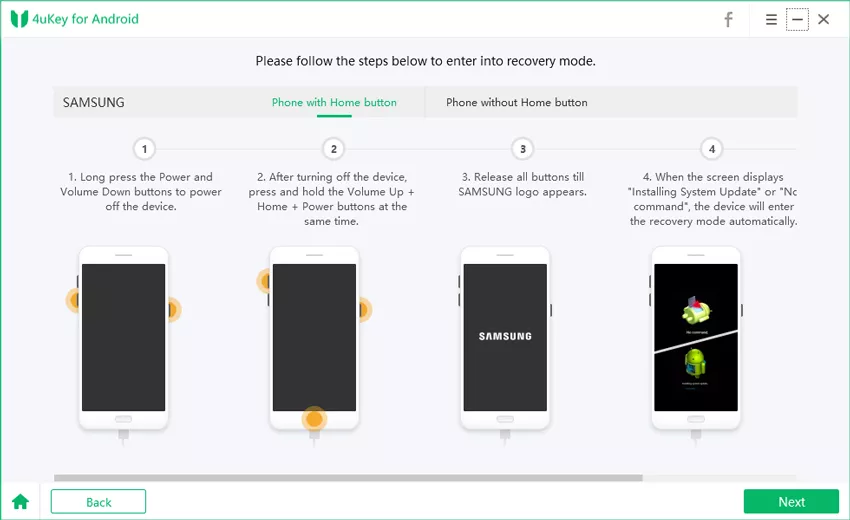
Step 4: Screen Lock Removed Successfully
At last, 4uKey for Android will automatically remove the lock screen. A few minutes later, you will see the whole process completely.
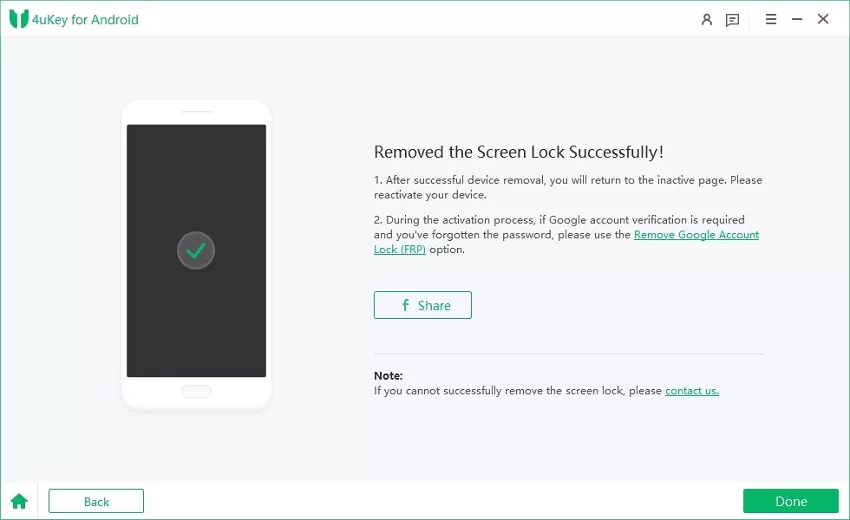
Once the software completes its cycle, your tablet will reboot without the previous lock screen, allowing you to set up a new PIN or pattern.
How to Prevent Getting Locked Out of Your Tablet
Losing access to your device often results in unwanted data loss if a hard reset is required. To avoid this scenario in the future, take a few minutes to configure alternative access methods and secure your data.
- Enable Remote Unlock: Go to your tablet settings, find the Samsung account options, and ensure SmartThings Find is active with remote unlocking toggled on.
- Register Biometrics: Set up multiple fingerprints and facial recognition so you do not have to rely solely on a typed PIN.
- Maintain Cloud Backups: Regularly sync your photos and app data to Google Drive or Samsung Cloud so a factory reset does not permanently destroy your files.
Choosing the Right Unlock Strategy
Regaining access to your device depends heavily on your prior settings. If you prepared ahead of time, the official SmartThings Find portal is the fastest way to bypass the lock screen without losing data. If that is not an option, a manual factory reset via Recovery Mode is the standard fallback. For users who struggle with hardware button combinations or face persistent system errors, using a dedicated desktop tool provides a guided, automated alternative to clear the lock.
FAQ
Q: Can I bypass a Samsung tablet PIN without losing data?
A: You can only keep your data if you previously enabled the "Remote unlock" feature in SmartThings Find, or if you are running One UI 6.1+ and changed your password within the last 72 hours. Otherwise, removing a forgotten lock screen requires a factory reset, which erases local files.
Q: What happens if my tablet asks for a Google account after a reset?
A: This is Factory Reset Protection (FRP), a security feature designed to deter theft. You must enter the Google email and password that were previously synced to the tablet to complete the setup process.
Q: Will Tenorshare 4uKey save my photos while unlocking?
A: No. Removing a forgotten password on modern Android devices requires wiping the system data. Tenorshare 4uKey automates the reset process, but you will still need to restore your photos from a cloud backup afterward.

