
It is incredibly frustrating when your Android phone not accepting correct password leaves you completely locked out of your own device. This issue often stems from temporary OS glitches, faulty system updates, or third-party admin apps like Microsoft Intune overriding your security settings. Fortunately, you can often regain access using free, official troubleshooting steps before resorting to a full system reset.

Why Won't My Android Accept My Lock Screen Password
A phone will reject a password for only two reasons:
- The password entered is incorrect.
- The screen is damaged and not registering input properly.
If you're using an alphanumeric password, try connecting a USB keyboard to the phone and typing it that way.
For a pattern lock, try using a mouse instead. These workarounds eliminate the screen sensor as a variable.
If the phone still doesn’t accept the password, then the password itself is wrong—either because it was changed and you don’t remember, or you're simply misremembering it.
Method 1: Force Restart to Clear OS Glitches
When your android phone says wrong password but it's correct, a simple force restart is the safest first step. This method forces the operating system to reboot, clearing out temporary memory glitches or minor update errors that might be causing the lock screen to malfunction.
- Press and hold the Power button and the Volume Down button simultaneously.
- Keep holding both buttons for about 10 to 15 seconds until the screen goes black.
- Release the buttons when the manufacturer logo appears on the screen.
- Wait for the device to boot up completely, then attempt to enter your PIN or password again.

A force restart will not delete any of your saved data, making it the ideal starting point for sudden lock screen rejections.
Method 2: Unlock Remotely via Find My Mobile or Find My Device
If a restart fails and you are wondering why won't my android accept my lock screen password, official remote management tools can help. Samsung users can utilize the SmartThings Find feature to unlock the device without data loss, provided the feature was previously enabled. For other brands, Google's Find My Device can force a factory reset to remove the lock, though this will erase local data.
Differences Between Remote Unlock and Device Erase Methods
| Recovery Tool | Supported Devices | Data Loss | Internet Required | Key Requirement |
| Samsung SmartThings Find | Samsung only | No | Yes | Feature pre-enabled |
| Google Find My Device | All Androids | Yes | Yes | Linked Google account |
| Tenorshare 4uKey | Most Androids | Varies | No | Computer connection |
- For Samsung devices, navigate to the SmartThings Find website on a computer and log in with your Samsung account.
- Select your locked phone from the device list and click the Unlock option to remotely remove the screen lock information.
- For non-Samsung devices, go to the Google Find My Device website and log in with the Google account linked to the phone.
- Select your device and choose Erase Device to perform a remote factory reset, which removes the password but also deletes all local files.
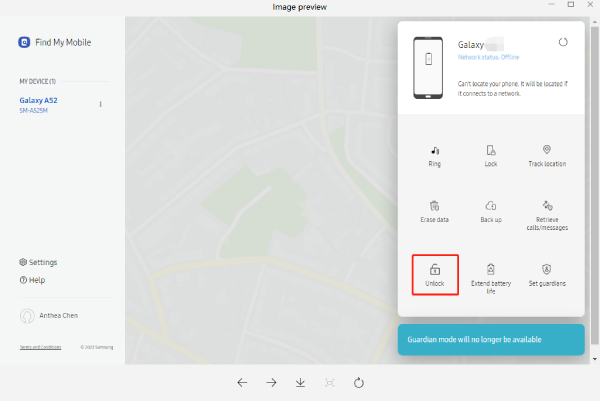
Using Google's erase option carries a high data-loss risk if you do not have a recent cloud backup, while Samsung's unlock feature is a safer alternative if you meet the prerequisites.
Method 3: Fix Android Phone Not Recognizing Correct Passcode via PC
When official remote options are unavailable or your device is completely disconnected from the internet, you may need to fix an android phone not recognizing correct passcode using a dedicated tool. Tenorshare 4uKey for Android is designed to bypass malfunctioning lock screens, PINs, and patterns when standard recovery methods fail.
This software forces the removal of the security lock directly through your computer. Be aware that for most non-early Samsung models, this process will erase the device data to reset the security parameters.
4uKey for Android enables you to access your Android device again without any passcode. To get started, please download and install Tenorshare Android Unlocker on your computer first.
Launch the program and select the "Remove Screen Lock" feature.

Then select the respective brand to initiate the unlocking process.
Step 1: Choose Remove Screen Lock
For other Samsung, choose “Clear device data” option. For non-Samsung Android devices, select the respective brand and click "Start" to initiate the unlocking process. The software will automatically identify the brand of your device. If it shows incorrect device brand, click “Is your phone not from this brand?” to select the device brand that needs to remove the Screen Lock and then click Start to begin.

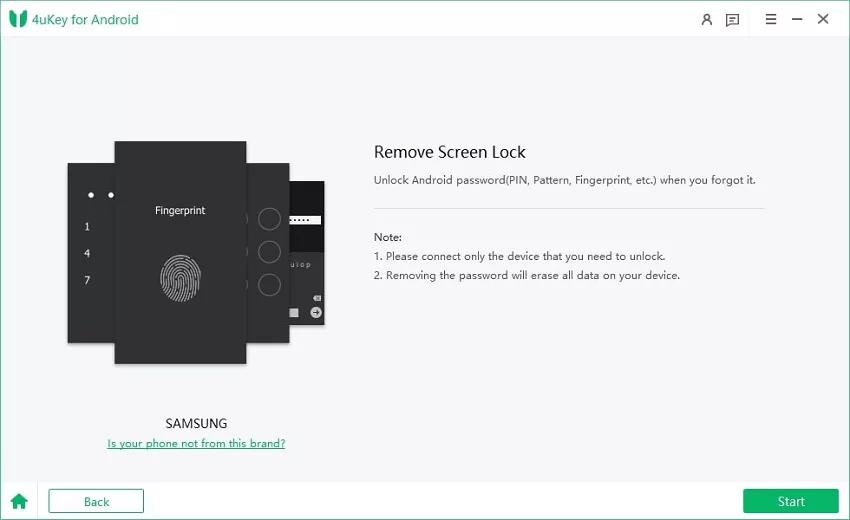
Step 2: Confirm and Remove Lock Screen
Then you must confirm that "Removing the lock screen password will erase all data on the device". If you are sure, just click button "Yes", then Tenorshare 4uKey for Android will start to remove lock screen automatically.
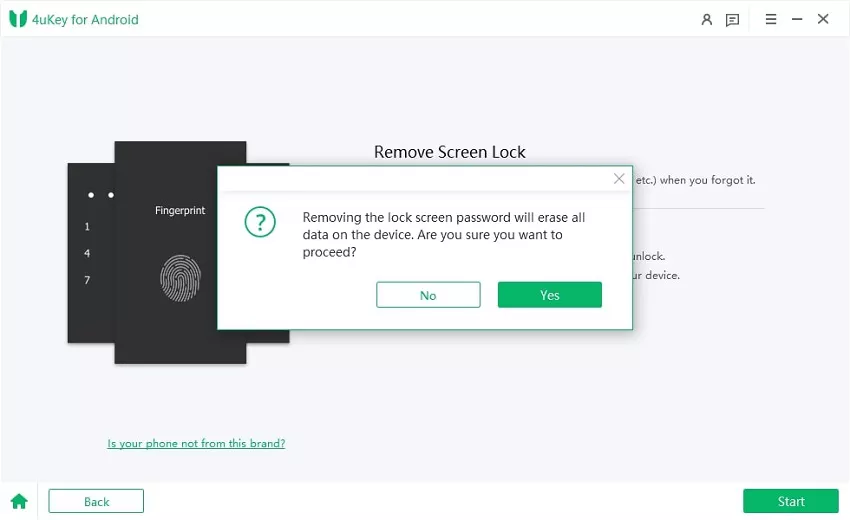
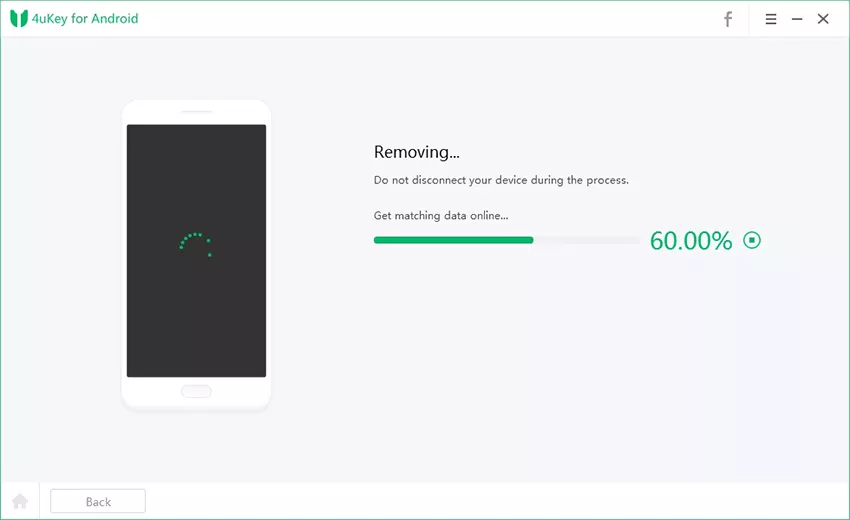
Note: If you are using a Samusung device, the removing process will be completed successfully here, you don't need to follow the instructions below.
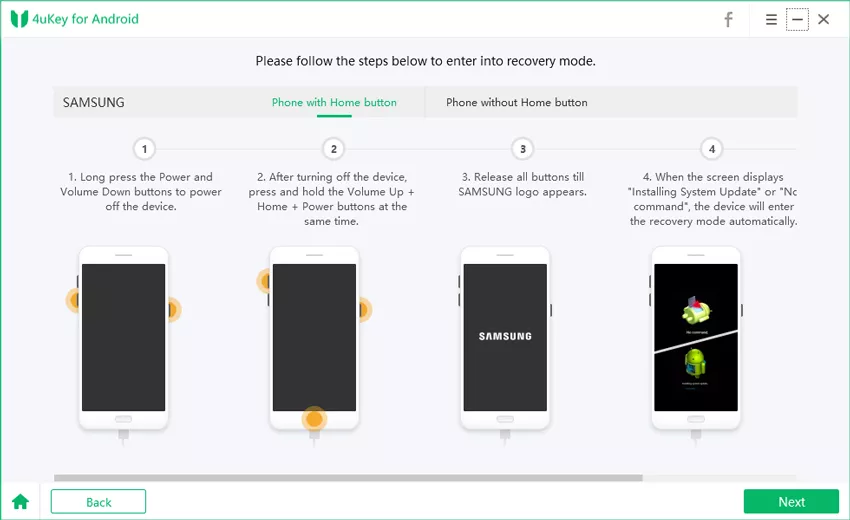
Step 3: Enter Recovey Mode
Once the removing process is done, you will be asked to enter recovery mode and perform a factory reset on the Android phone.
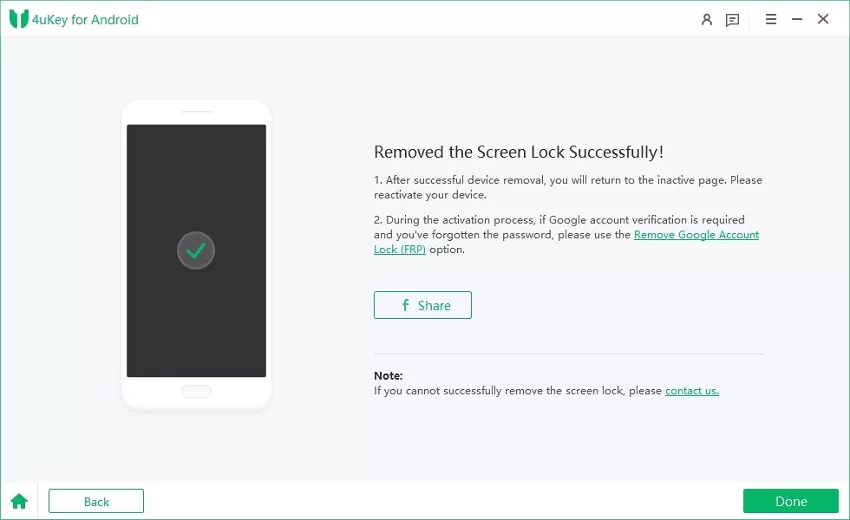
Step 4: Screen Lock Removed Successfully
At last, 4uKey for Android will automatically remove the lock screen. A few minutes later, you will see the whole process completely.
Relying on a desktop unlocker is highly effective for persistent lockouts, but you will need to restore your apps and photos from a previous backup once the phone reboots.
How to Prevent Lock Screen Rejection in the Future
To avoid being locked out by a system glitch again, it is crucial to manage your device settings carefully. Third-party security profiles and delayed updates are common culprits for password rejection.
- Regularly back up your device to Google Drive or a local computer so you can safely perform a factory reset if needed.
- Review permissions for third-party admin apps, such as Microsoft Intune or corporate security profiles, which can override your personal lock screen settings.
- Keep your Android OS updated to the latest version to patch known bugs that cause the lock screen to freeze or reject inputs.
- Set up biometric alternatives like fingerprint or face unlock as a secondary access method in case the PIN pad malfunctions.
Final Thought
Dealing with an Android phone not accepting correct password requires a systematic approach to avoid unnecessary data loss. Always start with a force restart to clear temporary software bugs. If that fails, check if your device is eligible for a remote unlock via Samsung's official tools. When all baseline methods are exhausted or the phone remains unresponsive, utilizing a dedicated tool like Tenorshare 4uKey can force the lock screen removal, though you must be prepared to restore your data from a backup afterward.
FAQ
Q: Why is my Android lock screen password not working after restart?
A: This often happens due to a corrupted system cache, a faulty recent OS update, or a glitch in the security module that prevents the system from verifying the correct input.
Q: Will bypassing the lock screen delete my photos and apps?
A: Yes, in most cases. Unless you are using Samsung's specific remote unlock feature, removing a forgotten or glitched password requires a factory reset, which erases all local data. You will need a cloud backup to restore your files.
Q: How to unlock android phone when password won't work and I have no internet?
A: If the device is offline, remote tools like Find My Device will not work. You will need to boot into Recovery Mode manually using the hardware buttons to perform a factory reset, or use a desktop tool like Tenorshare 4uKey via a USB connection.

