
An iPad security lockout is a built-in protective measure triggered when you enter an incorrect passcode too many times. To regain access, you must erase and reset the device, which removes the forgotten passcode but also wipes all local data. You can perform this reset directly on the screen or by connecting the tablet to a computer.

Is It Possible to Recover an iPad After Security Lockout?
Yes, you can always restore a locked iPad to working condition, but there is a major catch regarding your personal data. Because Apple encrypts your files behind the passcode, all methods to bypass a forgotten iPad passcode will result in a complete data wipe.
If you have an existing iCloud or computer backup, you can easily restore your data, apps, and settings after the reset. If no backup exists, the device will be wiped clean and set up as new. The lockout timer increases with each failed attempt, starting from one minute and eventually reaching a permanent lockout state where no more guesses are allowed.
Erase iPad After Security Lockout Without a Computer
If your tablet is running iPadOS 15.2 or newer, Apple provides a direct way to reset the device without needing a Mac or PC. This is the fastest iPad unavailable fix, but it requires specific conditions to work.
Before starting, ensure your iPad is connected to a cellular or Wi-Fi network, and that you know the Apple ID password previously used to set up the device.
- Keep entering the wrong passcode until the Erase iPad option appears at the bottom of the screen.
- Tap Erase iPad, then tap it again to confirm you want to wipe the device.
- Enter your Apple ID password to sign out of your account and disable Activation Lock.
- Wait for the iPad to restart, wipe all data, and boot to the setup screen.
- Once the reset finishes, you can follow the on-screen prompts to restore your iPad from a recent iCloud backup.

Reset iPad Without Passcode Using Recovery Mode
If your device lacks an internet connection, is running an older iOS version, or the on-screen erase button does not appear, you must use a computer. Putting the device into recovery mode allows iTunes or Finder to force a factory reset.
This method requires a Mac or a Windows PC with iTunes installed, along with a compatible USB cable.
- Turn off your iPad completely.
- Press and hold the correct button for your model (the Top button for iPads without a Home button, or the Home button for older models) while immediately connecting it to the computer.
- Keep holding the button until the recovery mode screen appears on the iPad.
- Open Finder or iTunes on your computer and locate your connected iPad.
- When prompted to Restore or Update, choose Restore to download the latest iPadOS software and erase the device.
If the download takes longer than 15 minutes, your iPad will exit recovery mode automatically. You will need to wait for the download to finish and repeat the button sequence.

When Basic Fixes Fail: Unlock Disabled iPad with 4uKey
Sometimes the standard Apple methods do not work as expected. You might encounter iTunes errors, broken hardware buttons that prevent recovery mode, or a frozen screen that stops you from tapping the erase prompt. In these situations, a dedicated unlock tool can help you bypass the iPad passcode too many attempts error.
Tenorshare 4uKey is designed to remove the lock screen passcode, Touch ID, or Face ID when standard resets fail. It automates the firmware download and reset process, making it easier to recover your device.
Step 1: Download and Install 4uKey
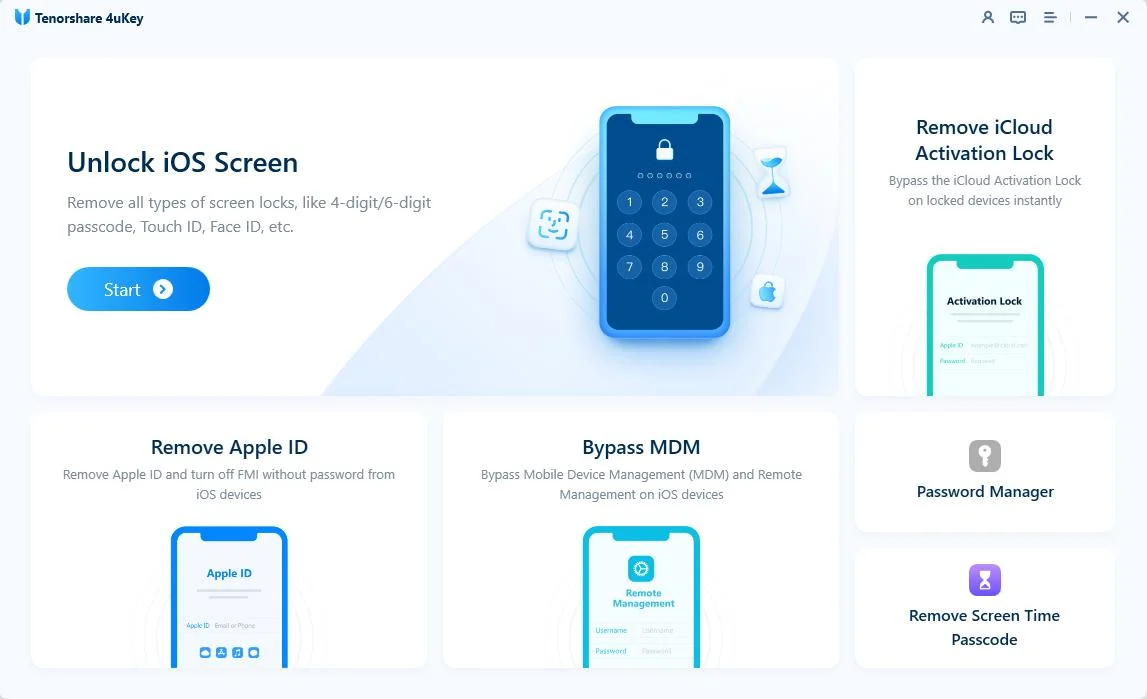
Download and install 4uKey on your PC or Mac, launch the program and click "Start" to begin unlocking lock screen passcode.
Step 2: Connect iPad to Computer
Connect iPad to the computer via a USB cable. The software will detect it automatically.
If your device can't be detected, please follow below steps to put your device into "Recovery Mode" or "DFU Mode" to get it detected.

Step 3: Download Firmware Package
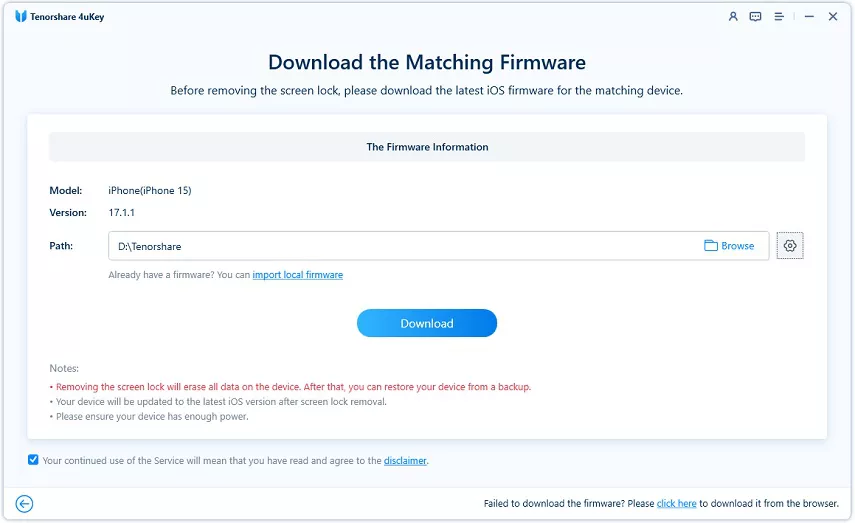
Now you'll be asked to download the latest firmware package. Choose a save path and click "Download" to proceed. (Note: Please make sure that your computer has at least 7G space to download the firmware package.)
Step 4: Start Unlocking iPhone Lock Screen
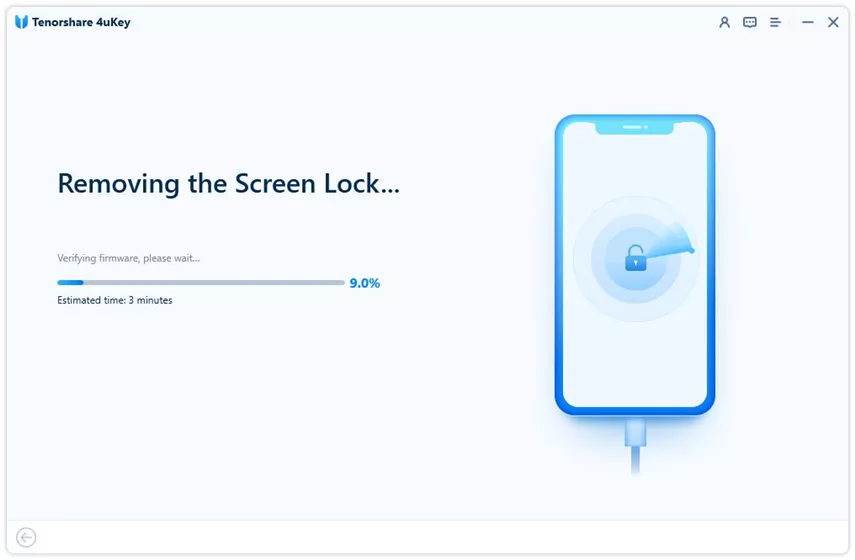
When the firmware is downloaded to computer, 4uKey will start removing iPhone passcode automatically. The whole process takes several minutes. Please keep the device connected in the process.
Step 5: Removed Passcode Successfully
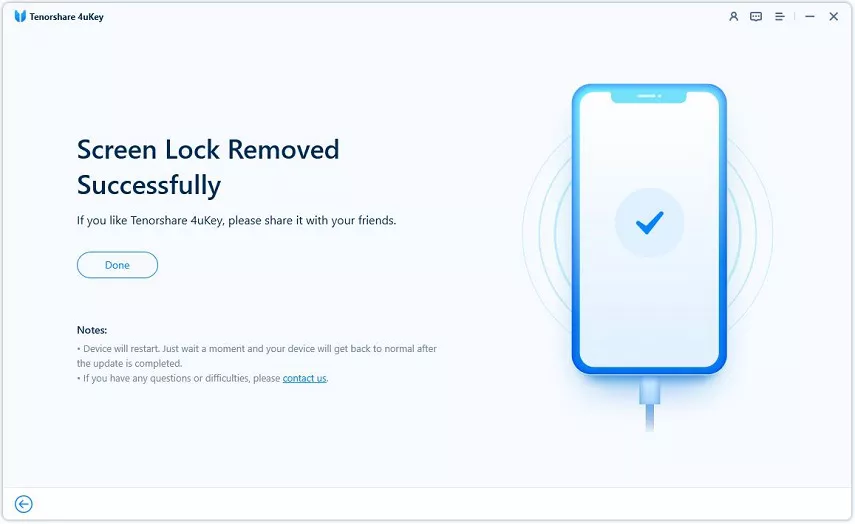
When iPhone passcode has been removed successfully, you can set up your iPhone as new, including passcode, Touch ID and Face ID settings. If you have a previous iTunes/iCloud backup, you can restore iPhone from backup.
How to Prevent Permanent iPad Lockouts in the Future
Once you regain access to your device, taking a few preventive steps will ensure you never lose your data to a forgotten passcode again.
- Set up biometric login: Enable Face ID or Touch ID immediately to reduce how often you need to type your passcode manually.
- Enable automatic iCloud backups: Go to Settings, tap your name, select iCloud, and turn on automatic backups so your data is saved daily when connected to Wi-Fi and power.
- Avoid blind guessing: If you forget your passcode, stop guessing after the third or fourth attempt to avoid triggering a long security timeout.
- Keep Find My enabled: This ensures you can always use the remote wipe or on-screen erase features if you get locked out again.
Conclusion
Dealing with an iPad security lockout requires erasing the device to remove the forgotten passcode. If your tablet is connected to Wi-Fi and running a recent iPadOS version, the on-screen erase option is the fastest route. For offline devices, using recovery mode via iTunes or Finder is the standard fallback. When hardware buttons fail or iTunes throws persistent errors, Tenorshare 4uKey provides a reliable alternative to force the reset.
Regardless of the method you choose, restoring from a previous backup is the only way to recover your personal data after the lock is removed.
FAQ
Q: How long is the iPad security timeout before it locks permanently?
A: The timeout starts at one minute after several failed attempts, then increases to 5 minutes, 15 minutes, and 1 hour. After 10 consecutive incorrect guesses, the iPad will permanently lock or erase itself if that setting was enabled.
Q: Can I fix an iPad unavailable error without losing my photos?
A: No. Apple's security architecture encrypts your data using the passcode. Bypassing the lockout requires a factory reset, meaning you can only recover your photos if they were previously synced to iCloud or backed up to a computer.
Q: Will an iPad locked to owner unlock help me bypass the passcode?
A: The Locked to Owner screen is Activation Lock, which appears after you erase a device. You must enter the original Apple ID and password to bypass this lock and set up the iPad again.
Q: Why won't my iPad connect to the computer when disabled?
A: A disabled iPad blocks USB data connections for security reasons. You must manually force the device into recovery mode using its physical buttons before iTunes or Finder can detect it.

