
Forgetting your credentials when you need to factory reset an iPad without an Apple ID password can completely halt your progress. Whether you are preparing the device for a new owner or trying to bypass a disabled screen, Apple's security measures make a standard reset difficult.

Fortunately, there are official recovery paths and specialized tools available to wipe the iPad and remove the Apple ID without a password, depending on your backup status and whether Find My is enabled.
Quick Answer for Resetting Your iPad
If you need to erase an iPad when the Apple ID password is forgotten, you have three main paths depending on your situation:
- Use a computer and Recovery Mode to force a factory reset via iTunes or Finder.
- Submit an official Activation Lock support request to Apple if you have the original purchase receipt.
- Use a dedicated unlock tool like Tenorshare 4uKey to bypass the lock screen and remove the Apple ID if standard methods fail.
Comparing Methods to Reset an iPad Without a Password
| Reset Method | Cost | Official Path | Primary Requirement | Best Use Case |
| Recovery Mode | Free | Yes | Computer and cable | Standard device wipe |
| Activation Lock Support | Free | Yes | Original receipt | Proving ownership |
| Tenorshare 4uKey | Paid | No | PC or Mac | When standard restores fail |
Method 1: Factory Reset via Recovery Mode
Putting your device into Recovery Mode allows you to wipe the iPad and remove the Apple ID without a password using a computer. This is the standard Apple-approved method when you are locked out, but it will erase all local data.
- Connect your iPad to a Mac or Windows PC using a compatible USB cable.
- Open Finder on macOS Catalina or later, or iTunes on older macOS versions and Windows.
- Force restart the iPad to enter Recovery Mode. For iPads without a Home button, quickly press and release the Volume Up button, then Volume Down, and hold the Top button until the recovery screen appears.
- When prompted on your computer, choose the Restore option to download the latest iPadOS and erase the device.
Once the restore finishes, the iPad will reboot as a new device, though Activation Lock will trigger if Find My was previously enabled.

Method 2: Submit an Activation Lock Support Request
If you successfully reset the disabled iPad without an Apple ID login but are now stuck on the Activation Lock screen, you must prove ownership to Apple. This method works best when you have the original sales receipt and cannot recover the password through email or trusted devices.
- Navigate to the official Apple Activation Lock support portal on a separate web browser.
- Read the device eligibility requirements to ensure your iPad is not in Lost Mode or managed by an enterprise profile.
- Click Get Started and fill out the required forms with your contact information and the iPad serial number.
- Upload clear images of your original proof of purchase showing the product details and date.
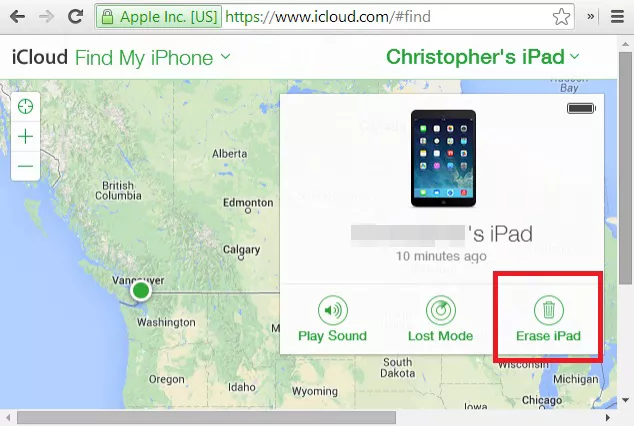
Method 3: Remove Apple ID With Tenorshare 4uKey
When Recovery Mode fails repeatedly or you need a streamlined way to factory reset a locked iPad without an iCloud password, a specialized tool can bypass the lock screen. Tenorshare 4uKey is designed to remove forgotten passcodes and Apple IDs, though it will still erase all data on the device.
Step 1: Download and Install 4uKey
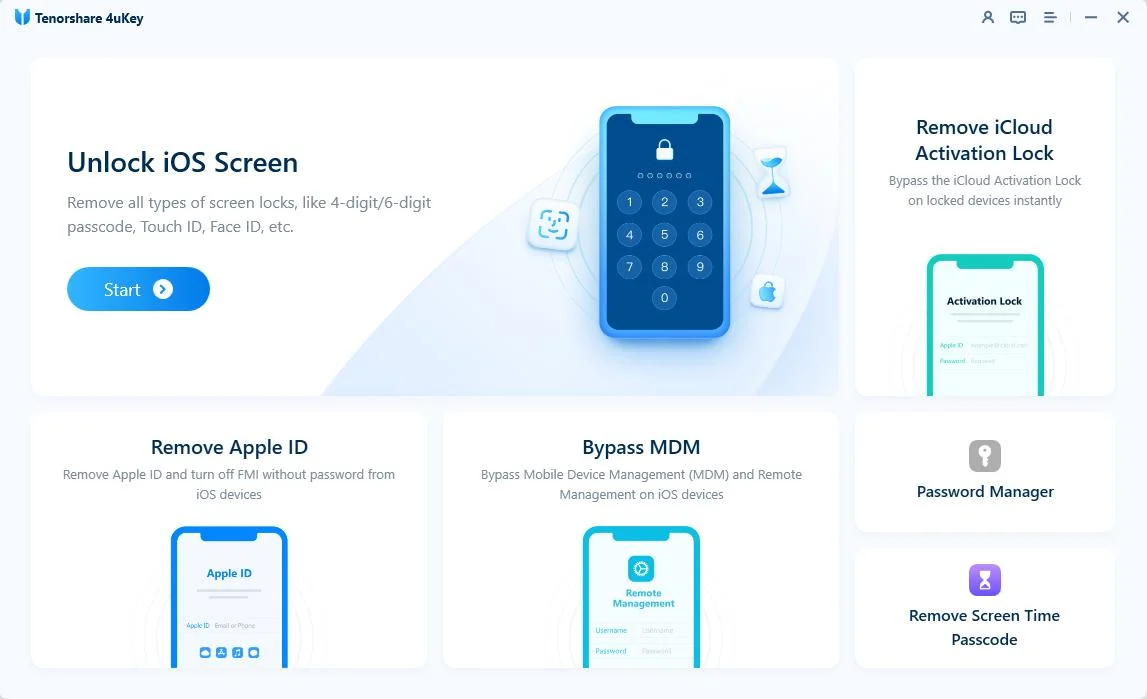
Download and install 4uKey on your PC or Mac, launch the program and click "Start" to begin unlocking lock screen passcode.
Step 2: Connect iPhone to Computer
Connect iPhone to the computer via a USB cable. The software will detect it automatically.
If your device can't be detected, please follow below steps to put your device into "Recovery Mode" or "DFU Mode" to get it detected.

Step 3: Download Firmware Package
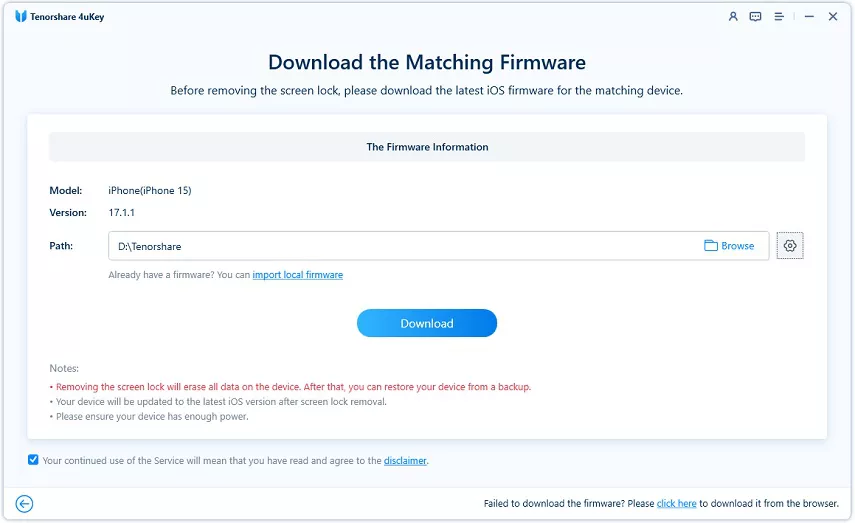
Now you'll be asked to download the latest firmware package. Choose a save path and click "Download" to proceed. (Note: Please make sure that your computer has at least 7G space to download the firmware package.)
Step 4: Start Unlocking iPhone Lock Screen
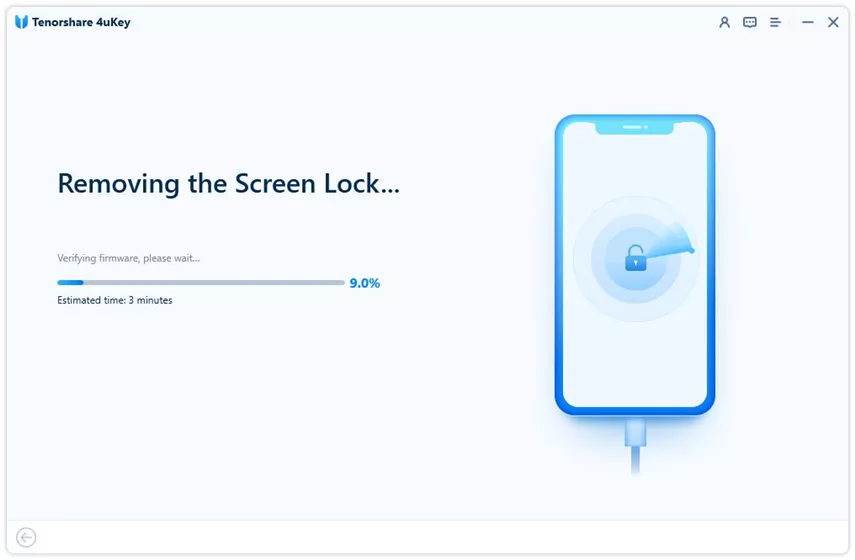
When the firmware is downloaded to computer, 4uKey will start removing iPhone passcode automatically. The whole process takes several minutes. Please keep the device connected in the process.
Step 5: Removed Passcode Successfully
When iPhone passcode has been removed successfully, you can set up your iPhone as new, including passcode, Touch ID and Face ID settings. If you have a previous iTunes/iCloud backup, you can restore iPhone from backup.
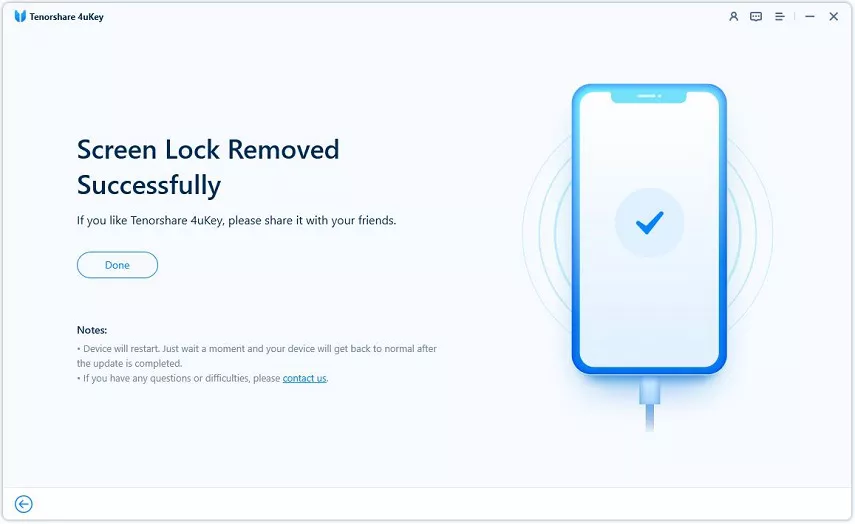
After the software finishes the removal process, you can configure the iPad from scratch, provided you are not stopped by a pre-existing Find My lock.
How to Avoid Losing iPad Access Again
To prevent being locked out of your device in the future, it is crucial to manage your Apple ID credentials securely. Relying solely on memory often leads to update failure states or lockouts when a reset is required.
- Store your Apple ID password and device passcode in a secure password manager.
- Keep your trusted phone numbers and recovery emails up to date in your Apple ID settings.
- Regularly back up your iPad to iCloud or a computer so you never lose data during an emergency reset.
- Keep a digital or physical copy of your original iPad purchase receipt to prove ownership if Activation Lock triggers.
Also Read:How to factory reset ipad without apple id password
Final Steps for Your Locked iPad
Regaining access to your device requires choosing the right approach based on your current situation. Start with Recovery Mode via iTunes or Finder for a free, official wipe. If you hit an Activation Lock wall, submitting an official support request with your receipt is the safest path forward. For persistent lock screen issues where standard computer restores fail, utilizing Tenorshare 4uKey offers a reliable alternative to force the reset. Remember that without a valid backup, all local data will be permanently lost during these procedures.
FAQ
Q: Will a factory reset remove the Activation Lock on my iPad?
A: No, a standard factory reset only erases local data and the lock screen passcode. If Find My was enabled, the Activation Lock will still require the original Apple ID password upon reboot unless you use an official Apple support request.
Q: Can I reset my iPad without losing my photos and apps?
A: If you factory reset an iPad without an Apple ID password, all local data is erased. You can only recover your photos and apps if you have a pre-existing iCloud or iTunes backup to restore from afterward.
Q: What should I do if my computer doesn't recognize the iPad in Recovery Mode?
A: First, try using a different USB cable or port, and ensure iTunes or Finder is updated to the latest version. If the device remains undetected, a third-party tool like Tenorshare 4uKey might help establish a connection and force the reset.

