
Encountering a 'billing problem with a previous purchase' error on your iPhone usually means there is an unpaid balance tied to your Apple ID. Yes, you can resolve this by updating your payment information or adding a valid Apple Gift Card to clear the outstanding charge. Until the balance is settled, Apple restricts you from downloading new apps, updating existing ones, or making new purchases. If you know your account details, simply adding a new card is the fastest fix.
However, if you are completely locked out of the Apple ID and cannot access the payment settings, you may need to remove the account from the device entirely.In this guide, we will walk your through step-by-step methods on how to fix billing issue on iPhone.

Why Does It Say Billing Problem with Previous Purchase?
This error triggers when Apple attempts to charge your default payment method for a subscription or app, but the transaction fails. The system then places a hold on your Apple ID. Common causes include an expired credit card, insufficient funds, or a bank declining the charge. If you use Family Sharing, the organizer's payment method might have failed, affecting all family members.
Sometimes users wonder, why was I billed twice for a previous order? This can happen if a pending charge finally processes alongside a new purchase, creating confusion about the unpaid balance. You must clear this specific red-flagged transaction before the App Store will function normally again.
6 Ways to Fix a Billing Problem with Previous Purchase
Clearing the restriction requires satisfying the unpaid balance or regaining control of the account. Review these practical approaches to restore your App Store access.
Comparing Solutions for Apple ID Billing Problems
| Fix Method | Ideal Scenario | Apple ID Access | Financial Outlay | Required Resource |
| Update Payment Info | Outdated or declined card | Required | Pay Owed Balance | Valid Credit/Debit Card |
| Redeem Gift Card | Prefer not to link a card | Required | Pay Owed Balance | Apple Gift Card |
| Ask Family Organizer | Using Family Sharing | Organizer's | Pay Owed Balance | Organizer Action |
| Contact Apple Support | Duplicate or wrong charge | Required | Free | Order Number |
| Remove Apple ID | Locked out of account entirely | Not Required | Paid Software | Tenorshare 4uKey |
Method 1: Update Your Apple ID Payment Information
The most direct way to resolve a billing problem with a previous purchase is to provide a new, valid credit or debit card.
- Open Settings and tap your name at the top.
- Select Payment & Shipping.
- Tap Add Payment Method and enter the new card details.
- Once added, tap Edit to remove the old, failed payment method.

Apple will automatically attempt to charge the unpaid balance to the new card.
Method 2: Add Funds with an Apple Gift Card
If you do not want to link a new credit card, redeeming an Apple Gift Card is a safe alternative to clear the balance.
- Purchase an Apple Gift Card with enough funds to cover the unpaid amount.
- Open the App Store and tap your profile icon.
- Select Redeem Gift Card or Code.
- Follow the prompts to add the balance to your Apple Account.

The system will automatically deduct the owed amount from your new account balance.
Method 3: Check Family Sharing Organizer Payment Methods
If you are part of a Family Sharing group with purchase sharing enabled, your downloads are billed to the organizer's account. An issue with a charge from a previous purchase might actually be on their end.
- Go to Settings > Family to see who the organizer is.
- Ask the organizer to check their Payment & Shipping settings for expired cards.
- Have them update their billing details to clear the group's unpaid balance.

Once the organizer settles the payment, your App Store access will be restored.
Method 4: Review Purchase History for Unpaid Subscriptions
Sometimes it is unclear which app or service caused the restriction. Checking your purchase history helps identify the exact unpaid item.
- Open Settings, tap your name, and select Media & Purchases.
- Tap View Account, then scroll down and select Purchase History.
- Look for any item labeled with red text indicating an unpaid status.

Identifying the specific charge helps you decide whether to pay it or dispute charge from a completed purchase if it was unauthorized.
Method 5: Contact Apple Support for Billing Disputes
If you suspect an incorrect billing on an earlier order or need a refund for duplicate charge on past purchase, Apple Support can intervene.
- Visit the official Apple Support website and navigate to the Billing and Subscriptions section.
- Select the option to dispute a charge or request a refund.
- Provide your Apple ID and the specific order number from your purchase history.
Apple Support can review the transaction. Note that your account may remain restricted while the investigation is pending.
Method 6: Remove the Apple ID if You Are Completely Locked Out
If you bought a second-hand device or forgot your Apple ID password entirely, you cannot access the settings to fix the billing problem with a previous purchase. In this scenario, removing the Apple ID from the device is the only way to sign in with a different, working account. Tenorshare 4uKey can help you sign out of the problematic Apple ID when official recovery paths fail.
When to Consider Tenorshare 4uKey
- Broad iPhone, iPad, and iOS compatibility for account removal scenarios.
- Can't Sign out of an Apple ID in supported scenarios.
- Helps bypass a locked Apple ID when you cannot access payment settings.
- Windows and Mac support for desktop-based recovery.
Before proceeding, ensure you have the device screen passcode, as it is required to complete the removal process.
Download, install, and open 4uKey on your computer. Click "Remove Apple ID". Connect your iPhone to the computer with a USB cable.
Notes: You can use the "Sign out of Apple ID" feature in the latest version to sign out of your Apple Account.
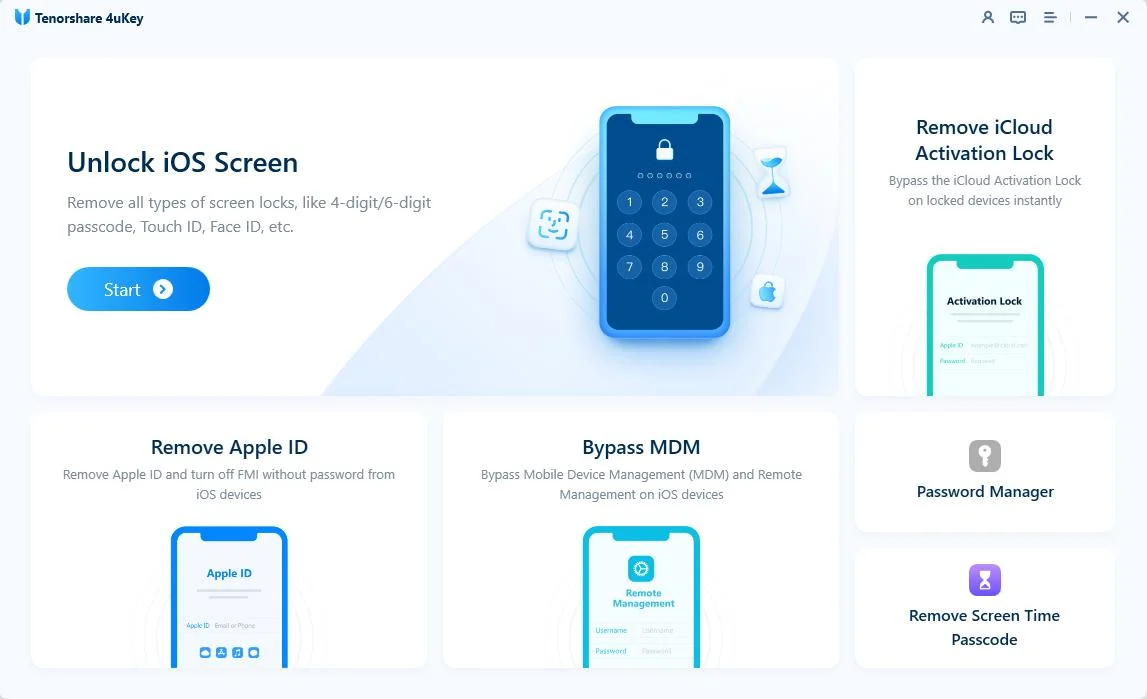
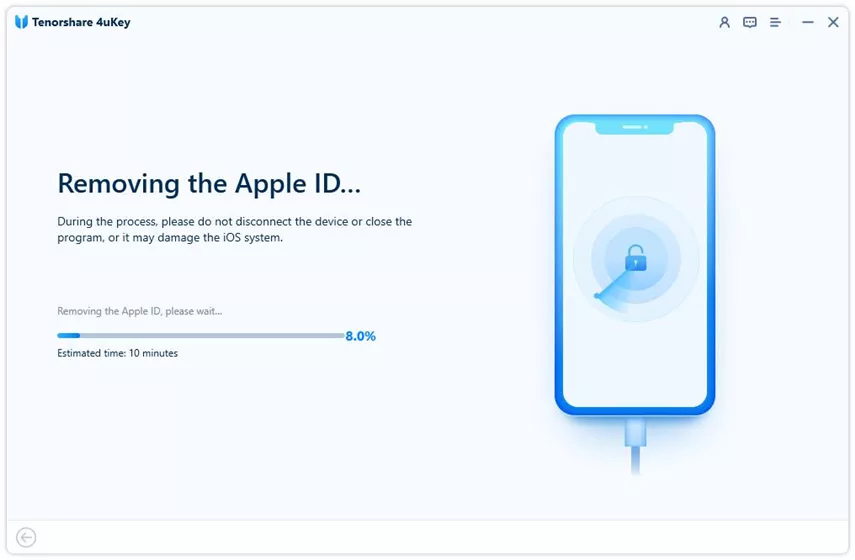
If Find My is turned off, or if you can turn it off now, click "Start Remove". Wait for the program to delete the Apple ID.
If Find My iPhone is still turned on, download the required firmware package. This step updates your iPhone to the latest iOS version after the removal.

After the firmware downloads, make sure you have a screen passcode and Two-Factor Authentication set up. Click "Start Remove" to begin.

Wait for the program to finish the process. On the iPhone setup screen, use your screen passcode to activate your device.
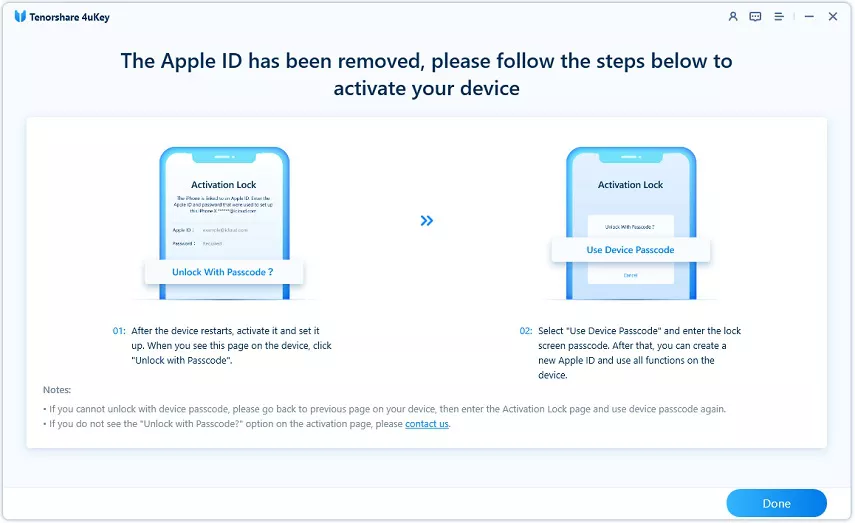
Keep in mind that removing the Apple ID will disconnect the device from iCloud services tied to that account. You can then sign in with a new Apple ID that does not have an unpaid balance.
What to Do After Clearing the Unpaid Balance
Once you resolve the billing problem with a previous purchase, verify that your account is fully functional again.
- Open the App Store and attempt to download a free app to confirm the restriction is lifted.
- Check your bank statement to ensure you were not overcharged during the update process.
- Review your active subscriptions in Settings > Apple ID > Subscriptions and cancel any services you no longer use.

Taking these steps ensures your App Store access remains stable and prevents immediate recurrence of the error.
How to Avoid Apple ID Billing Issues in the Future
Preventing payment restrictions saves you from sudden App Store lockouts when you need to update critical apps.
- Keep a secondary payment method on file in your Apple ID settings so the system has a backup if the primary card fails.
- Monitor your bank account for card expiration dates and update your Apple ID before the old card expires.
- Maintain a small Apple Account balance via Gift Cards to cover unexpected subscription renewals.
Final Thoughts on Apple ID Payment Errors
A billing problem with a previous purchase is a strict but temporary hold placed by Apple to recover owed funds. Updating your payment method or redeeming a gift card is usually enough to clear the balance and restore your download privileges. If the error stems from a Family Sharing organizer or an unexpected duplicate charge, coordinating with your group or Apple Support is the best path forward.
For users trapped by a forgotten password on a restricted account, using a dedicated removal tool can help you transition to a fresh Apple ID.
FAQ
Q: Can I download free apps if I have a billing problem with a previous purchase?
A: No. Apple restricts all App Store downloads, including free apps and app updates, until the outstanding balance is paid in full.
Q: Why was I billed twice for a previous order?
A: A duplicate charge usually occurs if a pending authorization hold is processed at the same time as the actual charge, or if you accidentally tapped purchase twice. You can contact Apple Support to request a refund for the duplicate charge on a past purchase.
Q: Will resetting my iPhone fix the billing problem?
A: No. The billing restriction is tied to your Apple ID account on Apple's servers, not the local device hardware. A factory reset will not erase the unpaid balance.
Q: Does removing the Apple ID with Tenorshare 4uKey delete my photos?
A: In supported scenarios where you know the screen passcode, Tenorshare 4uKey can sign you out of the Apple ID without causing data loss. However, it is always recommended to back up your device before performing account modifications.

