
Setting up a new device or registering a fresh Apple ID should be seamless, but you might suddenly encounter a block stating: "your account cannot be created at this time." If you are wondering why your account registration is not working, it depends heavily on your network connection, Apple's server status, and the history of the device you are using.

Yes, you can almost always bypass this restriction by changing your registration method, adjusting your network settings, or clearing out old device data preventing the setup.
Why Can't I Create an Account Right Now?
When you see the message that your account cannot be created at this time, it usually means Apple's security systems have temporarily blocked the request from your specific IP address or device. This happens if the system detects a VPN, unusual network routing, or if the iPhone has already reached its annual quota for creating new iCloud accounts.
The error can also appear if Apple's backend servers are experiencing an outage. To fix account cannot be created error messages, you should first try registering through a standard web browser on a different network. If the issue stems from a secondhand device locked to a previous owner's account, you may need to sign out or remove that old Apple ID before the system allows a new one.
7 Ways to Fix the "Your Account Cannot Be Created at This Time" Error
If you are unable to sign up for a new account through the iOS Settings app, follow these troubleshooting steps to bypass the block and complete your registration.
Method 1: Create the Account via Web Browser
The most reliable workaround when device-based registration fails is to create your Apple ID directly through Apple's official website. This bypasses device-specific limits and iOS bugs.
- Open Safari, Chrome, or any web browser on a computer or another smartphone.
- Navigate to account.apple.com and select the option to create a new Apple ID.
- Fill in your personal details, email address, and a valid phone number.
- Verify your email and phone number using the codes sent by Apple.
- Once the account is active, return to your iPhone or iPad and sign in through Settings.

This method does not resolve underlying device network issues, but it successfully gets your account created so you can start using your device.
Method 2: Remove a Stuck Apple ID without Passcode
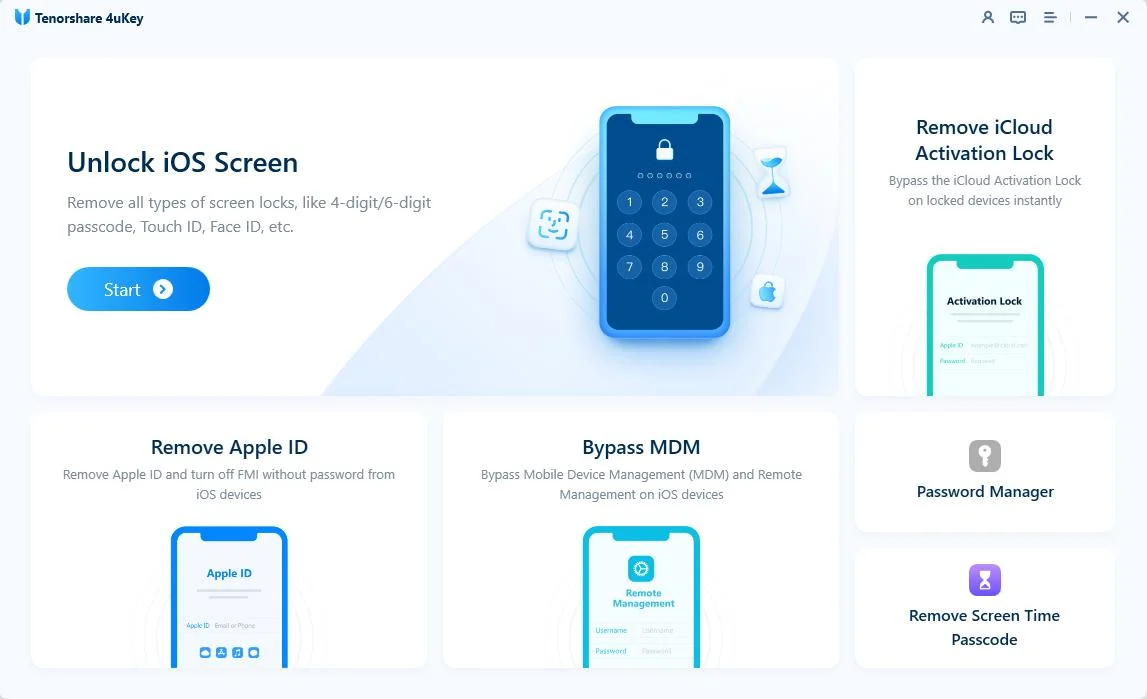
If you are using a second-hand iPhone and see "account creation unavailable please try again," the device might be restricted by the previous owner's Apple ID limits or locks. When you do not have the password to sign out normally, Tenorshare 4uKey can help remove the existing Apple ID, giving you a clean slate to sign in with your newly created account.
Why Tenorshare 4uKey Stands out:
- Turn off Find My iPhone without an Apple ID in supported scenarios.
- Remove iCloud Activation Lock without the previous owner on supported devices.
- Bypass MDM without a username or password.
- Support for the latest iOS and iPadOS versions.
Before proceeding, ensure you back up any local data you wish to keep, as removing an account or bypassing locks will erase device settings and data.
Step 1: Download and Install 4uKey
Download and launch Tenorshare 4uKey on yourcomputer. Then, select the "Remove Apple ID" option.
Step 2: Connect iPhone to the Computer
Plug your iPhone into the PC. The software will prompt you to unlock the display and press "Trust" on the phone. Next, select the second option: "Sign out of Apple lD".

Press "Start to Remove" to initiate the Apple ID sign-out process. Proceeding indicates that you have reviewed and accepted the disclaimer.

Step 3: Start Jailbreak
The program will check if your device is eligible for this Apple ID removal method. Hit "Start Jailbreak" to begin the jailbreaking phase.

Step 4: Apple ID Sign Out
Your handset is now prepared. Press "Start" to log out of the Apple ID.
Step 5: Apple ID Sign Out Completion
Wait for the process to finish, then check your device settings to confirm the account has been removed under supported conditions.
Note:- lf you're unable to recover Apple lD password, please don't erase data, as it may get stuck on the activation screen.
- Please don't update iOS system to keep solution valid.

Method 3: Check the Apple System Status Page
Sometimes the issue has nothing to do with your device. If Apple's iCloud or Apple ID servers are down, no one can register a new account.
- Open a browser and search for the Apple System Status page.
- Look for the Apple ID and iCloud Account & Sign In services in the list.
- If the indicator next to these services is yellow or red, Apple is experiencing an outage.
If the servers are down, you must wait until Apple resolves the backend issue before trying again.
Method 4: Toggle Between Wi-Fi and Cellular Data
Apple's anti-spam filters sometimes block specific IP addresses. Switching your internet connection can assign you a new IP address and bypass the restriction.
- Open the Settings app on your iPhone or iPad.
- Tap Wi-Fi and toggle it off to force the device onto your cellular network.
- If you are already on cellular data, turn on Wi-Fi and connect to a trusted home network.
- Return to the Apple ID creation screen and try registering again.
Public Wi-Fi networks are frequently flagged by Apple, so always use a private, secure connection when handling account credentials.
Method 5: Disable Active VPNs or Custom DNS Profiles
Virtual Private Networks (VPNs) route your traffic through shared servers, which often trigger security blocks during account creation.
- Go to Settings > General > VPN & Device Management.
- If a VPN is connected, toggle the status to Not Connected.
- Check for any custom configuration profiles that might be altering your DNS settings and remove them if they are no longer needed.
- Restart your device and attempt to create the account.
You can re-enable your VPN after the Apple ID is successfully created and signed in.
Method 6: Update iOS to the Latest iOS 26
An outdated operating system can struggle to communicate securely with Apple's modern authentication servers, resulting in vague error messages.
- Plug your device into a charger and connect to a stable Wi-Fi network.
- Navigate to Settings > General > Software Update.
- If an update is available, tap Update Now or Download and Install.
- Wait for the device to reboot, then try setting up your Apple ID again.
Keep in mind that older devices that no longer receive iOS updates might permanently struggle with native account creation, requiring the web browser method instead.
Method 7: Reset Network Settings
If your connection keeps failing despite toggling Wi-Fi, corrupted network configurations might be blocking the secure connection to Apple.
- Open Settings and tap General.
- Scroll to the bottom and select Transfer or Reset iPhone.
- Tap Reset, then choose Reset Network Settings.
- Enter your device passcode to confirm.
This action will erase all saved Wi-Fi passwords and Bluetooth pairings, so ensure you know your home network password before proceeding.
What to Check After Successfully Creating Your Apple ID
Once you bypass the "your account cannot be created at this time" error and sign in, you should immediately verify that your new account is fully functional across Apple's ecosystem.
- Enable Two-Factor Authentication: Go to your Apple ID settings and ensure 2FA is active to secure the new account.
- Test the App Store: Open the App Store and download a free application to confirm your billing and media services are working.
- Verify iCloud Sync: Toggle on contacts, notes, or photos in iCloud settings to ensure data is syncing to Apple's servers properly.
If you used a web browser to create the account, make sure you are signed into both iCloud and Media & Purchases on your actual device.
How to Avoid Account Registration Blocks in the Future
Apple's security measures are strict, but you can prevent your IP address or device from being flagged by following a few simple registration habits.
- Limit device creations: Apple generally restricts a single hardware device from creating more than three Apple IDs per year. If you hit this limit, always use a web browser for future accounts.
- Avoid spamming requests: If you see an error, do not repeatedly tap the submit button. Wait a few hours before trying again to avoid a temporary IP ban.
- Keep network settings clean: Avoid leaving free, low-quality VPNs running in the background, as their IP addresses are frequently blacklisted by major tech companies.
Conclusion
Encountering the "your account cannot be created at this time" message is frustrating, but it is rarely a permanent block. Bypassing the device entirely and creating the account via a web browser is the fastest and most reliable workaround. If you must use the device, toggling your network connection, disabling VPNs, or checking Apple's server status will usually clear the path.
For secondhand devices stuck on an old account limit or locked by a previous owner, using a dedicated removal tool can help reset the environment so you can sign in securely.
FAQ
Q: Is there a limit to how many Apple IDs a device can create?
A: Yes, Apple typically limits a single iOS device to creating three new iCloud accounts per year. Once this hardware limit is reached, you must create new accounts using a web browser or a different Apple device.
Q: Does "account creation unavailable please try again" mean my email is banned?
A: No, this specific error usually points to a temporary network issue, an active VPN, or an Apple server outage. It rarely means the email address itself is permanently banned.
Q: Can I use the same phone number for multiple Apple IDs?
A: Yes, you can use the same trusted phone number for two-factor authentication on multiple Apple IDs. However, if you create too many accounts in a short period using the same number, Apple may temporarily flag it for suspicious activity.
Q: Will resetting network settings delete my photos or apps?
A: No, resetting network settings only removes saved Wi-Fi passwords, Bluetooth connections, and VPN configurations. Your personal data, photos, and apps remain completely safe.

