
Recent community reports indicate that Face ID may intermittently fail after updating to iOS 18 or 18.1. While official channels recommend maintaining a 10-20 inch distance and cleaning the notch area, adjusting specific attention settings or disabling content restrictions can often bypass these new software glitches.

Why Is Face ID Not Working on Your iPhone?
Face ID usually stops working due to a dirty TrueDepth camera, improper scanning distance, or temporary software bugs introduced in recent system updates. In more severe cases, hardware damage from drops or unauthorized screen replacements will permanently disable the biometric sensor, resulting in a "Face ID Is Not Available" error.
7 Ways to Fix Face ID Not Working
When your iPhone Face ID stopped working, start with basic physical checks before moving on to software resets or advanced unlock tools.
Method 1: Clean the TrueDepth Camera and Check Your Distance
The most common reason Face ID fails is physical obstruction or incorrect positioning. The TrueDepth camera requires a clear, unobstructed view of your face to map your features accurately.
- Wipe the top notch of your iPhone screen with a clean, dry microfiber cloth to remove smudges and oils.
- Ensure your phone is held 10 to 20 inches away from your face, roughly arm's length.
- If you recently installed a thick or tinted screen protector, remove it to see if the sensor functions normally.
If the camera is clean and you are holding the device correctly but the sensor still fails, the issue is likely software-related.
Method 2: Bypass the Lock Screen With Unlock Tool (If Passcode Is Lost)
If Face ID is not working and you have forgotten your lock screen passcode, you will be locked out of your device entirely. A dedicated desktop recovery tool can remove the lock screen, allowing you to regain access and set up Face ID again. Tenorshare 4uKey handles this process efficiently, and it also helps bypass Screen Time passcodes and MDM profiles on iOS devices when standard recovery paths fail.
You will need a computer, a USB cable, and your locked iPhone to perform this reset.
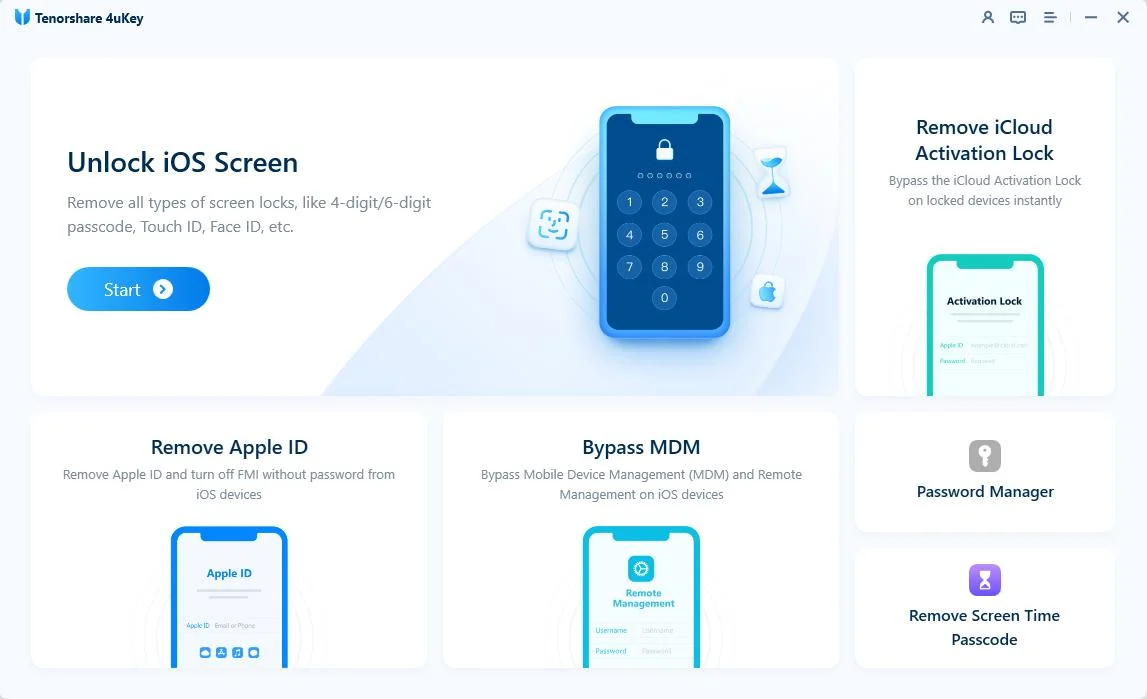
Step 1: Download and Install 4uKey
Launch the software, and press "Start" to initiate the lock screen passcode removal process.
Step 2: Link Your iPhone to the Computer
Plug your iPhone into the computer using a USB cable so the application can recognize it.
Should the program fail to recognize your phone, use the provided instructions to enter "Recovery Mode" or "DFU Mode" for detection.

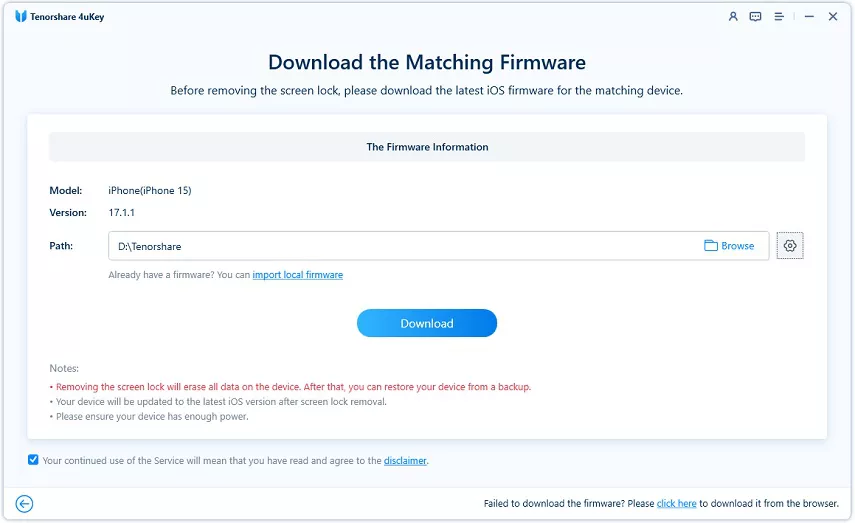
Step 3: Obtain the Firmware Package
The system will prompt you to get the most recent firmware. Select a destination folder and hit "Download" to continue. Ensure your computer has a minimum of 7G of free storage for this file.
Step 4: Download Begin the Screen Unlock Process
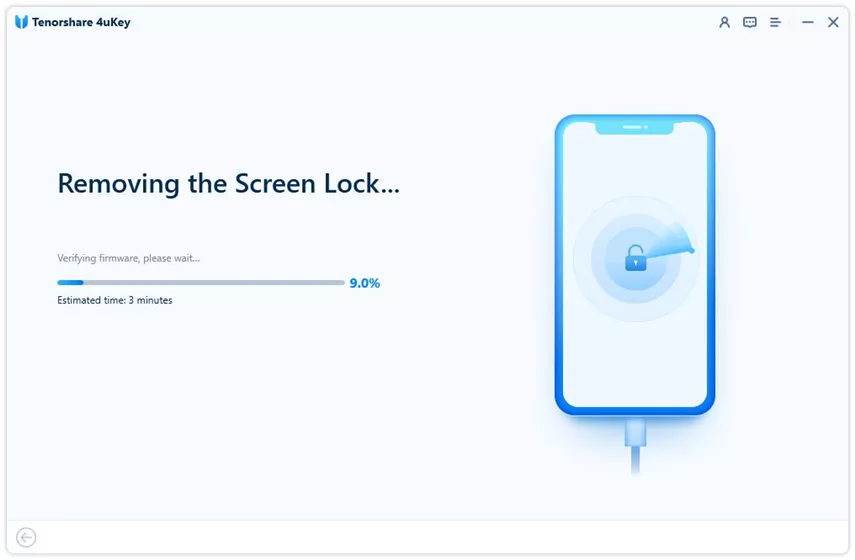
Once the firmware is saved to your computer, 4uKey will initiate the passcode removal. Wait for the process to finish and ensure your device remains plugged in the entire time.
Step 5: Passcode Removal Complete
After the passcode is cleared, you may configure your iPhone as a new device, which includes setting up a new passcode, Touch ID, or Face ID. Those with an existing iCloud or iTunes backup can choose to restore their data during this setup phase.
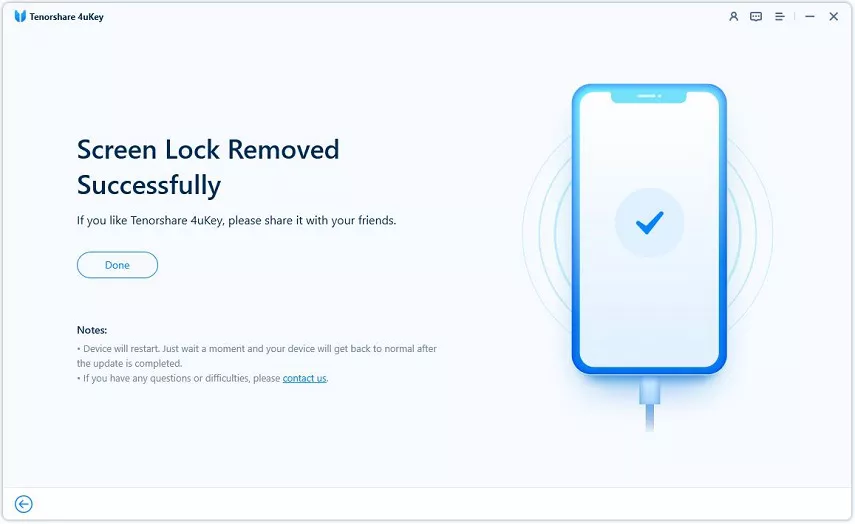
This process erases the device to remove the passcode barrier. You will need to restore your data from an iCloud or computer backup during the initial setup phase.
Method 3: Adjust the Require Attention Settings
Recent iOS 26.6 updates have introduced sensitivity issues with the attention-awareness features, causing Face ID to fail even when you are looking directly at the screen.
- Open the Settings app on your iPhone.
- Scroll down and tap Face ID & Passcode, then enter your device passcode.
- Find the toggle for Require Attention for Face ID and turn it off.

Disabling this feature reduces the overall security slightly, as the phone will unlock even if your eyes are not fully open, but it serves as a reliable workaround for intermittent recognition failures.
Method 4: Reset Face ID and Set It Up Again
If the biometric profile becomes corrupted, you may find the Face ID setup not working or failing to recognize your face consistently. Clearing the old scan and creating a new one often resolves this.
- Navigate to Settings and select Face ID & Passcode.
- Tap Reset Face ID to clear your current biometric data.
- Tap Set Up Face ID and follow the on-screen prompts to scan your face in a well-lit room.
Make sure you rotate your head slowly and completely fill the circle during the scanning process to ensure a high-quality biometric map.
Method 5: Disable Content and Privacy Restrictions
A known workaround for recent iOS bugs involves temporarily disabling Screen Time restrictions, which can sometimes interfere with system permissions required by the TrueDepth camera.
- Go to Settings and tap on Screen Time.
- Select Content & Privacy Restrictions.
- Toggle the main switch at the top to the off position.
- Restart your iPhone and test Face ID again.
If this resolves the issue, you can try re-enabling your restrictions one by one to isolate which setting caused the conflict.
Method 6: Update iOS to Fix Face ID not working
Apple frequently releases minor point updates to address biometric failures, such as the intermittent bugs seen in iOS 18.1. Running an outdated iOS version leaves you vulnerable to known software glitches.
- Connect your iPhone to Wi-Fi and plug it into a power source.
- Open Settings, tap General, and select Software Update.
- If an update is available, tap Update Now and wait for the installation to complete.

Always back up your device to iCloud or a computer before initiating a system update to prevent accidental data loss.
Method 7: Inspect for Hardware Damage After Screen Replacement
If you are experiencing Face ID not working after screen replacement, the TrueDepth camera module was likely damaged or improperly paired during the repair.
- Apple serial-locks biometric hardware to the logic board for security reasons.
- Unauthorized third-party repairs cannot reprogram this pairing, permanently disabling Face ID.
- Even minor damage to the delicate dot projector during a screen swap will cause the sensor to fail.
In these scenarios, software troubleshooting will not work. You must contact the repair shop or Apple Support to address the hardware mismatch.
What to Do If Face ID Is Still Unavailable
When software troubleshooting fails and you see a persistent system error stating the sensor is unavailable, the issue is almost certainly hardware-related.
Comparing Software Fixes Versus Hardware Repair Options
Solution Type | Primary Use Case | Estimated Time | Cost Profile | Fixes Hardware Damage |
Physical Adjustments | Obstructed sensor or bad angle | < 1 min | Free | ❌ |
Software & Settings Tweaks | iOS bugs or corrupted biometric data | 5-15 min | Free | ❌ |
Tenorshare 4uKey | Forgotten passcode lockout | 15-30 min | Paid | ❌ |
Apple Authorized Repair | Broken TrueDepth camera module | Varies | Varies | ✅ |
You will need to run Apple's remote diagnostics or visit an authorized service center. If the TrueDepth camera is physically damaged from a drop or water exposure, the entire display assembly or the device itself may need replacement. Third-party shops cannot restore Face ID functionality once the original paired sensor is broken.
How to Prevent Face ID Recognition Failures
To keep the TrueDepth camera functioning reliably, you must protect the sensor array housed in the top notch or Dynamic Island.
- Use high-quality screen protectors that feature a precise cutout for the camera, preventing glass distortion from interfering with the dot projector.
- Always use Apple Authorized Service Providers for display repairs to ensure biometric hardware remains properly paired to your logic board.
- Keep your fallback passcode memorable. If the sensor temporarily fails, you will need that passcode to unlock the device and avoid a complete factory reset.
Regularly cleaning the top of your screen with a microfiber cloth will also prevent daily grime from causing intermittent scanning errors.
Final Thoughts on Face ID Troubleshooting
Resolving a Face ID failure usually requires simple physical cleaning or adjusting attention settings, especially following recent iOS updates. If you are completely locked out because the sensor failed and you forgot your passcode, a desktop tool can help you erase the lock and start fresh. Always ensure your device is backed up regularly to protect your data against unexpected hardware failures that might force a full system restore.
FAQ
Q: Why is my face id not working suddenly?
A: Sudden failures are typically caused by dirt over the TrueDepth camera, a poorly applied screen protector, or a temporary software glitch after an iOS update. Wiping the sensor and restarting the device usually resolves the problem.
Q: Why is Face ID failing so much after updating to iOS 27 beta?
A: The iOS 18 and 18.1 updates introduced sensitivity changes to the attention-awareness features. Disabling "Require Attention for Face ID" in your settings often serves as a reliable workaround until Apple releases a permanent patch.
Q: Can Apple Face ID be repaired if the hardware is damaged?
A: Yes, Apple can repair Face ID, but it usually requires replacing the entire TrueDepth camera system or the display assembly. Unauthorized third-party repairs cannot restore Face ID functionality due to Apple's strict hardware pairing rules.
Q: Will resetting my iPhone fix Face ID not recognizing my face?
A: A standard restart or resetting all settings can clear temporary software conflicts that prevent recognition. However, if the TrueDepth camera is physically damaged, no amount of software resetting will restore the biometric functions.
Q: What happens to my data if I have to bypass the lock screen?
A: If Face ID fails and you cannot remember your passcode, using tools like Tenorshare 4uKey or Apple's recovery mode will erase the device. You must have a previous iCloud or computer backup to recover your photos, messages, and app data.

