
AI Quick SummaryAI
You don't need a physical SIM card to wipe your device clean. Whether you are preparing to sell your old phone or find yourself locked out, you can easily factory reset your iPhone using a stable Wi-Fi connection or a computer.
- If you know your screen passcode, you can erase all content and settings directly from your device menu.
- For a disabled screen or forgotten passcode, use Tenorshare 4uKey to bypass the lock and reset your device.
- You can also use iTunes, Finder, or iCloud's Find My feature to wipe the hardware, but remember this won't remove Activation Lock or carrier restrictions.
You don't need a SIM card to factory reset an iPhone. As long as the device can connect to Wi-Fi or a computer, you can erase it and return it to its factory settings. The exact method depends on whether you can access the iPhone, have forgotten the passcode, or the device is disabled.
In this guide, we'll show you 4 easy ways to factory reset an iPhone without a SIM card, so you can choose the method that fits your situation.

Can You Factory Reset an iPhone Without a SIM Card?
Yes, you can absolutely factory reset an iPhone without a SIM card. The physical SIM card is only required for cellular network connectivity and the initial carrier activation, not for the local resetting process itself.
A stable Wi-Fi connection or a connected computer is all you need to complete the erasure process safely. As long as the device can verify your Apple ID credentials over the internet or connect to trusted software, the reset will proceed normally.

Method 1: How to Factory Reset iPhone Without SIM Card from Settings
If you know your screen passcode and have access to the home screen, this is the easiest route to take. You can wipe the iPhone to factory settings with no SIM directly from the device menu.
- Ensure the iPhone is connected to a stable Wi-Fi network.
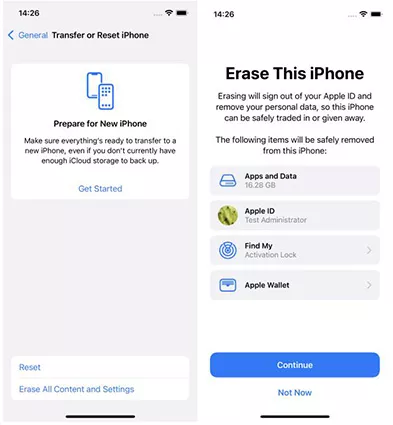
- Navigate to Settings > General > Transfer or Reset iPhone.
- Tap Erase All Content and Settings.
- Enter your screen passcode and Apple ID password when prompted to confirm the reset.
Method 2: Reset Locked iPhone Without SIM Card via Tenorshare 4uKey
If you forgot your passcode or the device is disabled, Tenorshare 4uKey is the ideal solution to reset a locked iPhone without a SIM card. This tool bypasses the locked screen and handles the factory reset for you without requiring access to the device settings.
- Support for iPhone passcode unavailable, disabled, security Lockout, and forgotten-passcode scenarios.
- Factory reset a locked iPhone or iPad without a password.
- Remove Screen Time passcode without data loss.
- Strong focus on speed, safety, reliability, and ease of use.
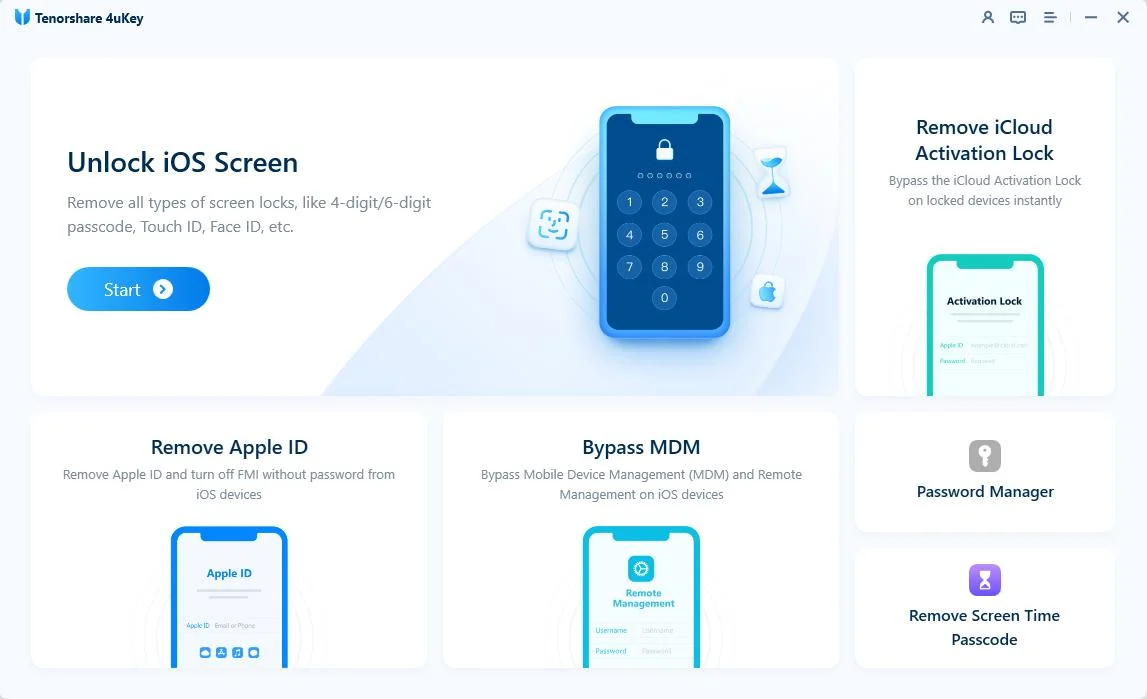
Step 1: Download and install 4uKey.
Open the program on your PC or Mac. Click "Start" to begin unlocking the passcode.
Step 2: Connect your iPhone to the computer.
Connect your iPhone using a USB cable. The software will detect the device.
If the program does not see your phone, follow the on-screen steps to put your device into "Recovery Mode" or "DFU Mode".

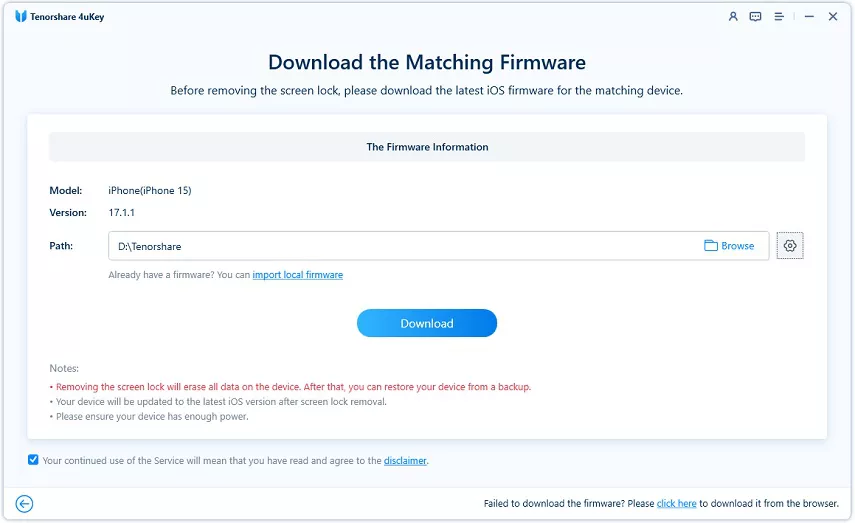
Step 3: Download the firmware package.
The program will ask you to download the latest firmware. Choose a folder on your computer and click "Download". Make sure you have at least 7 GB of free space.
Step 4: Start unlocking the iPhone.
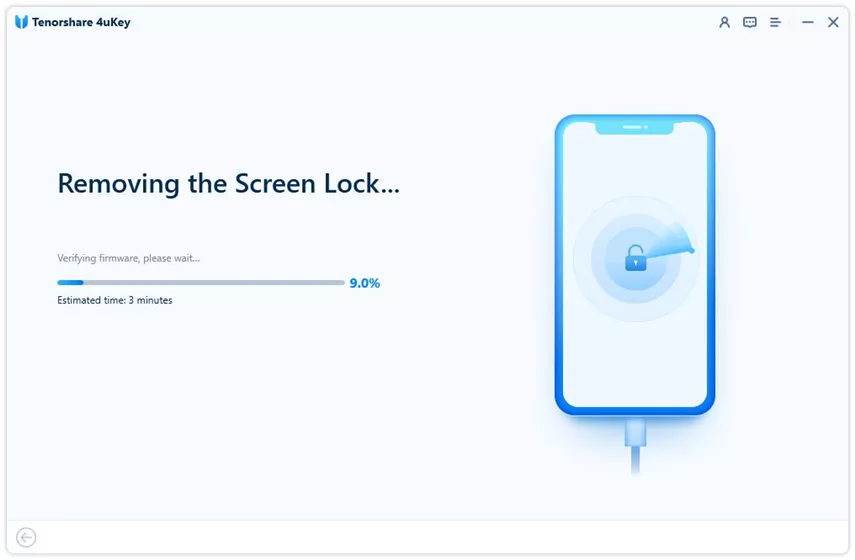
After the download finishes, 4uKey removes the passcode. Wait a few minutes for this to finish, and keep your phone connected to the computer.
Step 5: Finish the process.
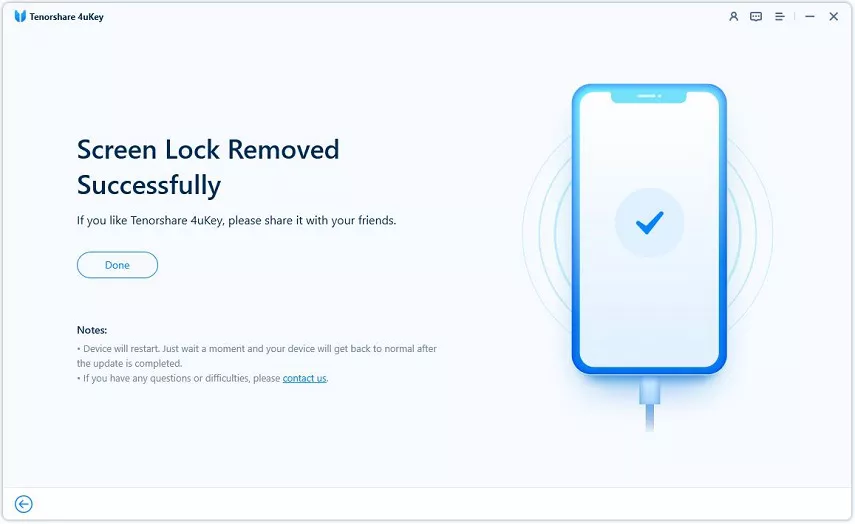
Wait for the process to finish, then check your iPhone screen. You can set it up as a new device with a new passcode, Touch ID, or Face ID. If you have an iTunes or iCloud backup, you can restore your data during setup.
Method 3: Wipe iPhone to Factory Settings No SIM Using iTunes or Finder
Official Apple desktop software like iTunes (on Windows or older Macs) or Finder (on modern Macs) can restore an iPhone to factory defaults. This path is helpful if your device is experiencing glitches or you prefer a wired computer reset.
- Connect the iPhone to your computer using a compatible USB cable and open iTunes or Finder.
- Put the iPhone into Recovery Mode (for modern iPhones, press and quickly release Volume Up, then Volume Down, and hold the Side button until the recovery screen appears).
- When the Restore or Update prompt appears on the computer screen, select Restore.
- Wait for the computer to download the necessary software and erase the iPhone without a SIM installed.

Method 4: Erase iPhone Without SIM Installed Using iCloud Find My
This remote method works perfectly if the iPhone is already logged into an Apple ID, has Find My enabled, and remains connected to a Wi-Fi network. It lets you wipe the device without needing physical access to a computer.
- Open a web browser on another device and go to iCloud.com/find.
- Log in with the Apple ID and password associated with the target iPhone.
- Click on All Devices at the top of the screen and select the iPhone you want to reset.
- Click Erase iPhone and follow the confirmation prompts to remotely wipe the device.

Final Thoughts on Resetting Your iPhone
Wiping an iPhone to factory settings with no SIM is a straightforward process once you know the right steps. If your phone is accessible and you know the passcode, rely on the Settings app or use iTunes and iCloud as official backups.
However, if you are locked out of the device completely, Tenorshare 4uKey remains the most efficient choice to regain access and erase the hardware safely.
Frequently Asked Questions About Resetting iPhone Without SIM
Q: Will a factory reset remove a carrier or SIM lock?
A: No, a factory reset only erases local data stored on the device. It does not remove carrier restrictions or unlock the phone for other networks.
Q: Do I need a SIM card to activate the iPhone after resetting it?
A: Previously yes, but on newer iOS versions, you can often bypass this requirement by connecting to a Wi-Fi network during setup, though having a SIM makes it slightly easier.
Q: Will I lose my iCloud data if I factory reset my iPhone without a SIM?
A: No, the reset only wipes the physical device. Your photos, contacts, and other data remain safe in your iCloud account.
Q: How do I remove a carrier lock if a factory reset does not work?
A: To remove a carrier lock, you must contact your original cellular provider and request an official unlock, assuming your device is fully paid off and meets their eligibility requirements.
Q: Does erasing an iPhone without a SIM remove Activation Lock?
A: No, erasing the passcode or factory resetting the device does not turn off Activation Lock. You will still need the original Apple ID and password to set up the phone, or you must contact Apple Support with proof of purchase.

