
With the recent updates to Apple's ecosystem, faster syncing and new time allowances were introduced, but many users still find iOS 27 Screen Time not working as expected. Whether app limits disappear or downtime fails to activate, these syncing failures often stem from mixed OS versions within a Family Sharing group or lingering iCloud glitches. You can resolve most of these parental control issues using built-in settings and official troubleshooting paths before considering advanced reset tools.

Quick Fixes for Screen Time Syncing
If you are wondering how to fix Screen Time not working on iPhone after the latest update, start with these core troubleshooting paths:
- Update all family devices to iOS 27 to ensure compatibility.
- Disable and re-enable Screen Time to force a local refresh.
- Use a dedicated desktop unlocker if you forgot the restriction passcode.
- Lock the Date & Time settings to prevent manual bypasses.
- Sign out of your Apple ID to clear persistent iCloud sync errors.
Evaluating Screen Time Sync Repair Methods
Troubleshooting Method | Target Issue | Time Estimate | Cost Type | Data Impact |
Update Family Devices | OS version mismatch | 15-30 min | Free | None |
Toggle Screen Time | Localized glitches | < 5 min | Free | Clears usage history |
Tenorshare 4uKey | Forgotten restriction PIN | 10-15 min | Paid | Keeps primary data |
Lock Date & Time | Manual clock bypass | < 2 min | Free | None |
Re-sign into iCloud | Persistent sync errors | 5-10 min | Free | Removes Apple Pay cards |
Method 1: Update All Devices in Family Sharing
A primary cause for iOS 27 parental controls not working is a mismatch in operating systems across a Family Sharing group. Apple requires all connected devices to run iOS 27 (or the iPadOS equivalent) for the new syncing architecture to function properly.
- Open Settings on the parent device and navigate to General, then Software Update.
- Download and install any pending iOS 27 updates.
- Repeat this exact process on every child device linked to your Family Sharing account.
Pros
- Resolves core compatibility bugs
- Free and official
Cons
- Requires older devices to support iOS 27
- Takes time to download and install
Ensuring every device is on the same firmware version is the most reliable way to fix cross-device syncing failures.
Method 2: Toggle Screen Time Off and On
If all devices are updated but iOS 27 Screen Time is not updating usage data, the local service might be stuck. Disabling and re-enabling the feature forces the device to rebuild its local database and pull fresh rules from iCloud.
- Go to Settings and tap on Screen Time.
- Scroll to the bottom and select Turn Off Screen Time, entering your passcode if prompted.
- Restart your iPhone to clear the system cache.
- Return to the Screen Time menu and tap Turn On Screen Time to reconfigure your limits.

This quick reset often resolves localized glitches where app limits or downtime schedules fail to trigger.
Method 3: Remove the Restriction Passcode With 4uKey
Sometimes, you cannot disable or modify settings because the restriction PIN is lost or corrupted during the update. When official reset paths fail and you are locked out of making changes, a desktop unlock tool can remove the passcode without erasing your primary data. Tenorshare 4uKey handles this by safely stripping the Screen Time lock so you can set up fresh rules.
When to Consider a Desktop Unlocker
- Remove the Screen Time passcode on supported devices without data loss.
- Broad compatibility across iPhone and iPad models running recent iOS versions.
- Helpful when standard Apple ID recovery options are unavailable or failing.
If you have verified device ownership and need to bypass the forgotten PIN, follow these steps to clear the restriction.
Step 1: Get and Install 4uKey
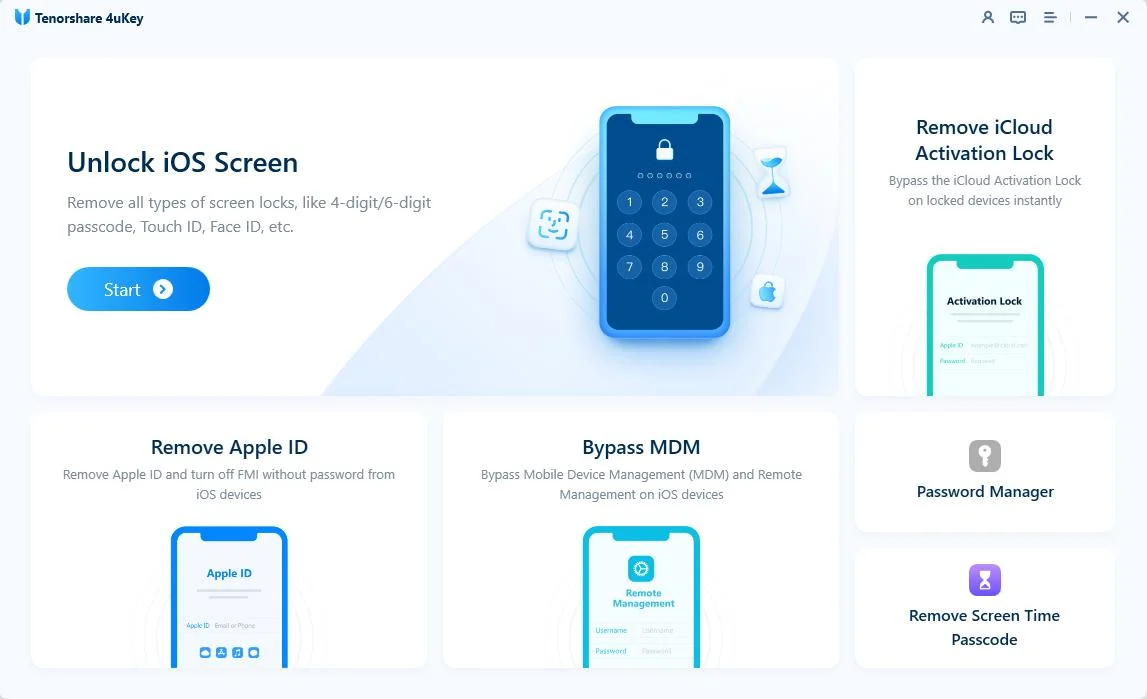
Begin by installing Tenorshare 4uKey on your computer. Open the application and choose Remove Screen Time Passcode from the primary menu.
Step 2: Link Your Device and Begin
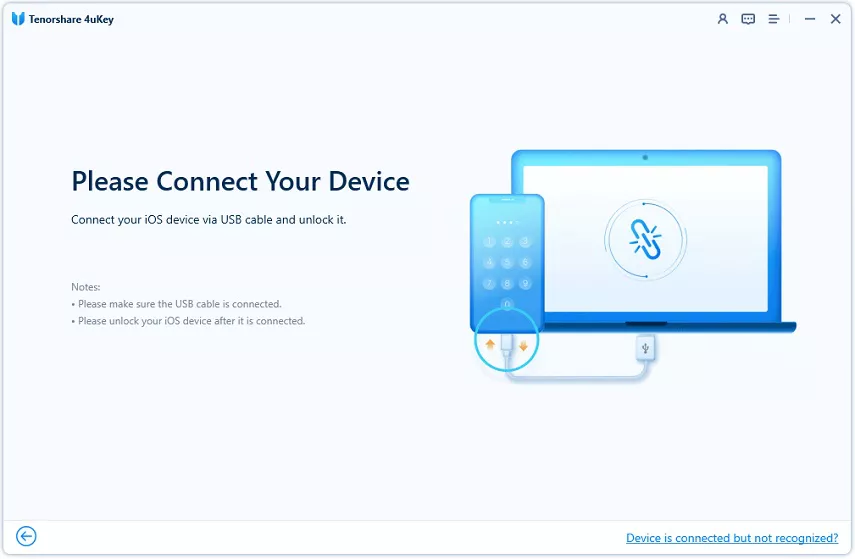
Plug your iPhone, iPad, or iPod into the computer using a USB cable. If prompted, unlock the screen and press Trust on the device to authorize the connection.

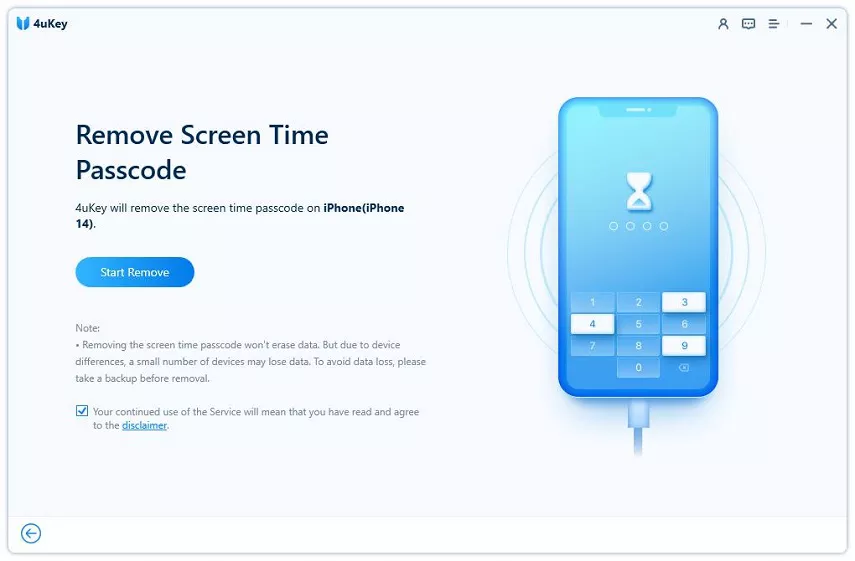
Once the device is recognized, press the Start Remove button to continue.
Step 3: Disable Find My iPhone
The process requires Find My iPhone to be inactive. Use the provided on-screen instructions to turn off this feature if it is currently running.

Step 4: Clear the Screen Time Passcode
After Find My iPhone is disabled, the software will initiate the removal process. Wait for the procedure to finish.

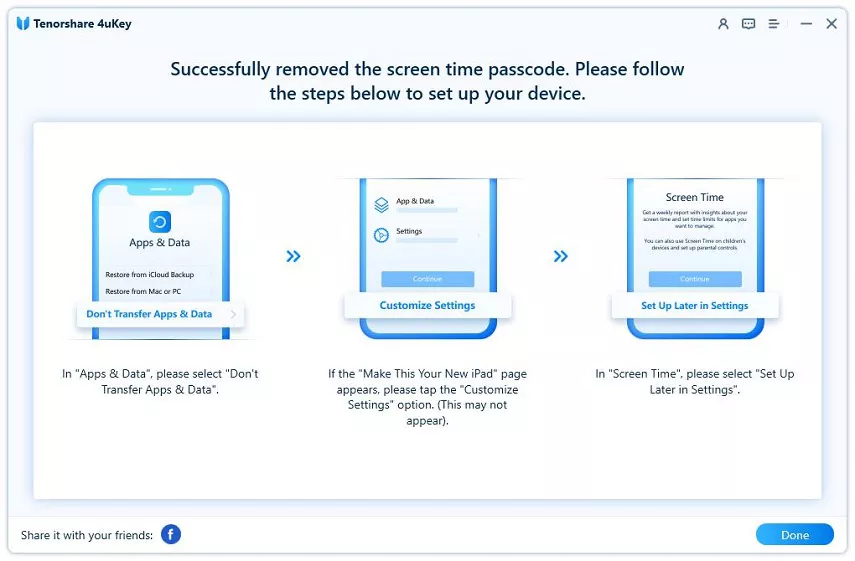
The software will indicate when the operation is complete, allowing you to move on to the device setup phase.
When the device reboots, begin the configuration. Pick "Don’t Transfer Apps & Data" and then opt for "Set Up Later in Settings" when prompted about Screen Time.
Clearing the forgotten PIN allows you to regain administrative access and rebuild your parental controls from scratch.
Method 4: Restrict Date and Time Modifications
A historical bug that persists into newer updates involves children bypassing restrictions by manually changing the device clock. If you notice Screen Time app limits not working iOS 27, the device time might be out of sync with the network.
- Open Settings, tap General, and select Date & Time.
- Toggle the switch for Set Automatically to the on position.
- Navigate back to Settings, tap Screen Time, and choose Content & Privacy Restrictions.
- Scroll down to Location Services, tap System Services, and ensure Setting Time Zone is enabled and locked.

Locking the time zone prevents manual clock adjustments, ensuring downtime and app limits enforce correctly.
Method 5: Sign Out and Back Into iCloud
When you wonder why is Screen Time downtime not working despite correct settings, a corrupted iCloud session is often the culprit. Signing out severs the broken connection and forces a clean sync upon logging back in.
- Open Settings and tap your Apple ID profile name at the top.
- Scroll to the bottom and tap Sign Out.
- Choose which local data to keep on the device, then confirm the sign-out.
- Wait a few minutes, then tap Sign in to your iPhone and enter your Apple ID credentials.
Pros
- Clears deep-rooted account sync errors
- Refreshes all iCloud-dependent services
Cons
- Temporarily removes Apple Pay cards
- Requires re-downloading synced cloud data
Re-establishing your iCloud session is a powerful way to push stalled parental control rules to all connected devices.
How to Prevent iOS 27 Screen Time Sync Failures
To avoid losing control over device usage again, maintain strict update hygiene across your family group.
- Always update the parent and child devices simultaneously to prevent version mismatches.
- Regularly verify that Share Across Devices remains toggled on in the Screen Time menu.
- Keep a secure backup of your Screen Time recovery Apple ID in case you forget the PIN.
Final Steps for Restoring Parental Controls
Resolving iOS 27 Screen Time not working usually requires aligning software versions across your Family Sharing group or forcing a local refresh. Start by updating all devices and toggling the feature off and on to clear basic glitches. If a forgotten restriction PIN blocks your progress, advanced desktop tools provide a reliable way to regain access without wiping your personal data.
FAQ
Q: Will turning off Screen Time delete my previous usage data?
A: Yes, disabling the feature clears your historical usage graphs and resets your current app limits. You will start with a blank slate once you turn it back on.
Q: Why is Screen Time downtime not working on my child's iPad?
A: This usually happens if the iPad is running an older OS version that cannot sync with iOS 27, or if the child has manually changed the device time to bypass the schedule.
Q: Does removing the passcode with Tenorshare 4uKey erase my photos and messages?
A: No, using the dedicated Screen Time passcode removal feature in Tenorshare 4uKey strips the restriction PIN without deleting your primary data, though a backup is always recommended before any system modification.

