
If your tablet displays the dreaded lockout screen, you are likely wondering if you can unlock a disabled iPad without data loss. The hard truth is no—once an iPad is permanently disabled, Apple's security architecture requires a complete device erase to remove the passcode. True data preservation is only possible if you have a pre-existing iCloud or local computer backup to restore from after the wipe.
Do not fall for risky workarounds promising a magical bypass, as they are unverified on modern iPadOS versions. Your safest first action is to locate your most recent backup and proceed with an official erase method.

Can a Disabled iPad Be Unlocked Without Reset?
No, you cannot fix a disabled iPad passcode lock without data loss unless you already have a backup. Apple designs iPadOS to protect your personal information. When too many incorrect passcodes are entered, the system locks down completely to prevent unauthorized access.
At this stage, the encryption keys protecting your files are inaccessible. Bypassing the lock screen without erasing the device is not supported by Apple. You must factory reset the tablet, which wipes the current passcode and all local data. Once the reset is complete, you can recover access to your disabled iPad without restore penalties by loading your saved iCloud or iTunes backup during the initial setup phase.
6 Ways to Unlock an Unavailable iPad (With Backup Recovery)
Since an erase is mandatory, regaining access requires choosing the right reset path based on your available tools. The methods below explain how to wipe the lock screen and safely restore your saved files.
Comparing iPad Unlock and Reset Options
| Recovery Method | Needs iPad Wi-Fi | Needs Computer | Difficulty Level | Best Fit Scenario |
| Lock Screen Erase | ✅ Yes | ❌ No | Low | iPadOS 15.2+ and online |
| Tenorshare 4uKey | ❌ No | ✅ Yes | Low | Built-in options fail or offline |
| iTunes / Finder | ❌ No | ✅ Yes | Medium | Previously trusted PC available |
| Recovery Mode | ❌ No | ✅ Yes | High | Unresponsive device or untrusted PC |
| iCloud Find My | ✅ Yes | ❌ No | Low | Remote wipe via browser |
| Apple Support | ❌ No | ❌ No | Varies | Lost account access with receipt |
Method 1: Use the Erase iPad Option on the Lock Screen
If your tablet runs iPadOS 15.2 or later and is connected to Wi-Fi, you might see an Erase iPad button directly on the lockout screen. This is the easiest official path to unlock an unavailable iPad without losing data, provided your iCloud backup is up to date.
You will need your Apple ID password to authorize this action.
- Tap Erase iPad at the bottom of the iPad Unavailable or Security Lockout screen.
- Tap Erase iPad again to confirm you want to wipe the device.
- Enter your Apple ID password to sign out of your account.
- Wait for the tablet to restart and display the Hello screen.
- Follow the setup prompts and select Restore from iCloud Backup to get your data back.

This method fails if the tablet is offline, lacks a network connection, or runs an older iPadOS version. If the button does not appear, you must use a computer.
Method 2: Unlock Disable iPad without Passcode
When the built-in erase button is missing, or iTunes fails to recognize your device, a dedicated recovery program can force the reset. Tenorshare 4uKey helps bypass the lockout screen by downloading the correct firmware and wiping the passcode layer, allowing you to restore your backup afterward.
What Tenorshare 4uKey Can Handle
- Supports multiple passcode types, Touch ID, and Face ID-related lockout scenarios.
- Helps factory reset a locked iPhone/iPad without a password when official paths fail.
- Compatible with Windows and Mac systems, supporting up to iPadOS 17.
- Provides a beginner-friendly process for users struggling with complex recovery mode timing.
If you have an iCloud or local backup, you can apply it immediately after the software finishes the reset.
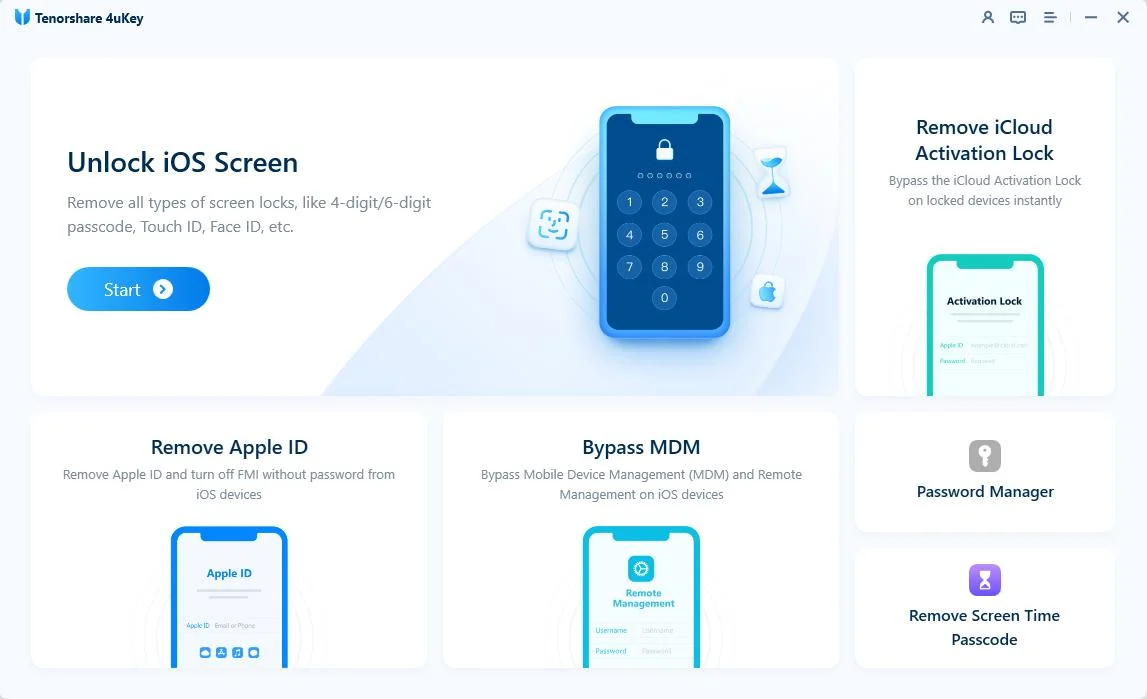
Step 1: Download and install 4uKey.
Get the 4uKey software on your Mac or PC. Open the program and click "Start" to begin.
Step 2: Connect your iPhone to the computer.
Plug your iPad into the computer with a USB cable. The software will detect the device on its own.
If the program does not see your phone, follow the on-screen instructions to put it into "Recovery Mode" or "DFU Mode".

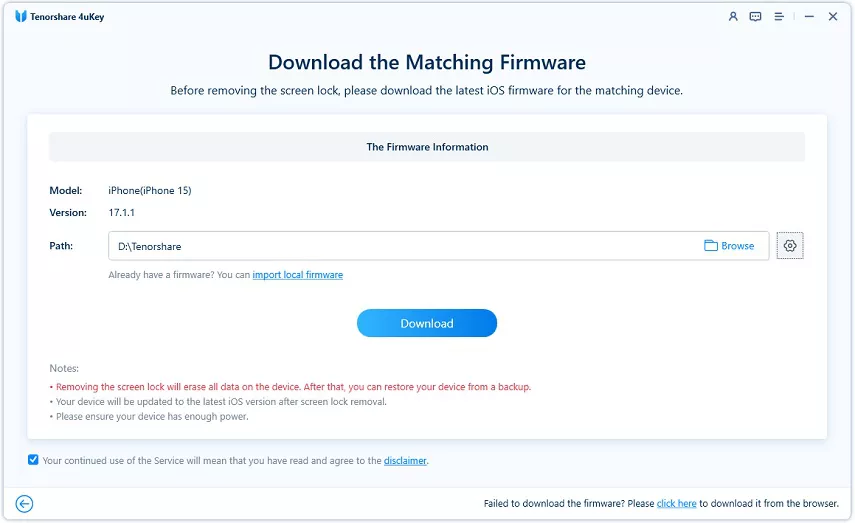
Step 3: Download the firmware package.
The tool will prompt you to get the latest firmware. Pick a folder on your computer with at least 7GB of free space, then click "Download".
Step 4: Start unlocking the screen.
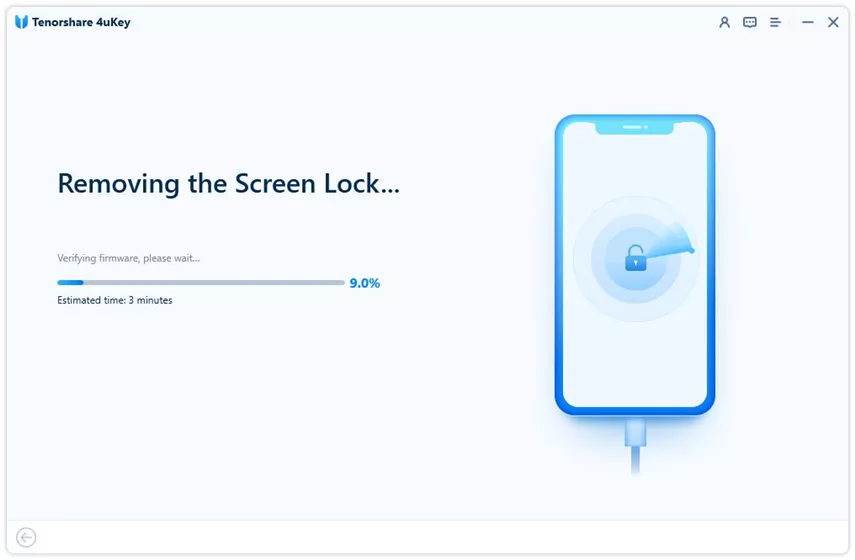
Once the download finishes, 4uKey will begin removing the passcode. This takes a few minutes. Make sure to keep your phone connected the whole time.
Step 5: Finish the passcode removal.
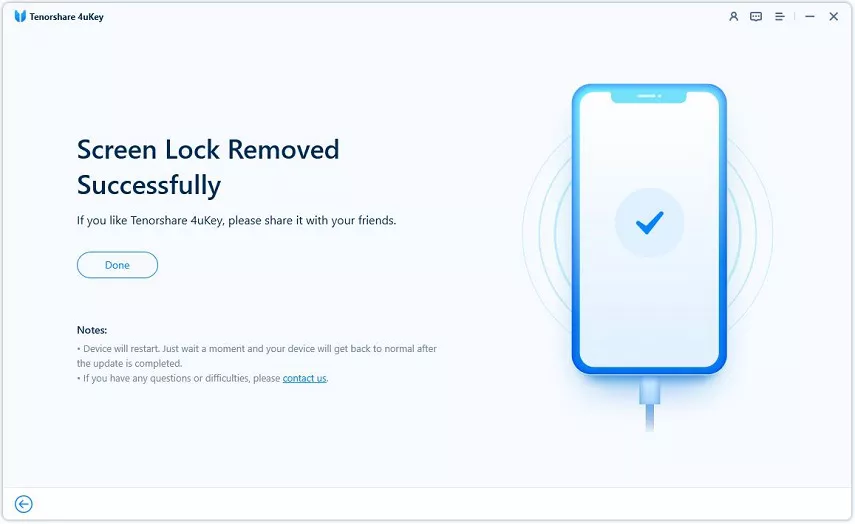
Wait for the tool to finish, then check your phone screen. You can set up your device as new with a fresh passcode, Touch ID, or Face ID. If you have a past backup, you can restore your data during this setup.
Video Tutorial: How to Unlock Disabled iPad with Tenorshare 4uKey
Method 3: Erase and Restore via iTunes or Finder
For users who regularly sync their tablet to a computer, iTunes (or Finder on newer Macs) is the standard way to fix a disabled iPad passcode lock without data loss via local backup.
You need the computer you previously trusted with your tablet.
- Connect your iPad to the computer using a USB cable.
- Open iTunes or Finder and click the device icon.
- Force restart the iPad into Recovery Mode when you are prompted for a passcode.
- Click Restore iPad when the prompt appears on your computer screen.
- Once the restore finishes, select Restore Backup and choose your most recent file.

This process completely overwrites the current system. If you never trusted the computer beforehand, iTunes will demand a passcode, forcing you to use Recovery Mode instead.
Method 4: Factory Reset via Recovery Mode
If your tablet is completely unresponsive to iTunes or lacks a network connection for the on-device erase, Recovery Mode is the ultimate fallback. This hardware-level override lets you wipe the device and load a backup.
- Connect the tablet to a computer and open iTunes or Finder.
- Press and quickly release the volume button closest to the top button.
- Press and quickly release the volume button farthest from the top button.
- Press and hold the top button until the Recovery Mode screen appears.
- On your computer, choose Restore when prompted to update or restore.
- After the tablet reboots, set it up and restore your data from iCloud or a local backup.

Recovery Mode can be tricky to trigger on the first try. If the screen goes black or boots normally, you must repeat the button sequence.
Method 5: Remotely Wipe and Restore Using Find My
If you do not have a computer nearby but have access to another smartphone or web browser, iCloud's Find My network can send a remote wipe command.
Your disabled iPad must be connected to Wi-Fi or cellular data for the signal to reach it.
- Go to iCloud.com/find on another device and sign in with your Apple ID.
- Select your locked tablet from the All Devices list.
- Click Erase iPad and confirm your choice.
- Wait for the remote command to process and restart your device.
- During the initial setup, choose your preferred backup to recover your files.
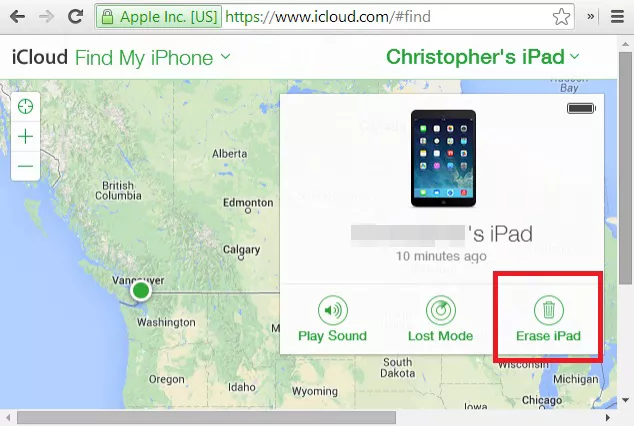
If the disabled iPad is offline, the erase command will remain pending until it connects to a network, meaning the device will stay locked in the meantime.
Method 6: Recover Access via Apple Support
If you cannot remember your Apple ID password to authorize an erase, or the device is stuck in Activation Lock after a wipe, you must contact Apple Support.
You will need the original proof of purchase showing the serial number.
- Gather your original receipt or invoice from an authorized Apple retailer.
- Visit the Apple Support website and navigate to the Activation Lock support page.
- Submit an unlock request with your proof of purchase attached.
- Wait for Apple to review the case.
- Once Apple clears the lock, you can erase the device via iTunes and restore your backup.
Apple Support will not recover your local data; they only remove the account lock so you can perform a clean factory reset.
What to Check After Fixing a Disabled iPad Passcode Lock
Once you successfully wipe the device and reach the Hello screen, you must verify your data restoration and account security.
- Check Backup Syncing: Ensure your photos, contacts, and app data fully download from iCloud before disconnecting from Wi-Fi.
- Re-enable Face ID or Touch ID: Set up your biometric security immediately in Settings to avoid relying solely on a typed passcode.
- Verify Activation Lock: Confirm that your Apple ID is properly signed in and Find My is active to protect the device against theft.
Keep your tablet plugged into power while large backups restore, as interrupting the process can result in missing files.
How to Avoid Losing Files to an Unavailable iPad Screen
Since true data recovery without a backup is impossible, setting up automated safeguards is your best defense against future lockouts.
- Enable iCloud Backup: Go to Settings, tap your name, select iCloud, and toggle on iCloud Backup so your tablet saves data nightly.
- Use a Memorable Passcode: Avoid overly complex alphanumeric passwords if you are prone to forgetting them; stick to a secure PIN.
- Create Local Backups: Periodically connect your tablet to a Mac or PC to create an encrypted local backup as a secondary safety net.
Relying solely on Face ID or Touch ID can lead to forgetting your manual passcode, so practice entering it occasionally.
Final Thoughts on Recovering a Disabled iPad
When dealing with a permanent lockout, you cannot bypass the security screen without erasing the local storage. To unlock a disabled iPad without data loss, you must rely on a previously saved iCloud or iTunes backup. Start with the on-screen Erase iPad button if your software allows it, or use iTunes for a standard wipe. If those built-in paths fail or your device remains unresponsive, a dedicated tool can force the reset so you can load your backup and regain access.
FAQ
Q: Can you unlock a disabled iPad without erasing data if you have no backup?
A: No. Apple's security architecture encrypts your files behind the passcode. If the device is permanently disabled and you have no backup, the local data is lost when you perform the mandatory reset.
Q: Why does my iPad say iPad Unavailable instead of Disabled?
A: Starting with iPadOS 15.2, Apple changed the lockout terminology. iPad Unavailable and Security Lockout mean the exact same thing as the older Disabled message and require the same reset process.
Q: Will Tenorshare 4uKey save my data during the unlock?
A: No tool can save local data on a permanently disabled iPad. Tenorshare 4uKey removes the lock screen by factory resetting the device, allowing you to restore your files from a pre-existing backup afterward.
Q: Can Apple Store employees bypass the passcode without deleting everything?
A: No. Apple Store technicians do not have special tools to bypass passcode encryption. They will simply help you put the device into Recovery Mode and erase it.

