
You can usually resolve this by adjusting your device settings to disable password prompts for free downloads or by re-authenticating your Apple ID. If the prompt is caused by a forgotten Apple ID tied to an old app, you may need to delete the app or use advanced account removal tools to clear the conflict.

Why Does the App Store Keep Asking for Password?
The App Store repeatedly asks for your password primarily because your Media & Purchases settings are configured to require authentication for every download, including free apps. It also happens if biometric authentication, such as Face ID or Touch ID, is disabled for the App Store, or if you are trying to update an app that was originally installed using a different Apple ID.
7 Ways to Stop the App Store Password Prompt on iPhone
If the App Store asks for a password every download, you can adjust your authentication settings or troubleshoot account sync issues using the methods below.
Evaluating Methods to Fix App Store Password Prompts
| Method | Target Scenario | Cost | Backup Needed | Key Requirement |
| Disable Password for Free Apps | Free app downloads | Free | No | Device Settings |
| Enable Face/Touch ID | Avoiding manual typing | Free | No | Biometrics |
| Delete & Reinstall App | Old Apple ID prompts | Free | Yes (App Data) | Current Apple ID |
| Re-sign Media & Purchases | Account sync errors | Free | No | Apple ID Password |
| Tenorshare 4uKey | Unknown or locked Apple ID | Paid | Yes (Full Device) | PC/Mac & USB |
| Update iOS | Known software bugs | Free | Recommended | Wi-Fi & Power |
| Reset All Settings | Corrupted configurations | Free | No | Device Passcode |
Method 1: Disable Password Requirements for Free Downloads
Apple allows you to disable password prompts entirely when downloading free apps. This is the fastest way to stop the App Store password prompt on iPhone if you mostly download free content.
- Open Settings and tap your Apple ID name at the top of the screen.
- Select Media & Purchases, then tap Password Settings.
- Under the Free Downloads section, toggle off Require Password.
- Tap Done to save your changes.
Future free app downloads will no longer prompt you for an Apple ID password. Keep in mind that paid purchases and in-app subscriptions will still require authentication.
Method 2: Enable Face ID or Touch ID for the App Store
If you prefer not to type your password manually, you can authorize App Store purchases using biometric authentication instead.
- Go to Settings and select Face ID & Passcode (or Touch ID & Passcode).
- Enter your device screen passcode to access the menu.
- Toggle on the switch for iTunes & App Store.

The App Store will now scan your face or fingerprint instead of requesting your Apple ID password repeatedly. Note that if you restart your device, you will still need to enter the password manually the first time you make a purchase.
Method 3: Check for Apps Linked to a Different Apple ID
If the App Store is asking for a password during an app update, the app might have been downloaded using a different Apple ID. iOS requires the original account credentials to authorize updates for previously installed software.
- Look at the Apple ID email address displayed in the password prompt.
- If it does not match your current Apple ID, identify the specific app trying to update.
- Delete the app from your device by long-pressing its icon and selecting Remove App.
- Open the App Store and download the app again using your current Apple ID.
Reinstalling the app ties it to your active account, preventing future prompts for the old password. You will lose local app data unless it is backed up to an independent cloud service.
Method 4: Sign Out and Sign Back Into Media & Purchases
Sometimes, a background sync error causes the App Store to lose its authentication token. Refreshing your connection to Media & Purchases can clear this glitch.
- Open Settings and tap your Apple ID name.
- Tap Media & Purchases and select Sign Out from the pop-up menu.
- Confirm you want to sign out of this specific service. This does not sign you out of iCloud.
- Restart your iPhone.
- Return to Settings > Apple ID > Media & Purchases and sign back in.
This forces the App Store to generate a fresh authentication session, which often stops continuous password loops.
Method 5: Remove the Apple ID Completely With a Desktop Tool
If your device is stuck in a password loop because it is locked to an old or unknown Apple ID, and you cannot sign out normally, you may need to remove the account entirely. Tenorshare 4uKey can bypass the Apple ID connection on your device, allowing you to set up a new account and stop the App Store asking for a password. This tool is also capable of removing forgotten screen passcodes and Screen Time passcodes on iOS devices.
You will need a computer and a USB cable to perform this removal. Ensure you have a backup, as removing the Apple ID will erase the device data.
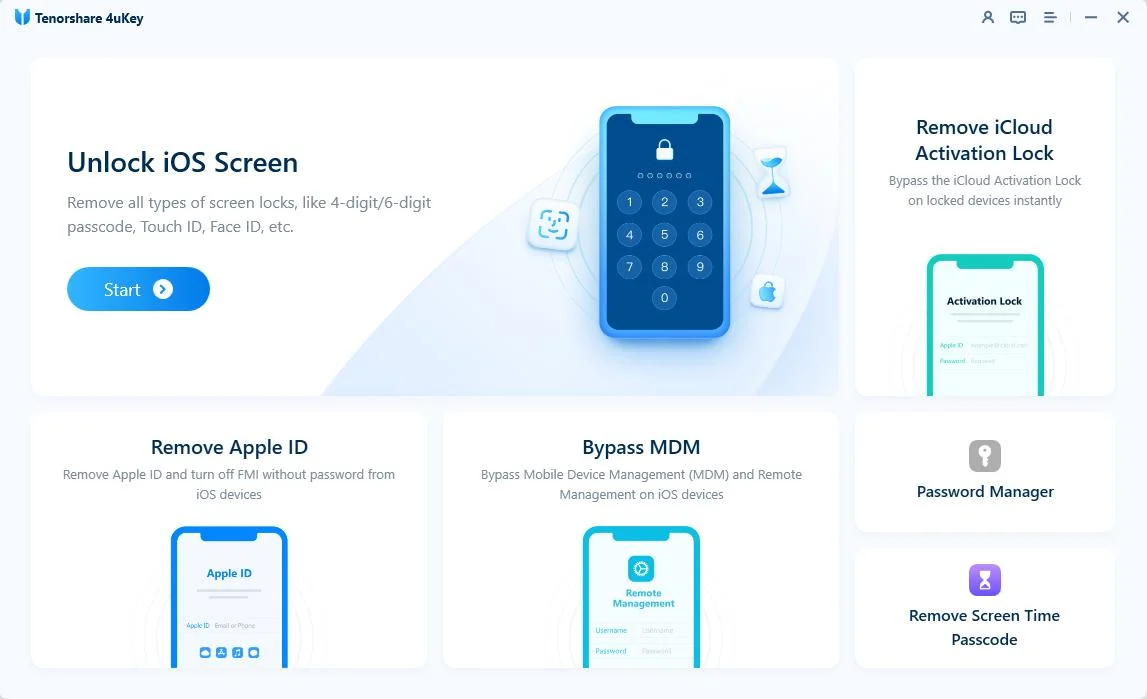
To begin using Tenorshare 4uKey, launch the application and select the Remove Apple ID option to initiate the procedure for your iPhone.
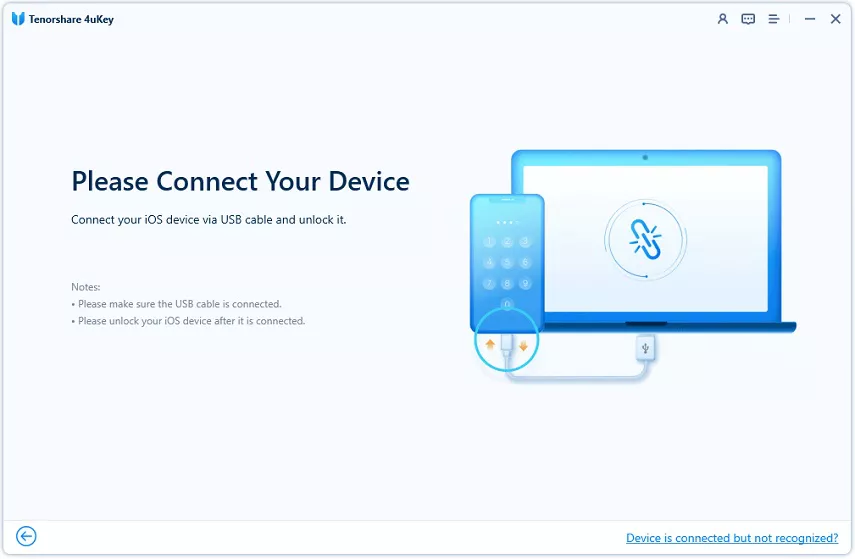
Link your iOS device to the computer. The software will prompt you to unlock the screen and tap "Trust" on the device, after which you should select the “Remove Apple ID Completely” feature.

Applicable for: iOS 11.4 and newer versions, provided Find My iPhone is enabled.
Step 1: Obtain the Firmware Package
The application identifies your current iOS version and supplies the corresponding firmware. Click the Download button to save this file.

Allow the software a moment to finish downloading and verifying the firmware package.

Step 2: Initiate Apple ID Removal
Once the download finishes, click "Start Remove" to proceed with the Apple ID removal via Tenorshare 4uKey. Ensure your device remains connected throughout this procedure.
Note: Verify that a 6-digit screen passcode is set and Two-Factor Authentication is turned on to prevent encountering an activation lock later.

The removal procedure requires a few minutes to complete, and a progress bar will appear on your screen.
If prompted, follow the on-screen directions to put your iPhone into recovery mode so the removal can begin.

Step 3: Device Activation
Wait for the process to finish, then check your setup status. When the Activation lock screen appears, tap the ‘Unlock with Password’ option, choose "Use Device Passcode", and input your screen passcode.
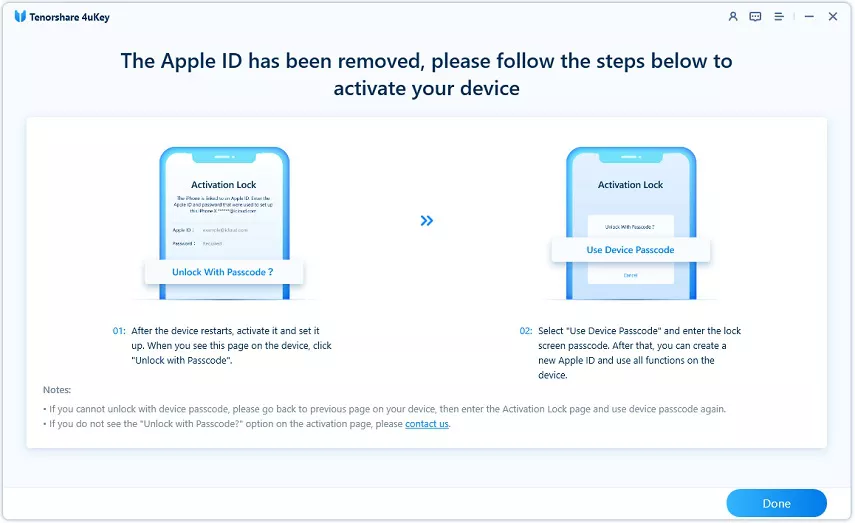
After the process completes, the old Apple ID is removed from the device. You can then sign in with a new account to download apps without encountering the old password prompt.
Method 6: Update iOS to Fix App Store Sync Bugs
Apple occasionally releases iOS updates to patch known bugs related to App Store authentication and Apple ID sync failures.
- Connect your device to Wi-Fi and plug it into a power source.
- Go to Settings > General > Software Update.
- If an update is available, tap Download and Install.
Installing the latest firmware replaces core system files, which can resolve underlying software glitches causing the App Store to request your password repeatedly.
Method 7: Reset All Settings to Clear Authentication Glitches
If none of the above methods work, corrupted network or system settings might be forcing the continuous password prompts. Resetting all settings clears these configurations without deleting your personal data.
- Navigate to Settings > General > Transfer or Reset iPhone.
- Tap Reset at the bottom of the screen.
- Choose Reset All Settings and enter your device passcode to confirm.
Your device will restart. You will need to reconnect to Wi-Fi networks, re-pair Bluetooth devices, and reconfigure your App Store password preferences, but your photos, messages, and apps remain intact.
What to Check After Fixing App Store Password Requests
Once you stop the App Store password prompt on iPhone, verify that your account is secure and functioning correctly.
- Download a free app to confirm the prompt no longer appears.
- Check your Apple ID device list in Settings to ensure no unrecognized devices are forcing security prompts.
- Verify that your payment methods in Media & Purchases are up to date, as expired cards can sometimes trigger authentication loops.
How to Prevent the App Store Requesting Apple ID Password Repeatedly
To keep your App Store downloads smooth and avoid future password loops, maintain consistent account settings.
- Always use a single Apple ID for all your app downloads to prevent cross-account update conflicts.
- Keep Face ID or Touch ID enabled for iTunes & App Store purchases.
- Regularly update your iOS software to avoid known authentication bugs.
- If you share a device, use Family Sharing instead of logging into different Apple IDs on the same App Store profile.
Final Steps for App Store Authentication Issues
Dealing with an App Store asking for a password every download is usually a matter of adjusting your Media & Purchases settings or enabling biometric authentication. Start by disabling the password requirement for free downloads or signing out and back into your account. If the issue stems from an unknown Apple ID tied to the device, removing the app or using a dedicated removal tool can clear the conflict. Always ensure your device is backed up before making major account changes.
FAQ
Q: Why does App Store keep asking for password when downloading free apps?
A: This happens because your Apple ID settings are configured to require a password for all downloads. You can change this by going to Settings > Apple ID > Media & Purchases > Password Settings and turning off the requirement for free downloads.
Q: Will resetting my Apple ID password delete my apps?
A: No, changing or resetting your Apple ID password does not delete the apps currently installed on your device. However, you will need to enter the new password to update them or download new ones.
Q: How do I disable password for App Store purchases completely?
A: You cannot completely disable authentication for paid purchases. However, you can enable Face ID or Touch ID in your device settings so you do not have to type the password manually each time.
Q: What happens if I use a tool like Tenorshare 4uKey to remove the Apple ID?
A: Removing the Apple ID with a desktop tool will erase the device and remove the account connection. You must know the screen passcode and have Two-Factor Authentication enabled to bypass the Activation Lock afterward.

