
If your iPhone shows the "iPhone Unavailable" message after installing the iOS 27 beta, it means the system has triggered a security lockout—either from multiple incorrect passcode attempts or a temporary software glitch caused by the update. The safest first action is to wait for the on-screen countdown timer to expire and carefully enter the correct passcode. If the timer does not appear, your device is permanently locked out, and you must erase it to regain access.
Fortunately, there are several right ways that can help with the situation. This guide will introduce to you some simple and proven tricks to remove the lock screen, even if you forget the passcode.
Why Does the iPhone Say Unavailable Try Again?
This message appears when the wrong lock screen passcode is entered too many times in a row. It is a security feature designed to protect your data from unauthorized access, and recent updates like iOS 27 sometimes trigger it unexpectedly if the screen registers ghost touches.
Before proceeding with a full factory reset, verify the exact state of your device to avoid unnecessary data loss.
- Check the timer: If the screen shows a specific wait time, let it count down and try your passcode one more time.
- Force restart: Sometimes, the iOS 27 iPhone unavailable not working bug is a temporary glitch. A quick force restart might clear the error and bring back the normal passcode prompt.
- Verify network connection: If you plan to use the on-screen erase option, your phone must be connected to Wi-Fi or cellular data.
How to Unlock the 'iPhone Unavailable Try Again' Screen on iOS 27 Beta
If waiting is no longer an option, you will need to perform a factory reset iPhone when unavailable. Here are the most effective paths based on your current access.
Method 1: Erase iPhone from the Unavailable Screen
For devices running modern iOS versions, Apple provides a direct way to wipe the phone without a computer. This is the fastest iPhone unavailable try again fix if you know your Apple ID password.
- Keep entering the wrong passcode until the Erase iPhone or Forgot Passcode? option appears at the bottom corner.
- Tap Erase iPhone, then tap it again to confirm your decision.
- Enter your Apple ID password to sign out of your account.
- Wait for the device to wipe completely and restart to the setup screen.

This method requires an active internet connection. If your phone is offline, the erase button will not work, and you must use a computer.
Method 2: Bypass iPhone Unavailable Try Again Screen without Passcode
When the on-screen erase button is missing, or your device refuses to connect to a network, you can remove the unavailable screen on iPhone using a dedicated desktop application like Tenorshare 4uKey. This tool forces a reset over a USB connection, bypassing the need for an active Wi-Fi link or the Apple ID password during the initial wipe. It can also help bypass Screen Time passcodes in other troubleshooting scenarios.
When Tenorshare 4uKey Can Help
- Support for iPhone Unavailable, Disabled, and Security Lockout scenarios.
- Unlock iPhone without a passcode when the screen is unresponsive or buttons fail.
- Broad iPhone, iPad, and iOS compatibility, including recent system updates.
- Works on both Windows and Mac operating systems.
Follow these steps to clear the lockout state:
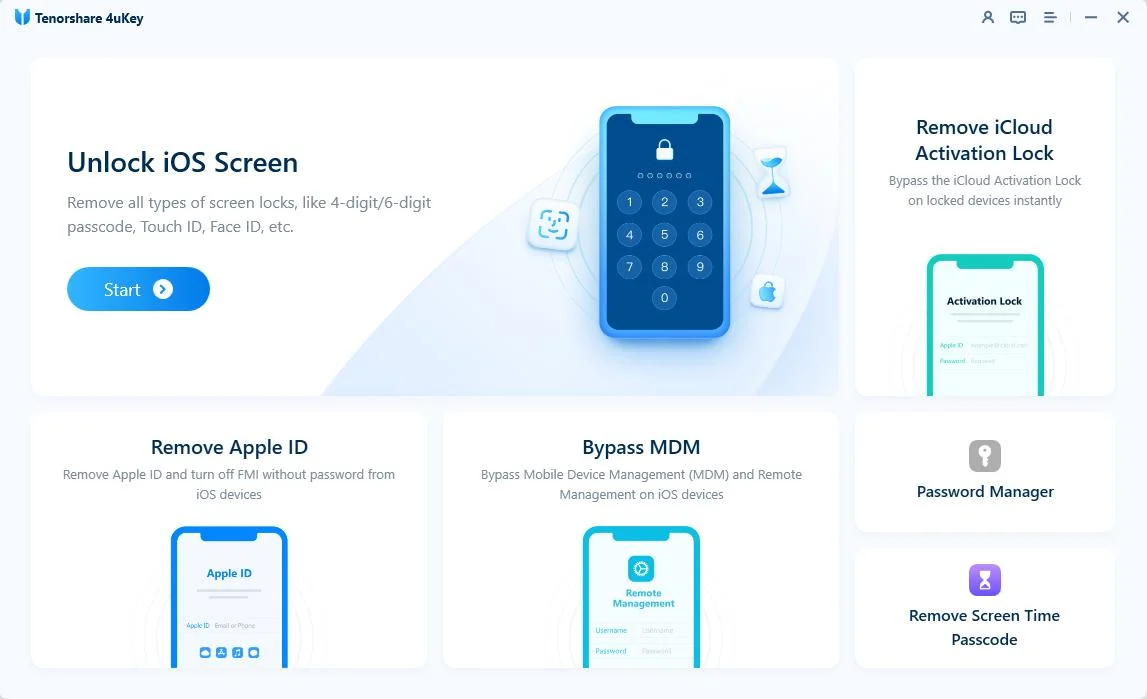
Step 1: Download and install 4uKey.
Install 4uKey on your Mac or PC, then open the program. Click "Start" on the main screen to begin removing the lock screen passcode.
Step 2: Connect your iPhone to the computer.
Use a USB cable to connect your iPhone to the computer. The software will detect your phone.
If the program does not see your device, follow the on-screen instructions. You will need to put your phone into "Recovery Mode" or "DFU Mode" so the computer can read it.

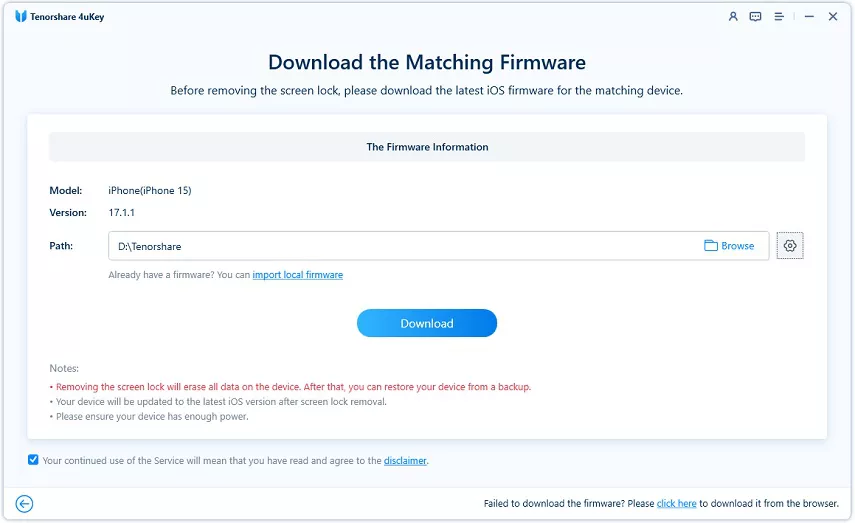
Step 3: Download the firmware package.
The program will ask you to download the latest firmware. Choose a folder on your computer to save the file, then click "Download". Make sure your computer has at least 7 GB of free space before you begin.
Step 4: Start unlocking the iPhone.
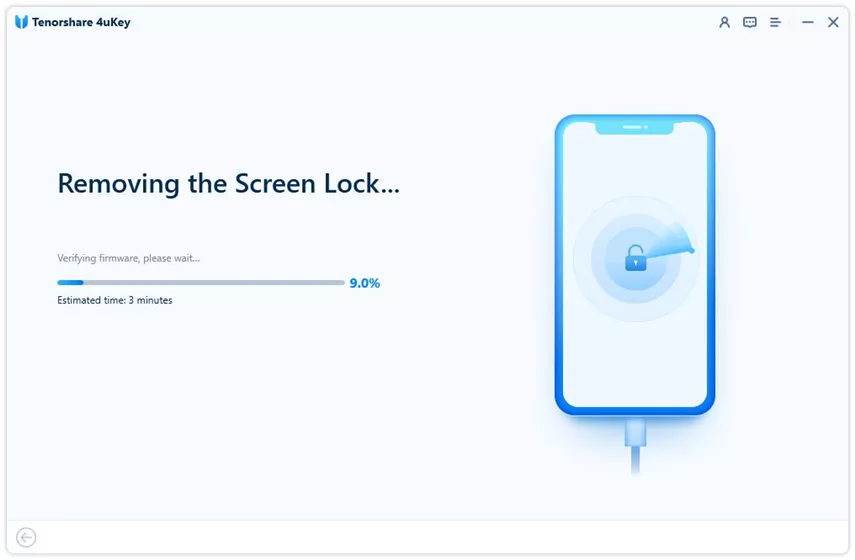
Once the firmware finishes downloading, the program will begin removing the passcode. Wait for the process to run, and keep your phone plugged in the whole time.
Step 5: Finish the removal process.
Wait for the process to finish, then check your iPhone screen. You can now set up your device as new and add a fresh passcode, Touch ID, or Face ID. If you have an iCloud or iTunes backup, you can restore your data during setup.
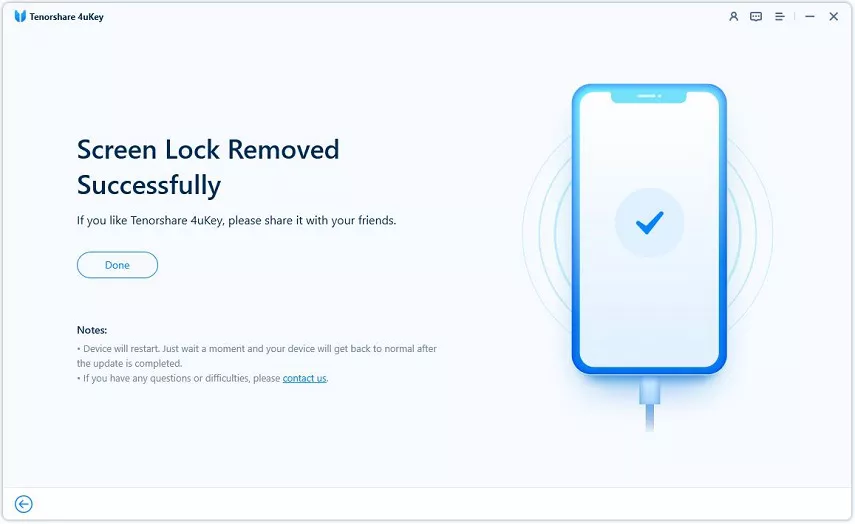
Note that this process still erases local data, and you will need your Apple ID to bypass Activation Lock during the setup phase.
Method 3: Restore via Recovery Mode Using a Computer
If you prefer using Apple's native desktop tools, you can recover iPhone after unavailable message by putting the device into Recovery Mode and using iTunes or Finder.
- Connect your iPhone to a Mac or a Windows PC using a compatible USB cable.
- Press and quickly release the Volume Up button, then the Volume Down button. Press and hold the Side button until the Recovery Mode screen appears.
- Open Finder or iTunes. A prompt will appear stating there is a problem with the iPhone.
- Select Restore and agree to the terms to download the latest iOS software.
- Leave the phone connected until the installation finishes.

If the download takes longer than 15 minutes, your phone will exit Recovery Mode, and you will need to repeat the button sequence.
Method 4: Wipe the Device Using iCloud Find Devices
If you face the forgot iPhone passcode unavailable screen and do not have physical access to a computer, you can trigger a remote wipe from another web browser or device.
- Go to iCloud.com on another phone, tablet, or computer and log in with your Apple ID.
- Navigate to the Find Devices section.
- Select your locked iPhone from the list of active devices.
- Click Erase This Device and follow the prompts to confirm the remote wipe.

This approach only works if Find My was previously enabled on the locked iPhone and it currently has a cellular or Wi-Fi connection.
Conclusion
Dealing with the 'iOS 27 iPhone Unavailable Try Again' error usually comes down to waiting out the timer or performing a complete device reset. If you have an active network connection, the on-screen erase option is the fastest path forward. However, if your device is offline or the official methods fail, putting the phone into Recovery Mode or using a dedicated desktop tool can force the reset. Remember that all reset methods will clear your local data, making regular backups essential for a smooth recovery.
FAQ
Q: Is it possible to unlock an iPhone that says iPhone is unavailable without losing data?
A: If the screen shows a timer, you can wait it out and enter the correct passcode to unlock the phone without data loss. If there is no timer, the device is permanently locked, and you must erase it to regain access.
Q: Will an erase remove Activation Lock after the iPhone security lockout try again later message?
A: No. Erasing the passcode does not remove Activation Lock. You will still need to enter the original Apple ID and password during the setup process to prove ownership of the device.
Q: What should I do if iTunes fails to recognize my phone in Recovery Mode?
A: Check your USB cable and ensure you are using a port directly on the computer. If the official tools still fail, advanced options like Tenorshare 4uKey may help force the device to reset over the USB connection.

