
AI Quick SummaryAI
If you face an iPhone 17 passcode not working error, stop guessing to avoid a permanent lockout and choose a reset method based on your screen state.
- Tap the 'Forgot Passcode?' option on the 'iPhone Unavailable' screen to erase and reset your device using your Apple ID password.
- Force a recovery mode restore using a computer if your phone lacks a network connection or the screen is completely unresponsive.
- Try a dedicated tool like Tenorshare 4uKey to bypass the lock screen if hardware buttons fail or iTunes times out during the process.
It depends on whether you forgot the PIN or if a recent software update caused your device to reject the correct entry. If your iPhone 17 passcode not working, the safest first action is to stop entering guesses to avoid a permanent security lockout. Instead, check if your device displays the 'iPhone Unavailable' screen, which allows you to reset the phone directly using your Apple ID.
When the iPhone 17 lock screen passcode not responding is due to a system glitch rather than memory, you will likely need to erase the device to regain access.

Can You Fix an iPhone 17 When the Passcode Is Not Accepted?
Yes, but the exact fix depends on your current lock screen state and whether you have a recent backup. When your iPhone 17 unable to unlock with passcode, iOS protects your data by progressively disabling the device after multiple failed attempts.
Which Passcode Reset Method Fits Your Situation?
| Reset Method | Ideal Scenario | Computer Required | Data Erased | Platform / Tool |
| 'Forgot Passcode?' Option | 'iPhone Unavailable' screen | No | Yes | iOS Lock Screen |
| Face ID Bypass | PIN glitch only | No | No | iOS Settings |
| iCloud Find My | Unresponsive screen | No | Yes | Web Browser |
| Recovery Mode | Offline or fully locked | Yes | Yes | Finder / iTunes |
| Dedicated Unlocker | iTunes or buttons fail | Yes | Yes | Tenorshare 4uKey |
| Apple Support | Activation / hardware issues | Varies | Yes | Official Support |
If the screen says 'iPhone Unavailable' or 'Security Lockout', you can often erase and reset the device without a computer using your Apple ID password. If the screen is completely frozen or the passcode is unexpectedly failing after a settings reset, you will need to force a recovery mode restore. Keep in mind that any method used to bypass a forgotten lock screen will erase your local data, though you can restore everything from an iCloud or computer backup during the setup process.
6 Ways to Fix iPhone 17 Passcode Not Working
Review these approaches to regain access, starting with the built-in Apple recovery features.
Method 1: Use the 'Forgot Passcode?' Option (No Computer Needed)
Apple provides a direct way to erase a locked device if it is running iOS 17 or later and connected to a cellular or Wi-Fi network.
- Enter the wrong passcode until the 'iPhone Unavailable' or 'Security Lockout' screen appears.
- Tap the Forgot Passcode? option in the bottom corner of the screen.
- Tap Start iPhone Reset to confirm you want to wipe the device.
- Enter your Apple ID password to sign out of your account.
- Wait for the device to erase and restart to the initial setup screen.
This process deletes all local data, but it is the fastest way to fix the issue if you know your Apple ID credentials.
Method 2: Unlock via Face ID to Reset the Passcode
If your iPhone 17 password not accepted error only happens when typing the PIN, but Face ID still functions, you can bypass the manual entry.
- Swipe up on the lock screen and let Face ID scan your face.
- Once on the home screen, open the Settings app.
- Scroll down and tap Face ID & Passcode.
- If the system prompts for the current passcode and rejects it, you cannot change it here. If it accepts it, tap Change Passcode.
This only works if the device has not restarted recently, as iOS requires a manual passcode entry after a reboot before Face ID activates.
Method 3: Erase the Device Remotely Using iCloud Find My
When the lock screen is unresponsive or you cannot trigger the 'Forgot Passcode?' button, you can send a remote wipe command from another device.
- Find My must be active on the locked iPhone 17.
- The locked device must have an active internet connection.
- Open a web browser on another phone or computer and go to iCloud.com.
- Sign in with the same Apple ID used on the locked iPhone.
- Select the Find My app from the iCloud dashboard.
- Click All Devices and select your iPhone 17 from the list.
- Click Erase This Device and confirm the action.
The device will wipe itself the next time it connects to the internet, removing the passcode lock.
If your iPhone 17 forgot passcode and locked out completely, or if it lacks a network connection, you must use a computer to force a factory reset.
- Connect your iPhone 17 to a Mac or a Windows PC using a USB-C cable.
- Press and quickly release the Volume Up button, then the Volume Down button.
- Press and hold the Side button until the recovery mode screen appears (a computer icon and a cable).
- Open Finder on a Mac, or the Apple Devices app (or iTunes) on Windows.
- Click Restore when prompted by the software to download the latest iOS firmware and erase the device.
This process bypasses the local passcode entirely. If the download takes longer than 15 minutes, the iPhone will exit recovery mode, and you will need to repeat the button sequence.
Method 5: Remove iPhone 17 Screen Passcode Using Tenorshare 4uKey
Sometimes, a lock screen issue persists because iTunes times out, or the hardware buttons prevent you from entering recovery mode. In these specific scenarios, a dedicated tool like Tenorshare 4uKey can help force the firmware update and remove the lock screen.
When to Consider Tenorshare 4uKey
- Supports unlocking when the device is disabled and iTunes fails to recognize it.
- Provides a visual interface to bypass the lock screen without requiring precise hardware button timing.
- Handles multiple passcode types, Touch ID, and Face ID-related lockout scenarios.
If you cannot restore the device using Apple's default methods, follow these steps to erase the lock screen.
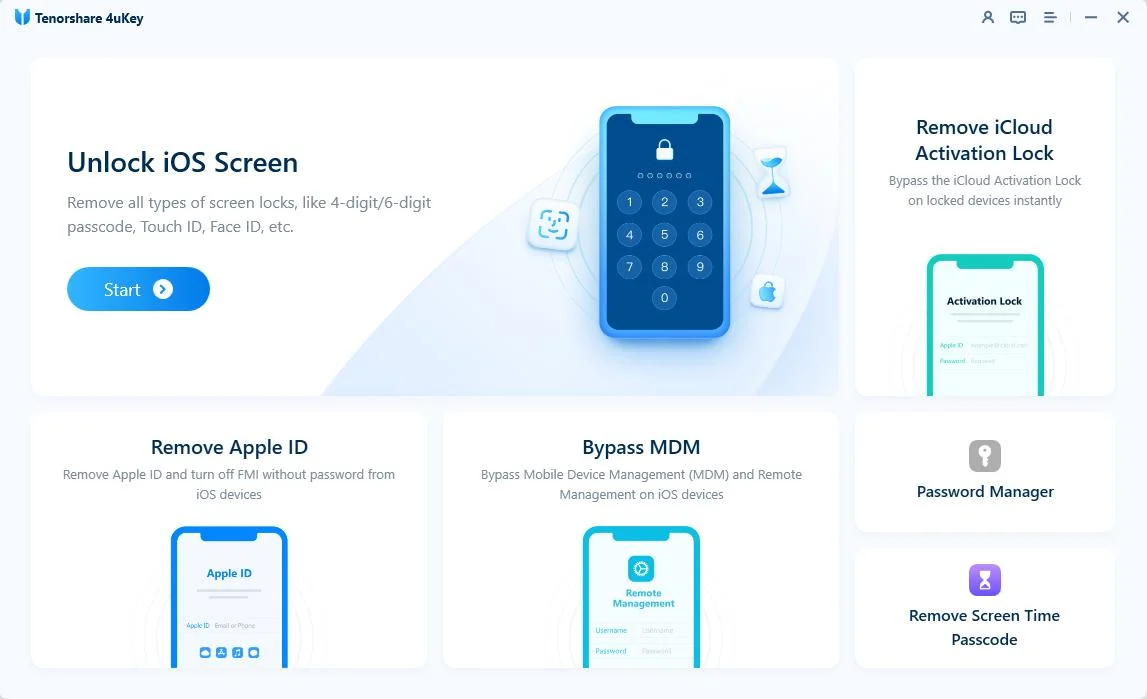
Step 1: Download and install 4uKey.
Download and install 4uKey on your Mac or PC. Open the program and click "Start" to remove your screen lock.
Step 2: Connect your iPhone to the computer.
Plug your iPhone into the computer with a USB cable. The software will detect your phone automatically.
If the app does not see your phone, follow the on-screen instructions. This puts your device into "Recovery Mode" or "DFU Mode" so the computer can read it.

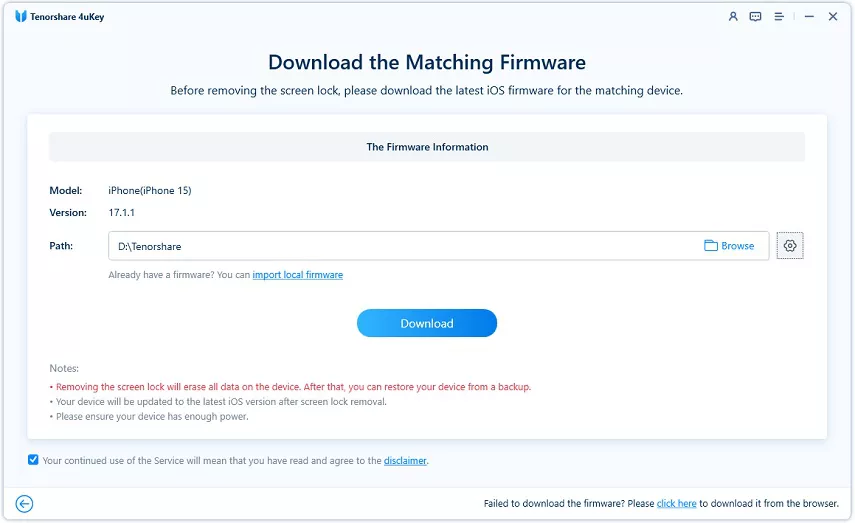
Step 3: Download the firmware package.
The tool will ask you to download the latest firmware. Pick a save folder and click "Download". Make sure your computer has at least 7 GB of free space.
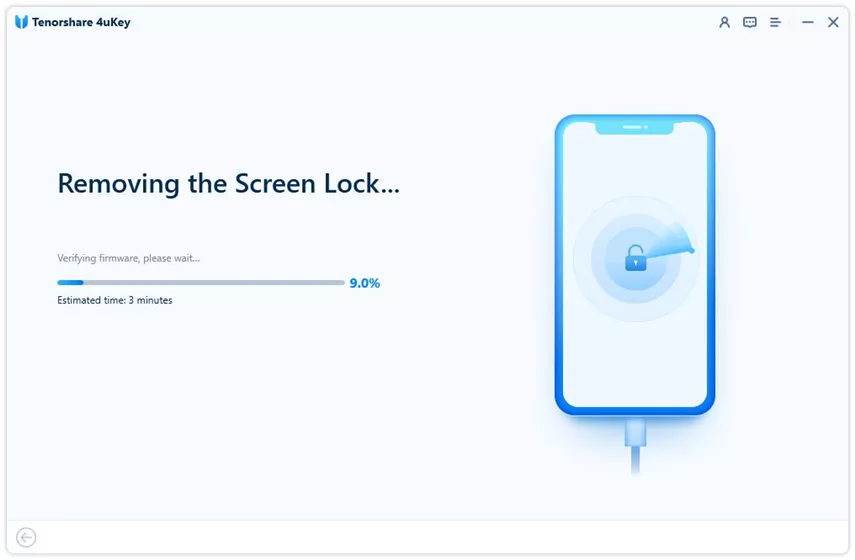
Step 4: Start unlocking the iPhone.
Once the download finishes, 4uKey removes the passcode. This takes a few minutes. Keep your phone connected to the computer the entire time.
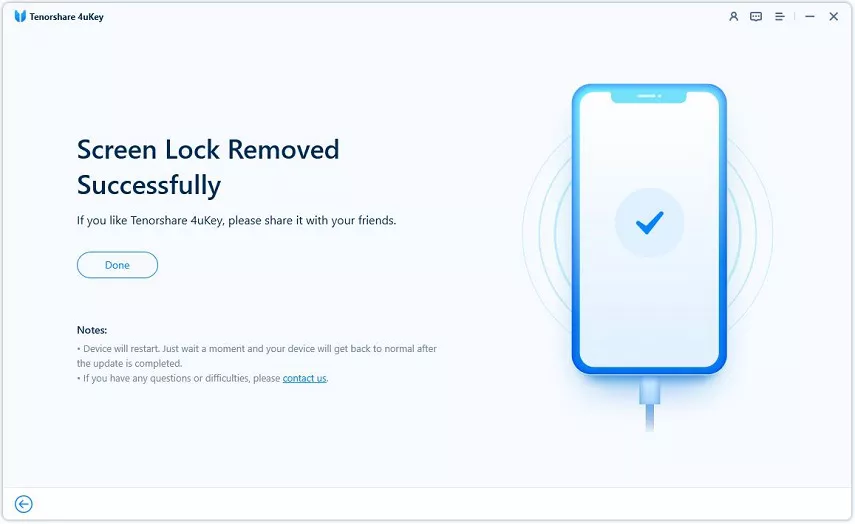
Step 5: Finish the passcode removal.
Wait for the process to finish, then check the setup screen on your iPhone. You can set up a new passcode, Touch ID, or Face ID. If you have an iCloud or iTunes backup, you can restore your data now.
Like all reset methods, this will erase your local data. You will need your Apple ID password during setup if Activation Lock is enabled.
Method 6: Contact Apple Support for Hardware or Activation Issues
If none of the software resets work, or if your device is stuck on Activation Lock and you cannot recover your Apple ID, you will need official intervention.
- Locate your original proof of purchase (receipt or invoice) showing the device serial number.
- Visit the Apple Support website and navigate to the Activation Lock support page.
- Submit an Activation Lock support request with your documentation.
- Alternatively, schedule an appointment at an Apple Store if you suspect the screen digitizer is failing and ignoring your touch inputs.
Apple can remove the Activation Lock if the proof of purchase is valid, allowing you to set up the erased phone as new.
What to Check After Restoring Your iPhone 17
Once you successfully bypass the passcode and reach the 'Hello' screen, you need to verify a few account settings before using the device normally.
- Activation Lock: If Find My was on, you must enter the original Apple ID and password to proceed past the activation screen.
- Backup Selection: Choose Restore from iCloud Backup or Restore from Mac or PC to recover your apps and photos. If no backup exists, select Don't Transfer Apps & Data.
- Face ID Setup: Re-scan your face in a well-lit room, as the previous biometric data was wiped during the reset.

How to Avoid Lock Screen Passcode Failures
To prevent getting locked out of your iPhone 17 again, set up secondary recovery options and maintain regular backups.
- Enable iCloud Backups: Go to Settings > [Your Name] > iCloud > iCloud Backup and turn it on to ensure your data is safe if you ever need to erase the phone.
- Set an Alphanumeric Code: If you suspect a software glitch is rejecting a standard 6-digit PIN, switch to a custom alphanumeric passcode, which often avoids numeric keypad bugs.
- Keep Find My Active: Leaving Find My enabled ensures you always have a remote wipe option available via iCloud.com if the physical screen stops responding.
Final Steps to Regain Access
Dealing with an iPhone 17 passcode not working requires choosing the right reset path based on your device state. If the device is connected to Wi-Fi, the built-in 'Forgot Passcode?' button is the most direct solution. For devices that are completely unresponsive or offline, a recovery mode restore via a computer is necessary. Remember that erasing the device is unavoidable when the passcode is lost, but a recent backup will allow you to recover your important data during the setup phase.
FAQ
Q: Will unlocking my iPhone 17 remove Activation Lock?
A: No. Erasing a forgotten passcode removes the local lock screen, but Activation Lock remains tied to the device hardware. You must enter the original Apple ID password during setup to use the phone.
Q: Can I fix an iPhone 17 unable to unlock with passcode without losing data?
A: If you truly forgot the passcode and cannot access the home screen, you cannot bypass it without erasing the device. Your data can only be recovered if you made a backup before the lockout occurred.
Q: Why does my iPhone 17 reject my correct passcode after an update?
A: Occasionally, an iOS update can cause a temporary glitch with the secure enclave. Force restarting the iPhone 17 often resolves this bug. If the issue persists, a full factory reset is required.

