
Seeing the prompt stating your passcode is required to enable Face ID is a built-in iOS security feature rather than a software bug. Apple requires manual authentication whenever biometric verification times out or fails repeatedly. If you know your current passcode, simply entering it will immediately restore facial recognition. If you forgot the passcode, you must erase and reset your iPhone to regain access.

Why Does Face ID Say Your Passcode Is Required?

Apple designed Face ID to fall back to a manual passcode under specific security conditions. This prevents unauthorized access if your biometric data cannot be verified or if the device state changes.
- Device Restarts: Any time you power off or restart the iPhone, a manual entry is mandatory.
- Inactivity: If the device remains locked for more than 48 hours, Face ID disables itself.
- Failed Attempts: Five consecutive failed facial recognition scans will trigger the passcode prompt.
- Accidental Scans: Environmental factors like poor lighting, or the Raise to Wake feature activating in a pocket, can register as failed attempts.
- Software Updates: Completing an iOS update requires a passcode to unlock the newly booted system.
Understanding these triggers helps determine if you just need to adjust your settings or perform a full device reset.
6 Ways to Fix 'Your Passcode Is Required to Enable Face ID'
Choosing the Right Passcode Resolution Method
| Method | Passcode Status | Data Wiped | Requirements | Cost |
| Enter Current Passcode | Known | No | Responsive screen | Free |
| Lock Screen Erase | Forgotten | Yes | iOS 15.2+ and network | Free |
| Recovery Mode Restore | Forgotten | Yes | Computer and iTunes/Finder | Free |
| Tenorshare 4uKey | Forgotten | Yes | Computer (Bypasses iTunes errors) | Paid |
The correct path to restore access depends entirely on whether you remember the passcode or if the device is permanently locked. Review the following approaches to find the right solution.
Method 1: Enter the Passcode to Re-authenticate
If you know your passcode, this is the only required step. The system is simply verifying your identity after a timeout or restart.
- Swipe up from the bottom of the lock screen.
- Tap the numeric keys to enter your current passcode.
- Once unlocked, lock the screen again and test Face ID to confirm it is active.
This process does not erase any data. If the prompt returns immediately upon locking, your TrueDepth camera might be obstructed.
Method 2: Clean the TrueDepth Camera and Adjust Lighting
If Face ID repeatedly fails and forces a passcode prompt, environmental factors or physical blockages are often responsible.
- Wipe the top notch or Dynamic Island area of your iPhone with a clean microfiber cloth.
- Ensure your screen protector or case is not covering the camera sensors.
- Move to an area with better lighting, avoiding harsh backlighting behind your head.
- Hold the device at eye level, roughly 10 to 20 inches from your face.
Consistent failures in ideal lighting may indicate a hardware issue requiring Apple Support.
Method 3: Turn Off Raise to Wake to Prevent Accidental Scans
When an iPhone is carried in a pocket or bag, the screen can wake up and attempt to scan for a face. After five failed pocket scans, iOS disables Face ID.
- Unlock your iPhone and open the Settings app.
- Scroll down and tap Display & Brightness.
- Find the Raise to Wake toggle and switch it off.
Disabling this feature forces you to tap the screen or press the side button to wake the device, preventing accidental lockouts.
Method 4: Erase iPhone via the Lock Screen (iOS 15.2+)
If you forgot the passcode and cannot enter it, you must erase the device. Devices running iOS 15.2 or later offer a direct erase option on the lock screen if connected to Wi-Fi or cellular data.
- Enter wrong passcodes until the iPhone Unavailable or Security Lockout screen appears.
- Tap the Erase iPhone (or Forgot Passcode?) option at the bottom corner of the screen.
- Confirm you want to erase all content and settings.
- Enter your Apple ID password to sign out of your account and begin the wipe.
This process deletes all local data. You will need a previous iCloud or Mac backup to restore your information during setup.
Method 5: Restore via Recovery Mode and Computer
If the lock screen erase option is missing or fails, you can use Recovery Mode to force a factory reset using a Mac or PC.
- Connect your iPhone to a computer using a USB cable.
- Press and quickly release the Volume Up button, then the Volume Down button.
- Press and hold the Side button until the Recovery Mode screen (a computer and cable icon) appears.
- Open Finder on a Mac or iTunes on a PC, locate your device, and click Restore.
This downloads the latest iOS software and wipes the passcode. If the download takes longer than 15 minutes, the iPhone will exit Recovery Mode, and you must repeat the button sequence.
What If You Forgot the Passcode Required to Enable Face ID?
When physical buttons are broken, iTunes throws update errors, or you cannot trigger the lock screen erase, a dedicated recovery tool like Tenorshare 4uKey can bypass the lock screen. This approach still erases local data but handles the firmware download and reset automatically.
When Tenorshare 4uKey Can Help
- Support for iPhone Unavailable, Disabled, Security Lockout, and forgotten-passcode scenarios.
- Remove Apple ID without a password in supported scenarios.
- Windows and Mac support.
Step 1: Download and install 4uKey
Download and install 4uKey on your Mac or PC. Open the app and click "Start" to begin removing your lock screen passcode.
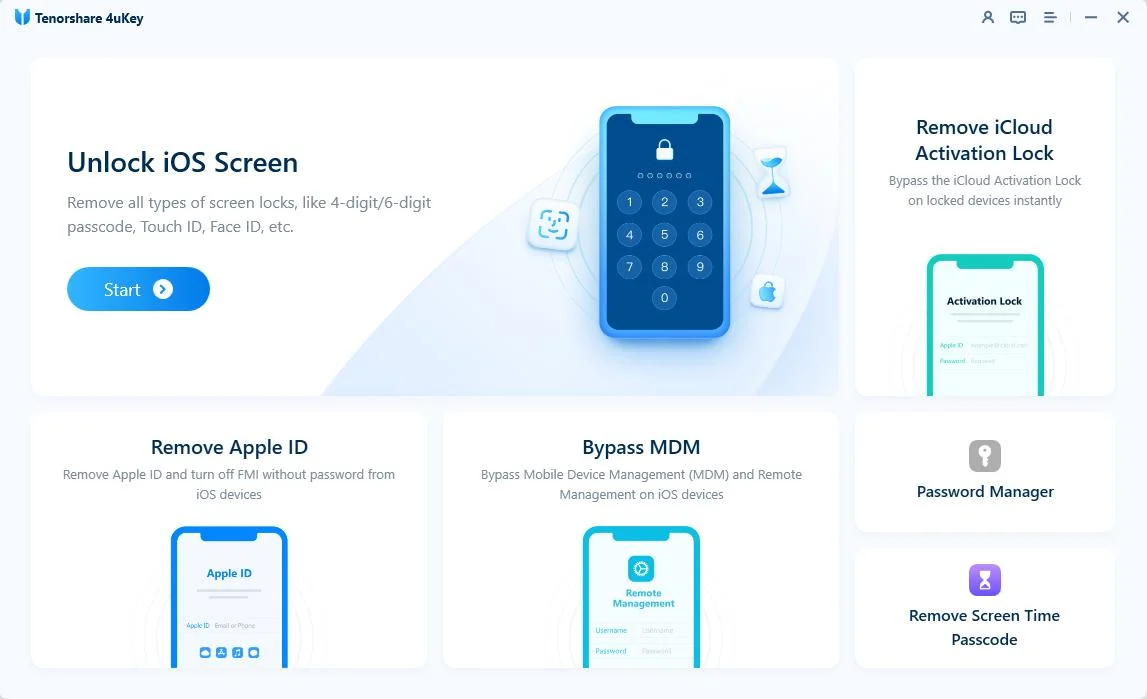
Step 2: Connect your iPhone to the computer
Plug your iPhone into the computer with a USB cable. The software will detect your phone automatically.
If the app does not see your phone, follow the on-screen steps to put your device into "Recovery Mode" or "DFU Mode". This helps the computer recognize it.

Step 3: Download the firmware package
The app will ask you to download the latest firmware. Choose where to save the file and click "Download". Make sure your computer has at least 7GB of free space before you start.
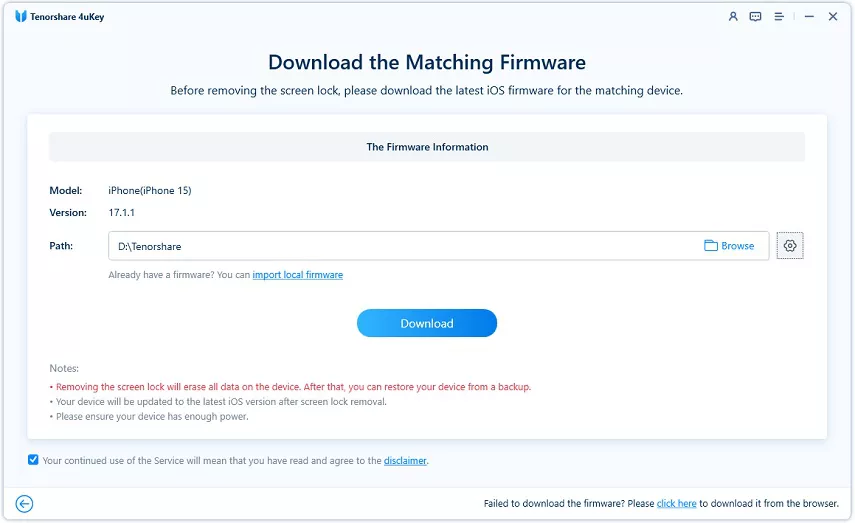
Step 4: Unlock the iPhone screen
Once the download finishes, 4uKey begins removing the passcode. Keep your phone connected to the computer with the USB cable while you wait.
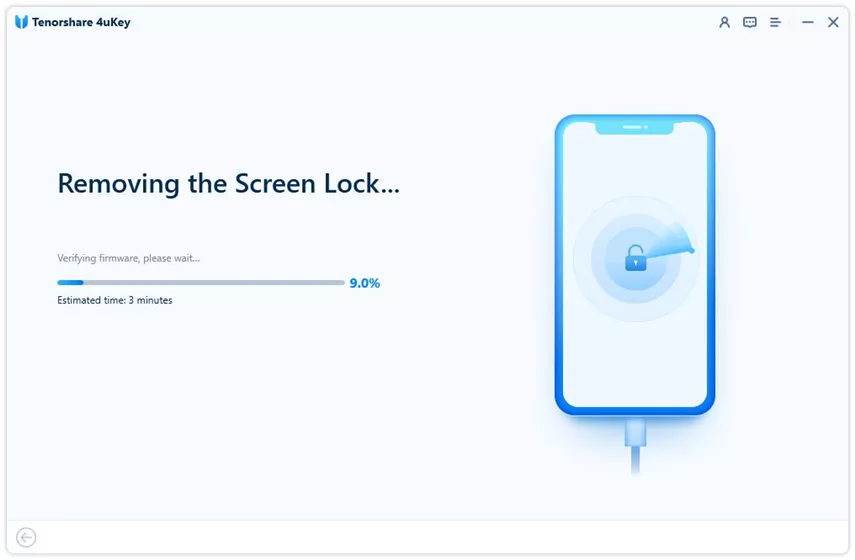
Step 5: Finish the passcode removal
Wait for the process to finish, then check your phone screen. You can now set up your iPhone as a new device and add a new passcode, Touch ID, or Face ID. If you have a recent iTunes or iCloud backup, you can restore your data during setup.
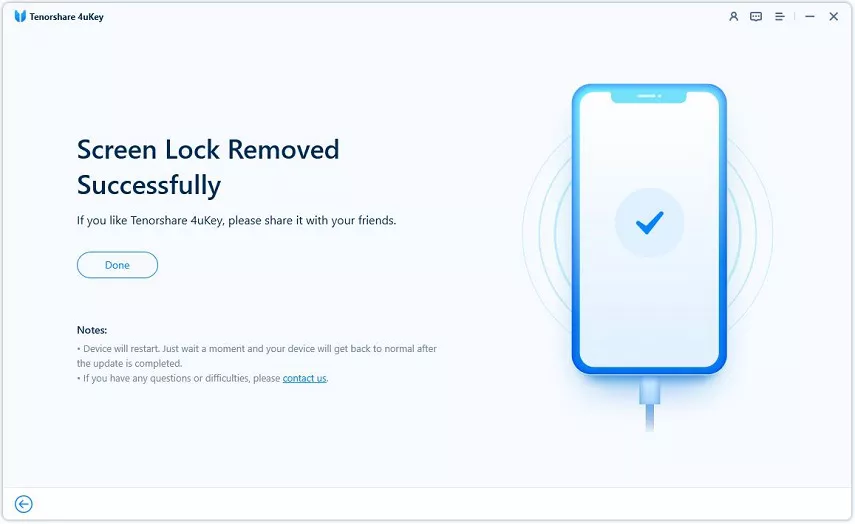
After the process finishes, your iPhone will restart at the initial setup screen, allowing you to configure a new Face ID profile.
How to Prevent iPhone from Frequently Asking for Passcode
If you remember your passcode but are frustrated by how often the iPhone demands it, adjust your daily usage habits and system settings to reduce lockouts.
- Set Up an Alternate Appearance: If you frequently wear glasses, hats, or masks, go to Settings > Face ID & Passcode and tap Set Up an Alternate Appearance to improve recognition accuracy.
- Disable Require Attention: If you wear dark sunglasses that block infrared scanning, turning off Require Attention for Face ID can stop failed scans, though this slightly reduces device security.
- Keep the Device Active: Remember that 48 hours of inactivity automatically triggers the passcode requirement. Unlock your phone at least once a day to reset this timer.
- Install iOS Updates: Software bugs can occasionally cause biometric authentication to crash. Keep your device updated in Settings > General > Software Update.
Conclusion
Encountering a message that your passcode is required to enable Face ID is a normal security measure designed to protect your personal data. If you know the code, simply typing it in resolves the issue immediately. When environmental factors or pocket scans cause repeated lockouts, disabling Raise to Wake and cleaning the TrueDepth camera will stabilize authentication.
If you have completely forgotten the passcode, you cannot bypass the lock without erasing the device. Built-in options like the lock screen erase or Recovery Mode are the safest official paths. If those fail due to hardware or network limitations, desktop recovery tools offer an alternative way to force a factory reset and regain access.
FAQ
Q: Can I enable Face ID again without the passcode?
A: No. Apple strictly requires the manual passcode to re-authenticate Face ID after a restart, timeout, or biometric failure. There is no workaround that bypasses this requirement without erasing the device.
Q: Why does my iPhone keep asking for a passcode for Face ID every morning?
A: This usually happens if the TrueDepth camera attempts to scan your face while you are sleeping or if the phone moves in your bed, triggering the Raise to Wake feature. After five failed attempts in the dark, iOS disables Face ID until morning.
Q: Will resetting my forgotten passcode remove Activation Lock?
A: No. Erasing a locked iPhone removes the local passcode, but Activation Lock remains tied to the device hardware. You will still need to enter the original Apple ID and password during setup to use the phone.
Q: How do I fix passcode required for Face ID if my screen is unresponsive?
A: If you cannot tap the numbers due to screen damage, you must force restart the iPhone or connect it to a computer and use Recovery Mode to erase it, though a broken screen may still prevent setup later.

