
It can be incredibly frustrating when you need to use your phone, but you are staring at a completely dark display. Whether you dropped your device or it simply stopped responding, figuring out how to unlock iPhone with black screen might seem impossible at first. Do not worry. The safest first action is to ensure your phone is actually powered on and not just experiencing a software crash.
In this beginner-friendly guide, we will walk you through several proven methods—from force restarts to specialized tools—to bypass the lock screen and regain control of your device.

Why Does Your iPhone Screen Turn Black?
Before attempting to fix the issue, it helps to understand what causes your display to fail. In most cases, the problem stems from either physical damage or a sudden system crash.
- Hardware damage is a common culprit; you might need to open iPhone with shattered screen and passcode issues if it recently took a hard fall.
- Software glitches can also cause this. For example, some users report their iPhone screen goes black after an iOS 27 update.
- A completely dead battery or a failed display connector could also keep your screen dark even if the phone is technically on.
How to Unlock A Black Screen iPhone When All Fixes Fail
If your iPhone remains unresponsive, you will need alternative ways to bypass the lock screen. Review the methods below to find the best approach for your specific situation.
Method 1: Force Restart to Fix a Software Glitch
Before trying to bypass the passcode, it is always a good idea to ensure your phone has not just crashed. A simple force restart can clear minor software bugs without erasing any data.
- Press and quickly release the Volume Up button, then do the same with the Volume Down button.
- Press and hold the Side (Power) button until you see the Apple logo appear on the screen.
- If the screen lights up, you can simply enter your passcode normally. If it remains dark, proceed to the unlocking methods below.

Method 2: Unlock Disabled iPhone with Black Display Directly
If a force restart does not work, a dedicated tool like Tenorshare 4uKey offers a straightforward way to unlock disabled iPhone with black display. This software helps you bypass the lock screen quickly so you can focus on repairing or replacing the device. Keep in mind that removing the lock screen passcode will erase your device data, requiring you to restore from a backup afterward.
- Trusted by millions of users worldwide.
- Supports multiple passcode types, Touch ID, and Face ID-related lockout scenarios.
- Fix Can't sign out of Apple id on iPhone issue
- Support the latest iOS/iPadOS 27.
Step 1: Download and install 4uKey.
Install 4uKey on your PC or Mac and open the program. Click "Start" on the main screen to begin removing your lock screen passcode.
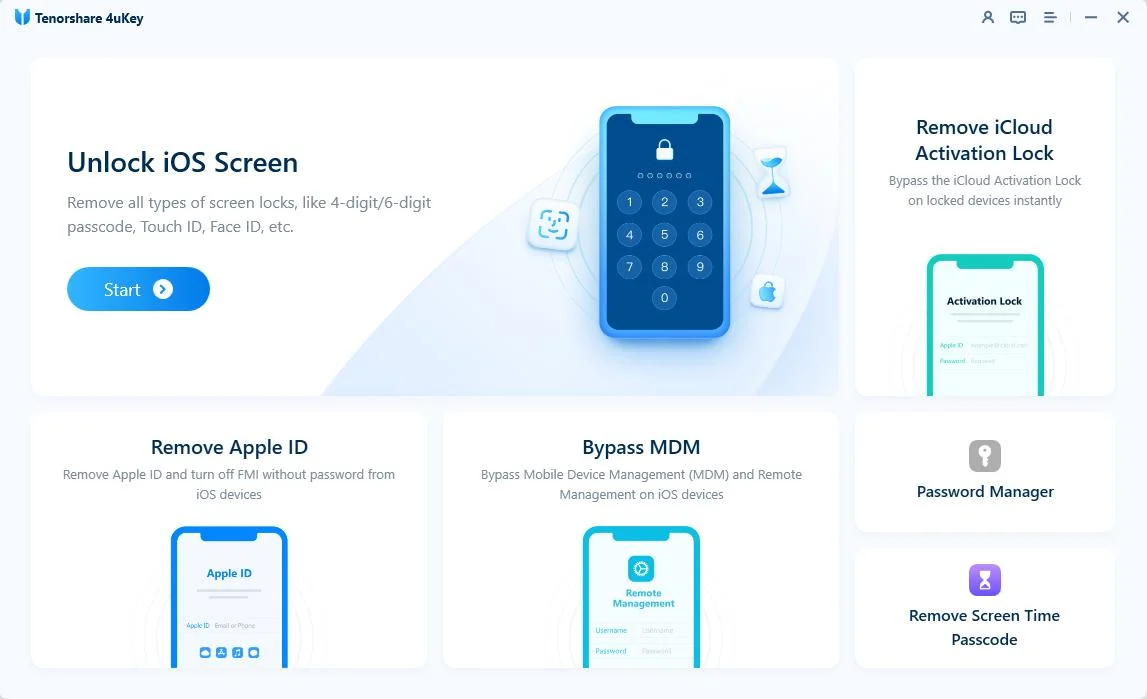
Step 2: Connect your iPhone to the computer.
Use a USB cable to connect your iPhone to the computer. The software will detect your device.
If the program does not recognize your phone, follow the on-screen instructions. You will need to put your device into "Recovery Mode" or "DFU Mode" so the computer can read it.

Step 3: Download the firmware package.
The program will ask you to download the latest firmware. Choose where to save the file on your computer and click "Download". Make sure your hard drive has at least 7 GB of free space.
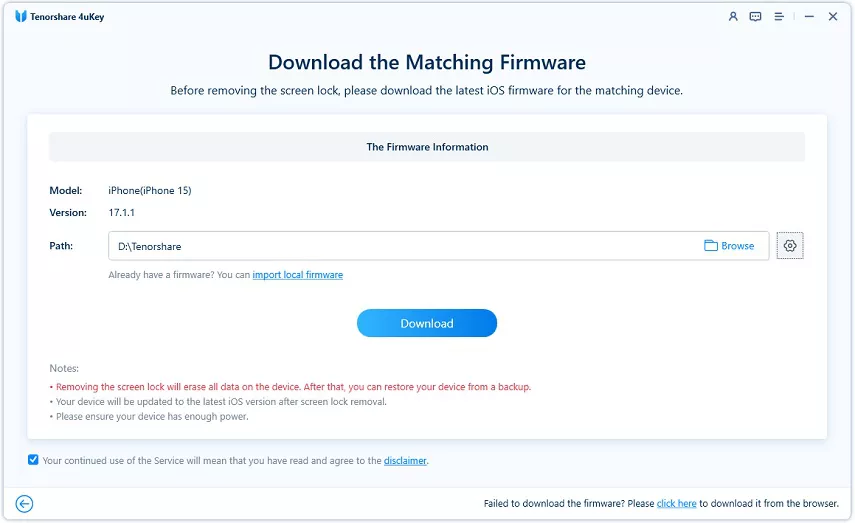
Step 4: Start unlocking the iPhone.
Once the firmware finishes downloading, 4uKey will begin removing the passcode. Wait a few minutes for the process to finish. Keep your iPhone connected to the computer the entire time.
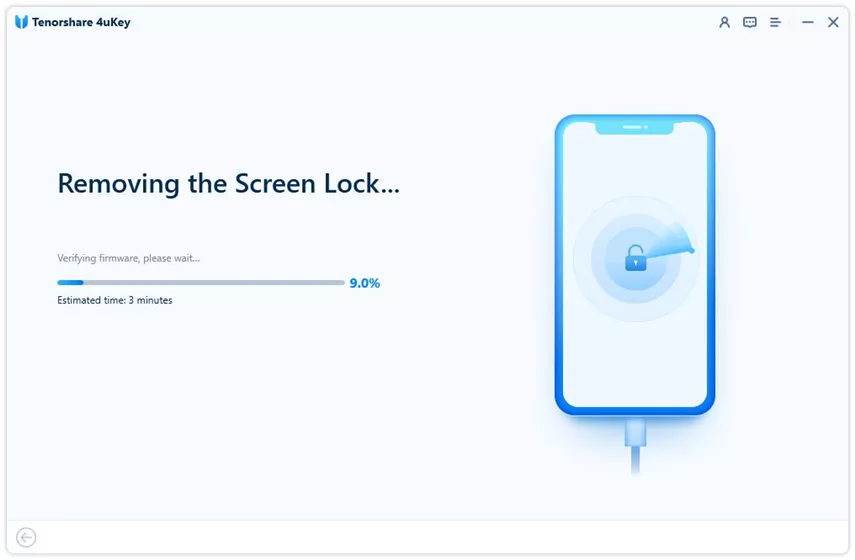
Step 5: Finish the passcode removal.
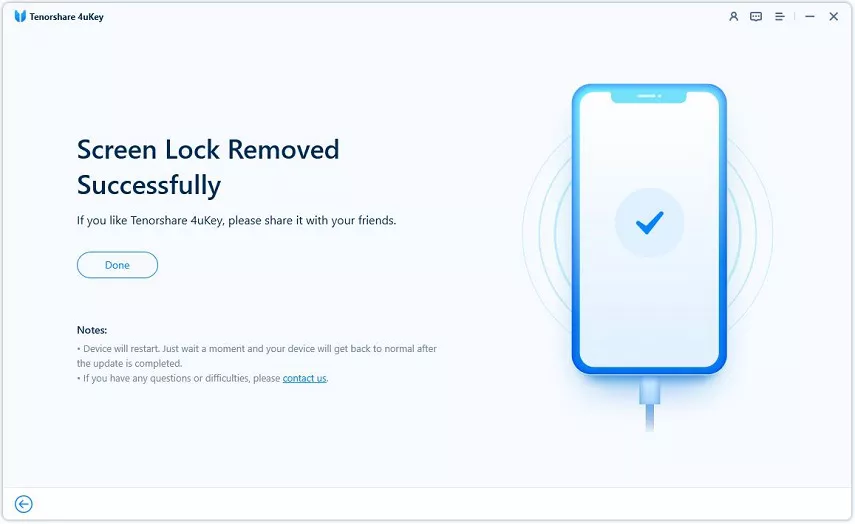
After the passcode is gone, your phone will restart to the welcome screen. You can now set up your iPhone as a new device and add a new passcode, Touch ID, or Face ID. If you have a recent iTunes or iCloud backup, you can restore your data during this setup.
Method 3: Access Locked iPhone with Unresponsive Display via iTunes
If you prefer using official Apple software, iTunes (or Finder on Mac) can help you restore the device. This approach is a standard official path for regaining access to a locked iPhone with unresponsive display, as long as you have a computer available.

- You will need to put your iPhone into Recovery Mode manually using the physical buttons, since you cannot use the screen.
- Once in Recovery Mode, connect the phone to your computer and open iTunes.
- A prompt will appear stating there is a problem with the iPhone. Choose the 'Restore' option.
- This process will wipe the device and remove the passcode lock, allowing you to restore a previous backup.
Method 4: Use iCloud to Erase Your Device Remotely
If 'Find My' is enabled on your locked phone, you can use iCloud to bypass the passcode wirelessly. This method is ideal if you do not have immediate access to a computer with iTunes.
- Go to iCloud.com on another computer or smartphone and log in with your Apple ID.
- Navigate to the 'Find iPhone' section and select your black-screen device from the 'All Devices' list.
- Click on 'Erase iPhone' and confirm your choice. This will remotely wipe the phone and its passcode, provided the device is connected to Wi-Fi or cellular data.
Method 5: Enter Passcode on iPhone with Broken Screen via VoiceOver
If your screen is dark or shattered but the touch sensor still works slightly, VoiceOver can be a lifesaver. This accessibility feature allows you to enter passcode on iPhone with broken screen by having the system read your inputs aloud.
- Activate Siri by holding the Side button and say, 'Turn on VoiceOver.'
- Swipe left or right on the dark screen; VoiceOver will read aloud the keys you are touching.
- Double-tap to select the correct numbers for your passcode.
- Alternatively, if touch is completely dead, you can connect a Lightning or Bluetooth keyboard to type the passcode blindly.

Final Thoughts on Unlocking a Black Screen iPhone
Dealing with a broken or completely dark display is stressful, but you are not locked out forever. Whether you use iTunes, iCloud, or a specialized tool, you have multiple ways to regain control of your data and settings.
For the most user-friendly experience, Tenorshare 4uKey takes the guesswork out of the process, helping you bypass the lock screen quickly so you can focus on repairing or replacing the device.
Unlocking Black Screen iPhone FAQ
Q: Can I unlock my iPhone if the screen is completely dead and unresponsive?
A: Yes. If the touch sensor is completely broken, you can use physical buttons to enter Recovery Mode and restore via iTunes, use iCloud to erase it remotely, or connect a physical keyboard to type your passcode blindly.
Q: Will I lose my photos and data when unlocking a black screen iPhone?
A: If you do not have a recent backup, you will lose your data. Bypassing a forgotten passcode or unlocking a disabled device requires erasing the phone to remove the security lock.
Q: How do I trust a computer when my iPhone screen is broken and black?
A: If VoiceOver is active and the touch sensor works, you can use it to select 'Trust'. Otherwise, you cannot manually trust a new computer, which is why Recovery Mode (which bypasses the trust prompt for a restore) is often necessary.
Q: Can I back up my iPhone while the screen is black before unlocking it?
A: You can only back up the device if it was previously trusted by your computer and is not currently stuck in a 'Disabled' or 'Security Lockout' state. If it is locked and untrusted, a new backup is not possible before erasing.

