
Being locked out of your device is frustrating, especially if you are trying to find out how to unlock iPhone with emergency call screen. Years ago, a popular myth circulated that you could bypass the lock screen simply by typing a specific code into the emergency dialer. While that old trick no longer works on modern devices, you are not out of options. If you forgot your passcode, the safest first action is to erase and reset the device using proven, secure methods.
This will remove the security lock and help you regain access to your phone quickly.

Can You Bypass Emergency Call Screen on Locked iPhone?
No. This dialer trick was actually a bug present in very old software versions, specifically around iOS 6.1. Apple patched this security flaw long ago, making it impossible to bypass the lock screen using the emergency dialer on modern iOS versions.
You should avoid wasting time on fake tutorials or videos claiming to show how to unlock iPhone from emergency call screen, as they will not work on updated devices. Your time is better spent using legitimate recovery methods.
Why Is My iPhone Showing Emergency Call Only?

The Emergency Call option is designed to appear when your iPhone requires a passcode, ensuring you can still reach emergency services like 911 if needed. However, sometimes your device might display this screen exclusively. This typically happens for a few specific reasons:
- Network issues: Your SIM card might be missing, you are in a no-service area, or you are facing a carrier lock problem.
- Disabled device: Multiple incorrect passcode attempts will temporarily or permanently disable the phone, leaving only the emergency dialer accessible.
- Software glitches: Occasionally, an iOS bug can cause the screen to freeze on the dialer.
iPhone Stuck on Emergency Call Screen Fix
Sometimes, your screen might freeze on the dialer, preventing you from swiping back or entering your passcode. If you need an iPhone stuck on emergency call screen fix, a force restart is the best way to unfreeze the device.
- iPhone 8 or later: Press and quickly release the Volume Up button, then the Volume Down button. Press and hold the Side button until the Apple logo appears.
- iPhone 7 and 7 Plus: Press and hold both the Volume Down and the Sleep/Wake buttons simultaneously until you see the Apple logo.
- iPhone 6s or earlier: Press and hold both the Sleep/Wake button and the Home button until the Apple logo shows up.

Keep in mind that a force restart will help you return to passcode screen from emergency call on iPhone, but it will not remove the forgotten passcode itself.
Proven Methods to Unlock Your iPhone When You Forgot the Passcode
Since the emergency call bypass does not work, you will need to use official or professional methods to reset a forgotten passcode. All legitimate ways to remove a forgotten passcode require erasing the device data. Once the lock is removed, you can easily restore your information from a recent backup.
The Most Effective Way: Unlock iPhone with Tenorshare 4uKey
If you are completely locked out, have a disabled device, or forgot your 4-digit or 6-digit passcode, Touch ID, or Face ID, specialized software is often the easiest path forward. Tenorshare 4uKey is fully compatible with the latest iOS versions and iPhone models, requiring no technical skills or complex iTunes synchronization. Like all legitimate unlock solutions, this process will factory reset the device to remove the security lock, resulting in data loss if you do not have a backup.
- Unlock iPhone without a passcode.
- Supports multiple passcode types, Touch ID, and Face ID-related lockout scenarios.
- Turn off Find My iPhone without Apple ID in supported scenarios.
- Remove iCloud Activation Lock without the previous owner on supported devices.
Step 1: Download and install 4uKey
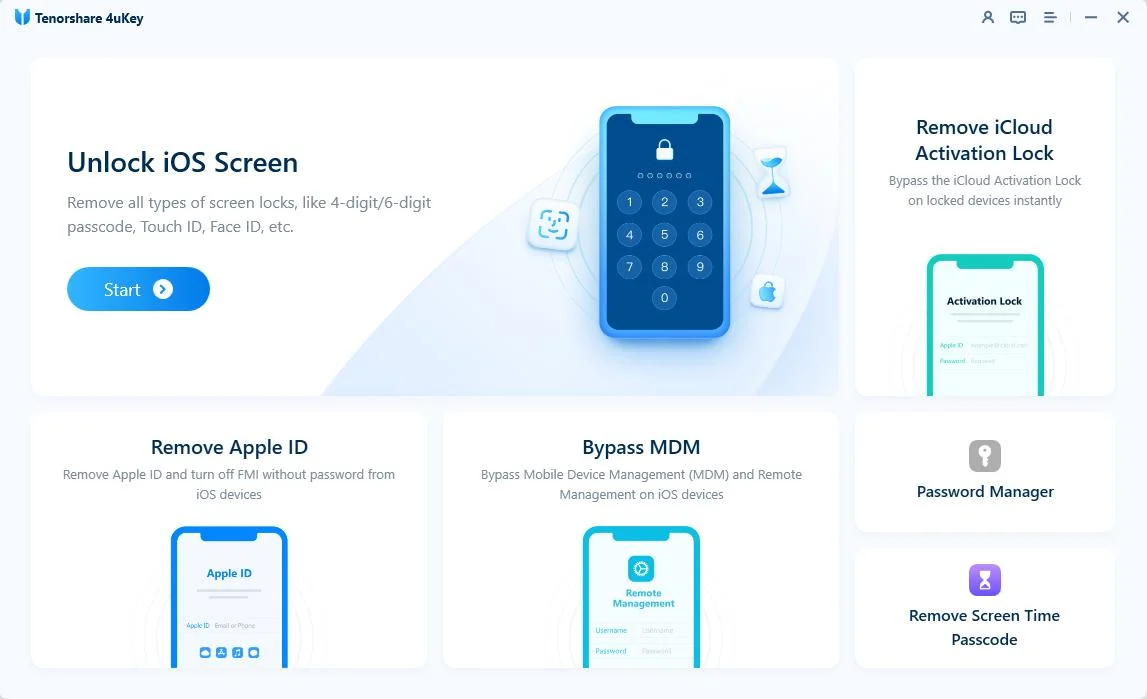
Install 4uKey on your Mac or PC, then open the program. Click "Start" on the main screen.
Step 2: Connect the iPhone to your computer
Plug your iPhone into the computer with a USB cable. The software will detect your device automatically.
If the program does not see your phone, put your device into "Recovery Mode" or "DFU Mode". The screen will show you how to do this.

Step 3: Download the firmware
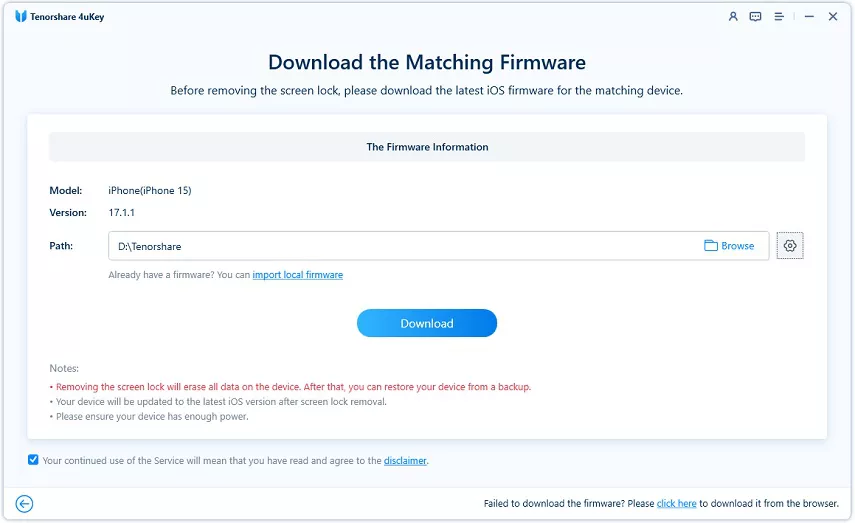
The tool will ask you to download the latest firmware. Pick a folder on your computer with at least 7GB of free space, then click "Download".
Step 4: Start the unlock process
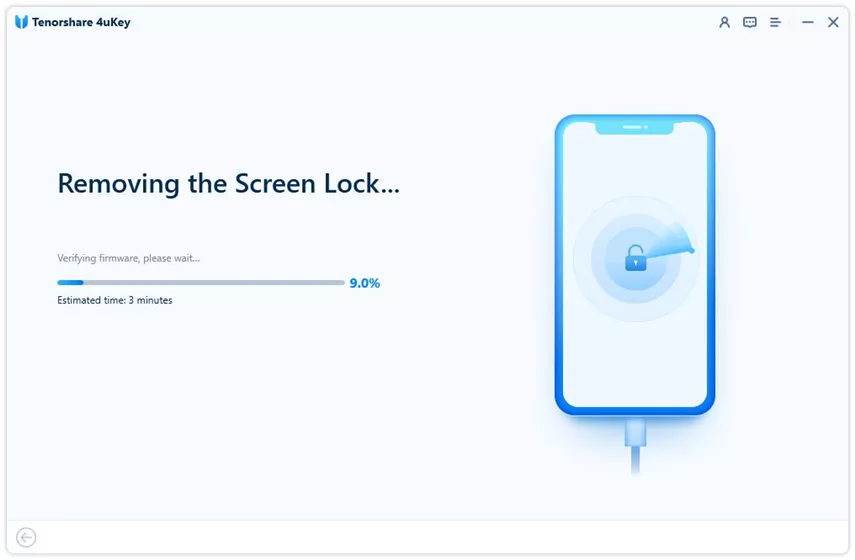
Once the download finishes, the program will start removing your passcode. This takes a few minutes. Make sure to keep your phone connected the entire time.
Step 5: Finish the setup
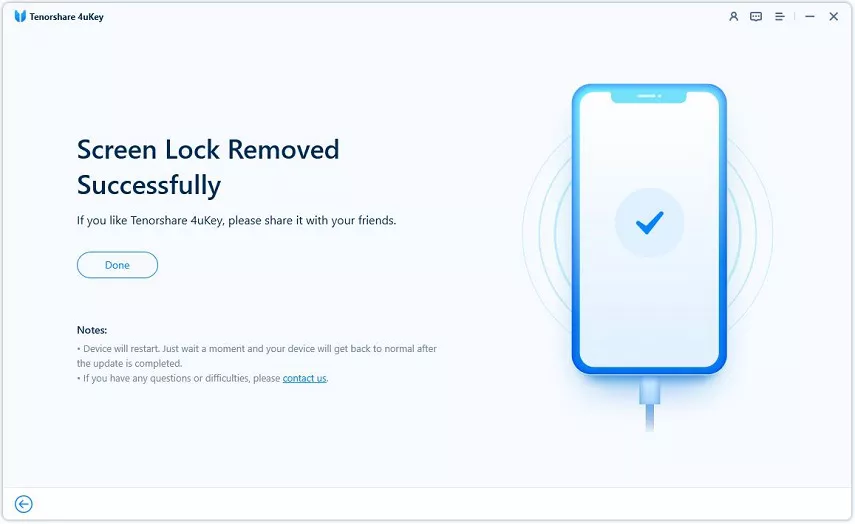
Wait for the process to finish, then check your phone screen. You can now set up your device as new or restore your data from an iTunes or iCloud backup.
Restore via iTunes or Finder (Recovery Mode)

Another official Apple method involves using a computer and a USB cable to restore your device. This path is best for users who regularly sync their iPhone with their computer, though it can sometimes be prone to software errors or timeouts during the firmware download.
- Connect your iPhone to a Mac or PC using a compatible USB cable.
- Put your iPhone into Recovery Mode using the specific button combination for your model.
- Open iTunes or Finder, locate your device, and click Restore when prompted.
- Wait for the computer to download the software and erase the device, removing the passcode.
Erase Device Remotely via iCloud Find My
If you do not have access to a computer, you can use another device to wipe your phone remotely. This method requires the locked iPhone to be connected to Wi-Fi or cellular data, and the Find My feature must already be enabled.
- Open a web browser on another phone or tablet and go to iCloud.com.
- Sign in with the Apple ID and password linked to the locked iPhone.
- Select the Find My option and click on All Devices to locate your phone.
- Choose your locked iPhone from the list and select Erase iPhone to wipe the lock screen and data simultaneously.
Conclusion
Ultimately, attempting to unlock an iPhone via the emergency call screen is an outdated myth that no longer works on modern devices. Apple's improved security means that the dialer glitch is completely patched. If you are locked out, you must erase the device using professional tools like Tenorshare 4uKey or rely on Apple's official restore methods. To prevent permanent data loss in the future, always encourage maintaining regular iCloud or computer backups.
Frequently Asked Questions About iPhone Emergency Call Screen
Q: Does the emergency call trick to unlock iPhone still work on iOS 27?
A: No, the emergency call glitch was patched many years ago. It is impossible to bypass the lock screen using the dialer on iOS 27 or any other modern iOS version.
Q: Will I lose my data when unlocking my iPhone without the passcode?
A: Yes, all official and legitimate methods to remove a forgotten passcode require erasing the device to protect your privacy. You can restore your data afterward if you have a recent backup.
Q: How do I cancel an emergency SOS call if I accidentally triggered it on the lock screen?
A: If you accidentally start an emergency SOS countdown, you can tap the Cancel button or swipe the stop slider on the screen before the call connects to emergency services.

