
The message enter password to unlock 30/30 attempts remaining means your Android phone, often an older LG model, is enforcing a lock-screen attempt limit after repeated wrong PIN, password, or pattern entries. Stop guessing first, check whether you still know the correct Google account or lock-screen password, and avoid draining the remaining attempts unnecessarily.
The main risk is data loss: many recovery paths that remove the lock screen also erase the phone, and a reset may still require the previously synced Google account because of Factory Reset Protection.

What Does 'Enter Password to Unlock 30/30 Attempts Remaining' Mean?
This warning is a security counter. Android uses it to slow or stop repeated password guessing, and some LG phones show it in the format 30/30 attempts remaining. The number may decrease after each wrong entry, and the phone may add waiting periods or block further attempts when the limit is exhausted.
You may see the message after:
- Entering the wrong PIN, password, or pattern several times.
- Restarting a phone that requires the lock-screen password before biometrics can work.
- Using an older LG device with a lockout counter built into its Android version.
- Changing the password recently and forgetting the exact characters, capitalization, or pattern path.
If you still know the password, enter it carefully once. If you are unsure, use account recovery or an official reset path instead of using up all remaining attempts.

How to Fix the LG 30/30 Attempts Remaining Message?
Use the least destructive option that matches your situation. Only perform these recovery actions on a phone you own or are authorized to service.
Before choosing a method, answer these quick checks:
- Do you remember the Google account linked to the phone? Try the Google account option first if the lock screen offers it.
- Is the phone an LG model that a computer can detect? Try LG Bridge before manual erasure.
- Do you need a guided screen-lock removal workflow and accept that data may be erased? Use 4ukey-android after official options are not available.
- Can the phone still connect to the internet and appear in your Google account? Google Find My Device can erase it remotely.
- Are none of the account or computer options working? A hardware-key factory reset is the last resort.
Method 1. Unlock via Google Account on the Lock Screen
This is the safest first route when the locked phone still offers a Forgot pattern, Forgot PIN, or Google account verification option. It is most common on older Android versions and some older LG phones.
Best for: You know the Google account previously synced to the device and the phone displays an account recovery option.
Data impact: If the on-screen recovery option accepts the account and lets you set a new lock, your data may remain intact. If the phone requires a reset instead, local data can be erased.
- Wake the phone and check the lock screen for Forgot pattern, Forgot PIN, Forgot password, or a similar prompt.
- Select the account recovery option and enter the Google account credentials that were already used on that phone.
- Follow the on-screen verification prompts. You may need an internet connection and access to two-step verification.
- If the device allows it, create a new lock-screen PIN, password, or pattern and unlock the phone.
When it fails: Newer Android versions often remove the lock-screen account reset option. It also fails if you do not know the previously synced Google account, the phone is offline, or Google requires additional verification you cannot complete.
Method 2: Use LG Bridge as the LG Official Tool
LG Bridge is worth trying when the locked phone is an LG device and a computer can recognize it. It is an official utility, but it is not a universal screen-lock remover; depending on the model and connection state, it may only support backup, update, restore, or recovery functions.
Best for: LG phones that can connect to a Windows or Mac computer and are detected by LG Bridge.
Requirements: LG Bridge installed from an official LG source, a USB cable, enough battery, and a device model still supported by the software.
Data impact: A software recovery or restore may erase the phone. If USB debugging or prior trust was never enabled, backup access is often unavailable while the phone is locked.
- Install and open LG Bridge on your computer.
- Connect the LG phone with a reliable USB cable and wait for detection.
- Check whether the program offers software update, recovery, restore, or backup options for your model.
- If a recovery or restore option is available, read the data-erasure warning before continuing.
- Let the process finish without disconnecting the phone, then set up the device and sign in with the required Google account if prompted.
When it fails: LG Bridge may not detect a locked device, may not support your model, or may require the phone to be unlocked before backup features work. It also cannot skip Google verification after a reset.
Method 3: Use Tenorshare 4uKey for Android Screen Lock Removal
Use Tenorshare 4uKey for Android when the Google account option is unavailable, LG Bridge cannot detect the phone, or you need a guided computer-based workflow to remove the Android screen lock. Treat it as an advanced alternative after official recovery paths, not as a way to access someone else’s phone.
Best for: An Android or LG phone stuck at the 30/30 attempts screen when you are prepared for a device reset if required.
Requirements: A Windows PC or Mac, a USB cable, sufficient battery, and the correct device brand selection inside the program.
Data impact: Removing the lock screen can erase data. On non-Samsung Android devices, the process may require recovery mode and a factory reset. After erasure, Android may ask for the previously synced Google account.
Important limits: The tool removes the screen lock for supported devices and scenarios; it does not make Factory Reset Protection disappear after a reset if Google account verification is triggered.

Download and install Tenorshare Android Unlocker on your computer. Use 4uKey for Android when you need to access an Android device without the passcode.
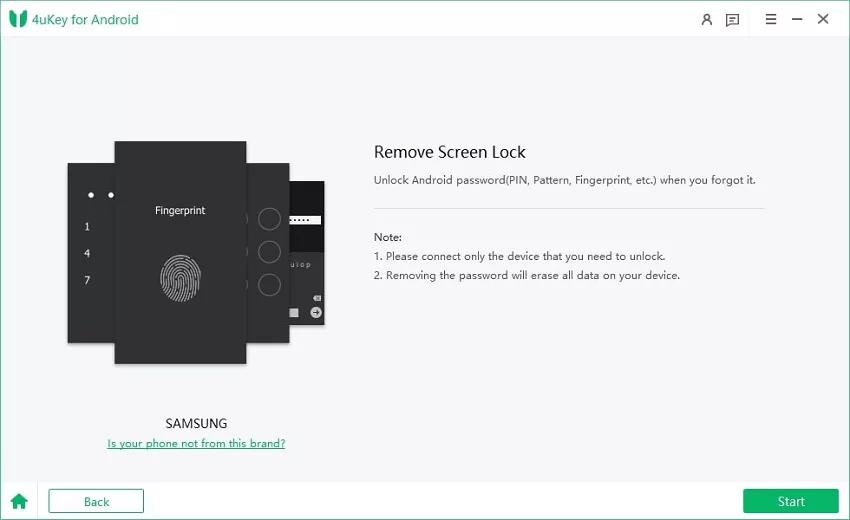
Launch the program and choose the "Remove Screen Lock" feature.

Next, choose the matching device brand to start the unlock process.
Step 1: Choose Remove Screen Lock
For other Samsung models, choose the “Clear device data” option. For non-Samsung Android devices, choose the matching brand and click "Start". The software will detect the device brand automatically. If the brand is wrong, click “Is your phone not from this brand?”, choose the correct brand, and click "Start" again.

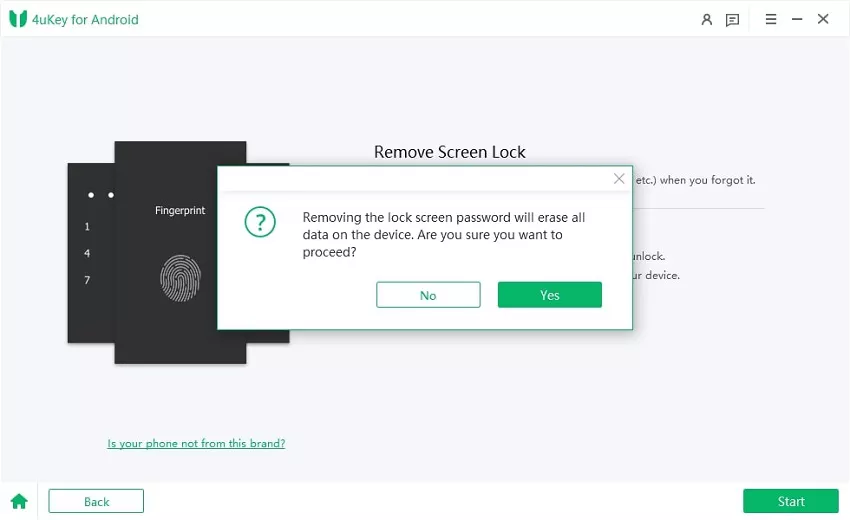
Step 2: Confirm and Remove Lock Screen
Confirm that "Removing the lock screen password will erase all data on the device". If you are sure, click "Yes", and Tenorshare 4uKey for Android will start removing the lock screen automatically.
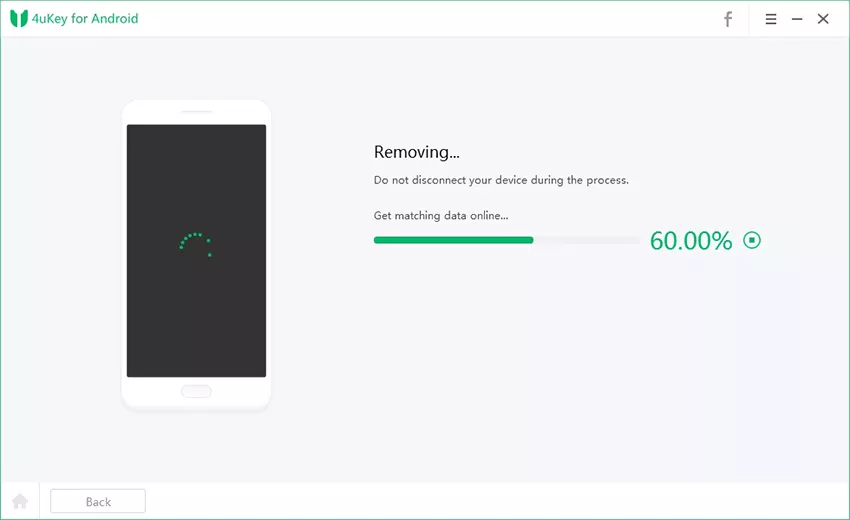
Note: If you are using a Samsung device, the removal process ends here. You do not need to follow the steps below.
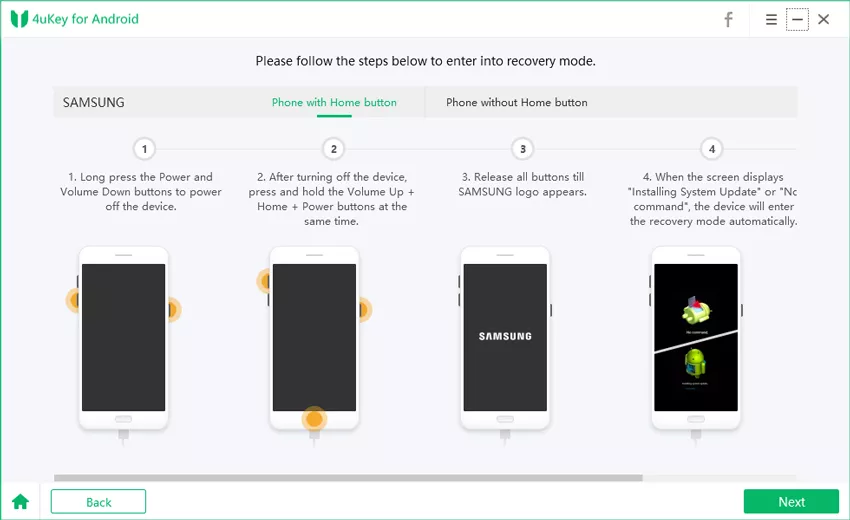
Step 3: Enter Recovery Mode
When the removal process finishes, follow the on-screen instructions to enter recovery mode and perform a factory reset on the Android phone.
Step 4: Check That the Screen Lock Is Removed
Wait for 4uKey for Android to finish removing the lock screen. When the process ends, check the device screen to confirm the result.
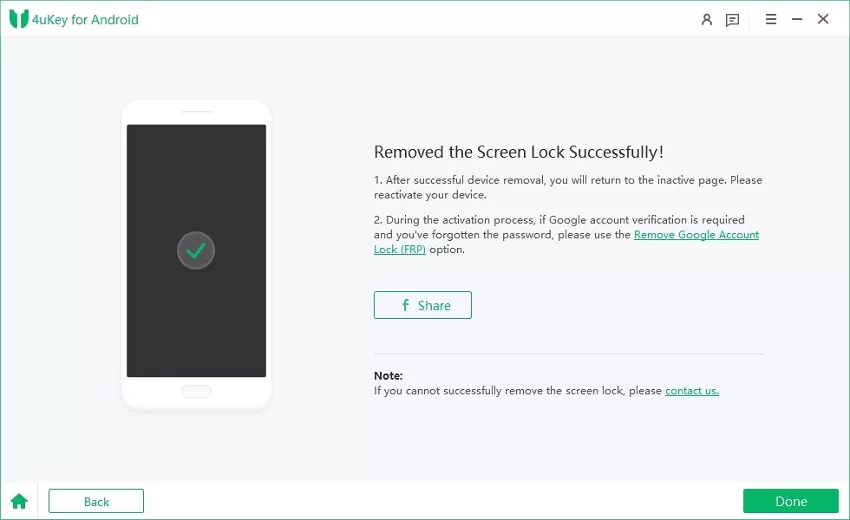
After the process completes, check whether the lock screen has been removed. If the device starts the initial setup screen, connect to Wi-Fi and sign in with the Google account previously used on the phone when Android asks for verification.
When it fails: The device may not be supported, the USB connection may be unstable, or recovery-mode instructions may not match a heavily customized model. Try another cable or port before repeating the operation.
Method 4: Perform Manual Factory Reset with Hardware Keys
A hardware-key factory reset is the last-resort local fix when the phone cannot be unlocked through Google account recovery, LG Bridge, or a guided unlock workflow. It removes the lock by erasing the device and returning it to setup mode.
Best for: You do not need the local data on the phone, and you know the Google account that was synced before the reset.
Data impact: This deletes apps, photos, messages, downloads, and local settings that are not backed up. It does not remove cloud account verification.
- Power off the LG or Android phone.
- Press the model-specific recovery key combination. On many LG phones, this is Power plus Volume Down, but the exact timing can vary.
- When the recovery or factory data reset screen appears, use the volume keys to move through the menu.
- Select Wipe data/factory reset or Factory data reset, then confirm with the power key.
- Restart the phone after the reset finishes and complete setup using the previously synced Google account if Android asks for it.
When it fails: A broken button, low battery, encrypted storage problem, or wrong key combination can prevent recovery mode from opening. If the phone was reset without removing the Google account first, Factory Reset Protection can block setup until the original account is verified.
Method 5: Use Google Find My Device
Google Find My Device can help when the locked phone is online, signed in to your Google account, and visible in the Find My Device dashboard. This method solves the lockout by erasing the phone remotely.
Best for: You can sign in to the same Google account from another device and the locked phone still has internet access.
Data impact: Remote erase deletes local data. Backed-up Google data may be restored during setup, but files stored only on the phone are lost.
- On another phone or computer, open Google Find My Device and sign in with the Google account used on the locked phone.
- Select the locked Android or LG device from the device list.
- Choose the erase option and read Google’s warning about data deletion.
- Confirm the erase request, then set up the phone again after it resets.
When it fails: Find My Device cannot erase a phone that is offline, not linked to the account, already removed from the account, or unable to receive the erase command. After erasure, the phone may still require the previously synced Google account during setup.
Troubleshooting: Common Issues and Fixes
If the 30/30 attempts message does not clear or a method stops halfway, use the symptom to choose the next action.
- The correct password is not accepted: Check capitalization, keyboard language, old passwords, and whether the phone restarted and now requires the full password instead of fingerprint or face unlock.
- No Forgot pattern or Google option appears: Your Android version may not support lock-screen account recovery. Move to LG Bridge, Find My Device, or a reset method.
- LG Bridge does not detect the phone: Try another USB cable, another port, and the original charging cable if available. Install LG drivers from official sources and restart both the phone and computer.
- Recovery mode will not open: Charge the phone for at least 20–30 minutes, power it off fully, and confirm the key combination for your exact LG or Android model.
- Google verification appears after reset: Enter the Google account that was synced before the reset. A normal factory reset does not remove FRP.
- The phone is offline in Find My Device: Keep it powered on and connected to a known Wi-Fi or mobile network if possible. The erase command works only after the device reconnects.
FAQ
What happens if I use all 30 attempts?
The result depends on the Android version and device maker. The phone may add a longer waiting period, keep asking for the correct password, or require an account or reset path. Do not keep guessing if you are unsure, because it rarely improves your options.
Can LG Bridge unlock the phone without deleting data?
Usually not by itself. LG Bridge may help with official recovery or software restore, but a locked phone often cannot be backed up unless it was already trusted or unlocked. Any restore or recovery option can erase data.
Does a factory reset remove the Google account verification?
No. A factory reset removes the screen lock and local data, but Factory Reset Protection may ask for the Google account previously synced to the phone. Use account recovery or contact the previous owner or official support if you cannot verify it.
Why do older LG phones show the 30/30 attempts message?
Some LG Android builds used a visible attempt counter as part of lock-screen security. It is designed to discourage repeated guessing and may appear after several wrong PIN, password, or pattern entries.
Can 4ukey-android fix the 30/30 attempts lockout?
It can help remove supported Android screen locks when official options are unavailable, but the process may erase data and does not replace the need for the previously synced Google account if FRP appears after a reset.
Final Thought
The enter password to unlock 30/30 attempts remaining screen is recoverable, but the best method depends on what access you still have. Try Google account recovery first if the phone offers it, use LG Bridge when an LG device is detected, consider a guided unlock tool only when official routes are not practical, and use manual or remote erase methods when you accept data loss and can verify the original Google account afterward.

