
Forgetting your screen lock can leave you completely locked out of your device, prompting many to search for an iPhone passcode cracker to regain access. Apple designs its security to prevent brute-force entry, meaning there is no way to bypass a forgotten passcode without erasing the local data. If you are facing a Security Lockout or an Unavailable screen, your first safe action is to use official erase options to reset the device.
Knowing which recovery path to choose depends on your current iOS version, whether you have a computer, and if you know your Apple ID credentials.

Why Do People Look for an iPhone Passcode Cracker?
Apple encrypts your local data and ties device access directly to your passcode. After several incorrect attempts, the system disables the hardware to protect against unauthorized access. Because the code cannot be extracted or bypassed while keeping data intact, you must erase the device to set up a new lock. You might find yourself needing a reset solution in these situations:
- You changed your passcode recently and forgot the new sequence.
- A child or friend entered the wrong code too many times, triggering a permanent lockout.
- You purchased a secondhand device that arrived with the previous owner's screen lock still active.
- The device screen is damaged, causing ghost touches that enter incorrect PINs automatically.
iPhone Passcode Cracker: The Risks You Should Know
Using an iPhone passcode cracker can put your device and personal data at serious risk, including permanent data loss, identity theft, malware infections, and even a bricked iPhone. Whether you are trying to regain access to your own device or someone else is attempting to bypass its security, passcode-cracking tools can interfere with key iOS security protections and may leave your data or device vulnerable.
Attention note:
You should only attempt a passcode removal or device reset on an iPhone you legally own. Never try to unlock found, stolen, or borrowed devices without explicit permission. If you need hardware service or Activation Lock removal from Apple after a reset, you must provide concrete proof of ownership.
5 Safe Alternatives to iPhone Passcode Cracker That Actually Work
Depending on your current iOS version and whether you have access to a computer, different reset paths are available. Review these methods to determine which approach fits your lockout situation.
Method 1: Erase iPhone via the Lock Screen
If your device runs iOS 15.2 or later and is connected to a cellular or Wi-Fi network, you can erase it directly from the Security Lockout screen. This is the fastest official method and does not require a computer.
- Enter the wrong passcode repeatedly until the Erase iPhone or Forgot Passcode option appears on the screen.
- Tap the erase option and confirm that you want to wipe the device.
- Enter your Apple ID password to sign out of your account.
- Wait for the device to restart, then set it up as new or restore a backup.
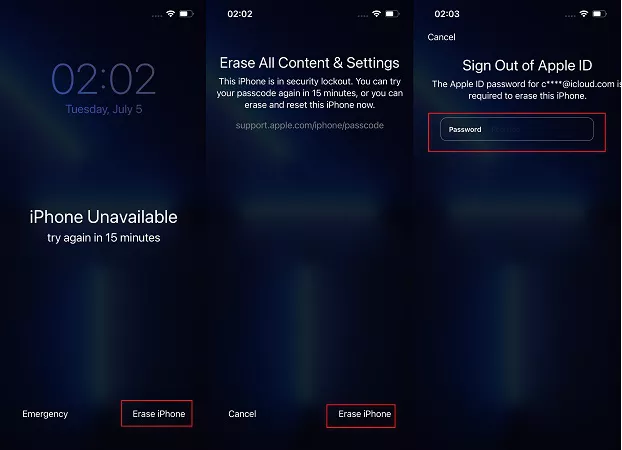
This method requires an active internet connection and your Apple ID password. If the device is offline, the erase option will not work.
Best for
- Devices running iOS 15.2 or newer
- Users who know their Apple ID password
- Situations where no computer is available
Not best for
- Devices disconnected from Wi-Fi or cellular data
- Users who forgot their Apple ID password
- Older iPhones running iOS 15.1 or below
Method 2: Restore with iTunes or Finder via Recovery Mode
For devices that are offline or running older iOS versions, placing the iPhone into Recovery Mode allows a computer to erase the passcode. This is Apple's standard fallback procedure.
- Turn off your iPhone completely.
- Connect the device to a Mac or PC while holding the correct Recovery Mode button (Side button for iPhone 8 and newer, Volume Down for iPhone 7, Home button for iPhone 6s and older).
- Keep holding the button until the Recovery Mode screen appears.
- Open iTunes or Finder, locate your device, and click Restore when prompted.

The computer will download the latest iOS software and wipe the device. If the download takes longer than 15 minutes, the phone will exit Recovery Mode, and you will need to repeat the button sequence.
Best for
- Offline devices that cannot use the lock screen erase
- Users with access to a trusted Mac or PC
- Older iOS versions
Not best for
- Computers with very slow internet connections
- Users with broken physical buttons on their device
Method 3: Remote Erase Using iCloud Find Devices
If Find My is enabled on the locked iPhone, you can trigger a remote wipe from any web browser or another Apple device. This acts as a wireless reset by sending an erase command to the locked phone.
- Go to iCloud.com on a computer or another smartphone and sign in with your Apple ID.
- Navigate to the Find Devices section.
- Select your locked iPhone from the list of devices tied to your account.
- Click Erase This Device and follow the prompts to confirm the remote wipe.

Once the locked iPhone connects to the internet, it will receive the command, erase all data, and remove the passcode.
Best for
- Phones that are currently connected to the internet
- Users who have access to another device or browser
- Devices with Find My already turned on
Not best for
- iPhones in Airplane mode or without a network connection
- Devices where Find My was previously disabled
Method 4: Use Genuine iPhone Passcode Unlocker
When iTunes fails to recognize your device, physical buttons are broken, or you cannot trigger a remote erase, a professional unlock software like Tenorshare 4uKey can serve as an alternative. It automates the firmware download and erase process to help you regain access to a locked device you legally own.
We strongly advise against using cracked 4uKey versions. For the safety of your data, please download the genuine one from our official website. And if the price feels a bit high, keep an eye on the site—we run promotions regularly.
What Tenorshare 4uKey Can Handle
- Supports multiple passcode types, Touch ID, and Face ID-related lockout scenarios.
- Removes the Screen Time passcode without data loss in supported situations.
- Compatible with both Windows and Mac computers.
- Turns off Find My iPhone without an Apple ID in specific eligible scenarios.
Step 1: Download and install 4uKey.
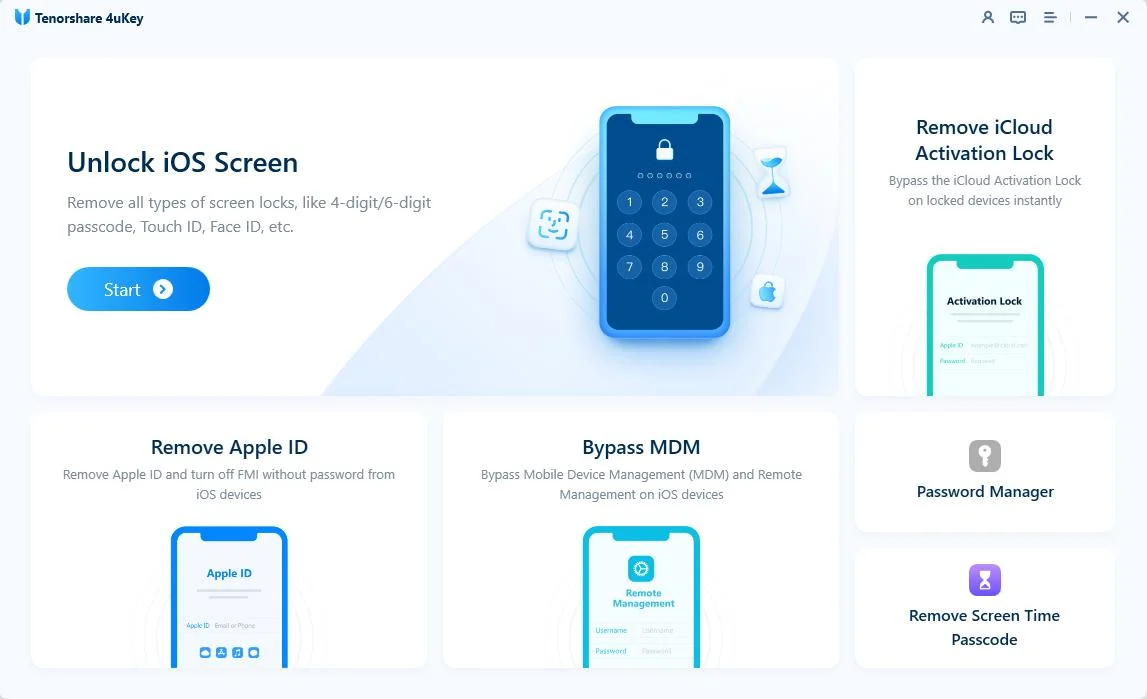
Download and install 4uKey on your PC or Mac. Open the program and click "Start" to begin unlocking your screen.
Step 2: Connect your iPhone to the computer.
Plug your iPhone into the computer with a USB cable. The software detects the phone once it connects.
If the program does not see your phone, follow the on-screen instructions. You need to put your device into "Recovery Mode" or "DFU Mode" so the computer can read it.

Step 3: Download the firmware package.
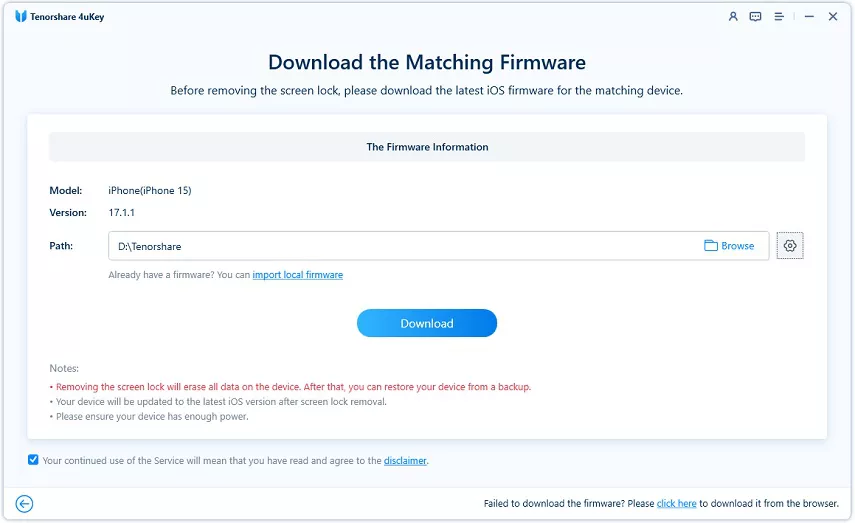
The program asks you to download the latest firmware. Choose where to save the file and click "Download". Check that your computer has at least 7 GB of free space before starting.
Step 4: Unlock the iPhone screen.
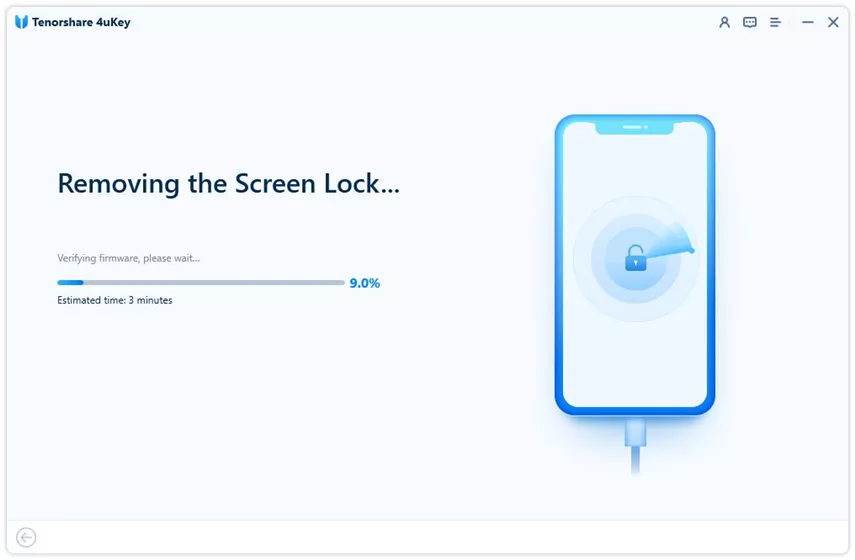
Once the download finishes, 4uKey begins removing the passcode. This takes a few minutes. Keep your phone plugged in so you do not interrupt the process.
Step 5: Finish the passcode removal.
Wait for the tool to finish, then check the setup screen on your phone. You can set up the device as new and add a fresh passcode, Touch ID, or Face ID. If you have an iTunes or iCloud backup, you can restore your saved data during this step.
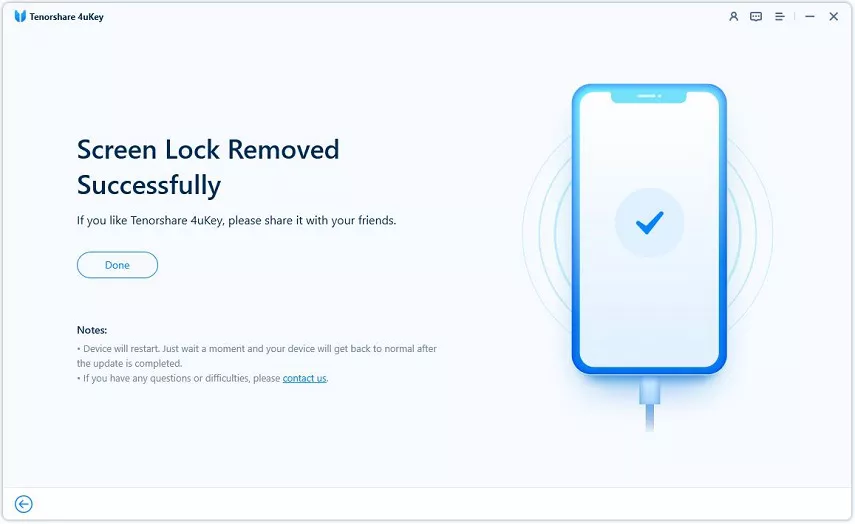
While this tool streamlines the reset process, it still erases local data just like official methods. You will need your Apple ID to bypass Activation Lock after the reset finishes.
Best for
- Devices that iTunes or Finder fails to recognize
- iPhones with broken buttons that cannot enter Recovery Mode
- Users who need a guided, automated reset process
Not best for
- Users looking to bypass Activation Lock on a stolen device
- Situations where preserving local data is required
Method 5: Contact Apple Support for Activation Lock Removal
If you successfully erase the passcode but find yourself stuck on the Activation Lock screen because you forgot the Apple ID credentials, you will need Apple's help. Apple can remove the activation lock if you can prove you own the hardware.
- Locate your original proof of purchase, ensuring it shows the device serial number or IMEI.
- Visit the official Apple Support website and navigate to the Activation Lock support page.
- Submit an Activation Lock support request and upload your documentation.
- Wait for Apple to review your case, which can take several days.
Apple will wipe the device entirely during this process. If your request is denied due to insufficient proof, the device will remain locked to the original account.
Best for
- Original owners who forgot their Apple ID and password
- Users with a valid, original retail receipt
Not best for
- Secondhand buyers without original documentation
- Users who need immediate access to their phone
Choosing the Right Path to Recover Your Locked iPhone
Regaining access to a locked device requires erasing the current data to remove the passcode. Start with the easiest official paths: use the lock screen erase feature if your device runs iOS 15.2 or newer, or trigger a remote wipe via iCloud if Find My is active. If those built-in options fail due to network issues or broken buttons, Recovery Mode via iTunes or a dedicated desktop tool can force the reset.
Always ensure you have your Apple ID credentials ready, as you will need them to clear Activation Lock after the passcode is removed.
FAQ
Q: Is it possible to crack an iPhone code?
A: Modern iOS security prevents brute-forcing or cracking the passcode without erasing the device. To remove a forgotten code, you must wipe the phone entirely using official reset methods or desktop software, which destroys the local data.
Q: Will erasing the passcode remove the Activation Lock?
A: No, erasing the lock screen passcode does not remove Activation Lock. After the reset, you must enter the original Apple ID and password, or contact the previous owner to remove the device from their account.
Q: Can I save my photos if I forgot the passcode?
A: If you do not already have a backup in iCloud or iTunes, you cannot save your photos once locked out. The reset process required to remove the passcode will permanently delete all unsaved local data.
Q: What if iTunes does not recognize my disabled iPhone?
A: If iTunes fails to detect the device, ensure your cable is working and try manually entering Recovery Mode. If that still fails, third-party tools like Tenorshare 4uKey can sometimes detect devices that standard software misses.

